
FluentCart 1.8.0 – Dynamic Pricing that follows your conditions
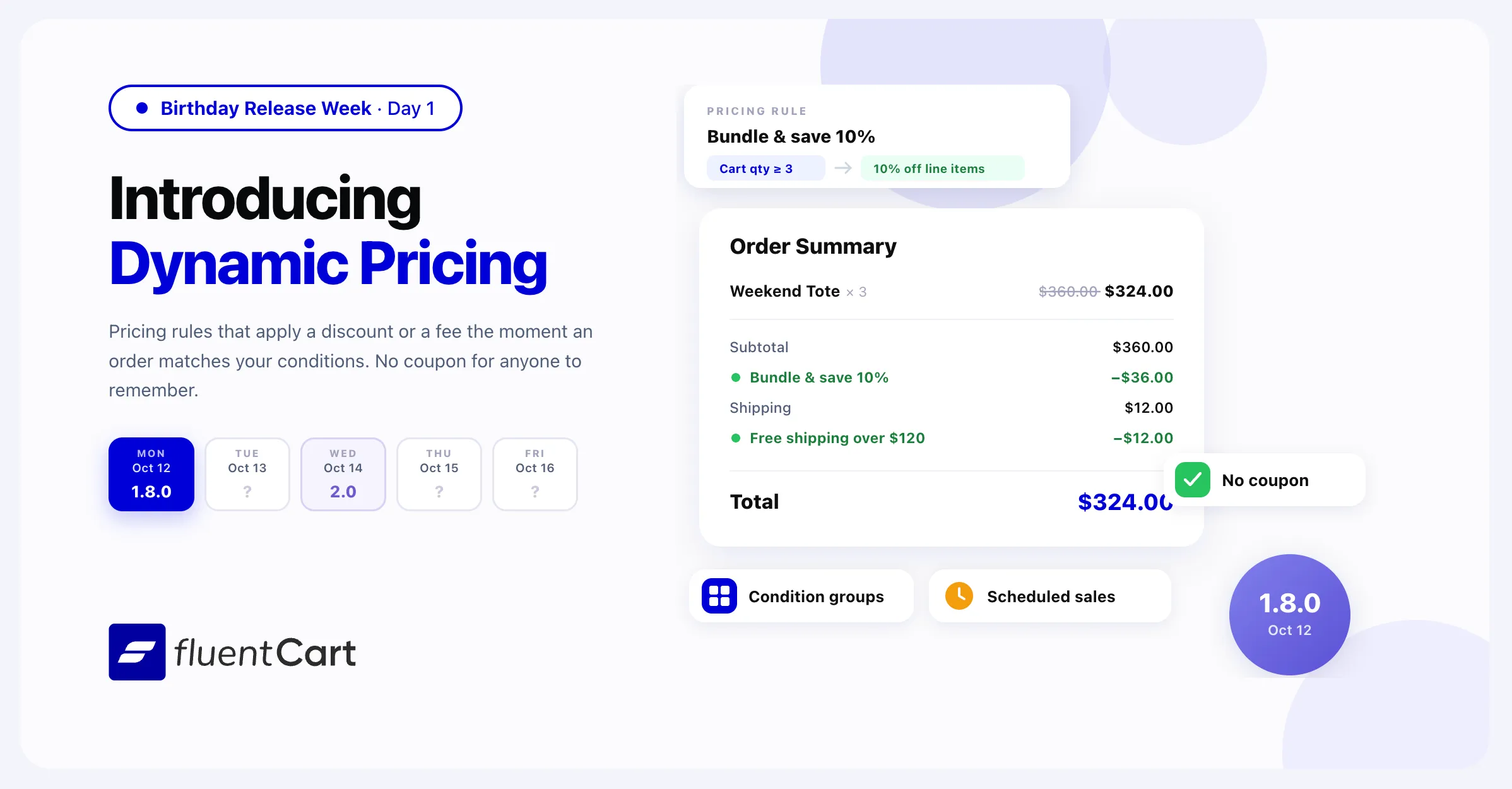
Until now a FluentCart store had one way to lower a price: a coupon. Everything a store actually wants to happen on its own, like ten percent off when someone buys three, free shipping once the cart passes $120, or ten dollars off a first order, still waited on a customer having a coupon to apply. FluentCart 1.8.0 adds Dynamic Pricing to FluentCart Pro: rules that watch the cart and the customer, and apply a discount or a fee the moment an order matches your conditions.
It is a feature-led release with one subject: prices that answer to the cart and the customer, with nothing for anyone to remember. Review sections also learn to draw from more than one product, and the fixes reach shipping tax at checkout, Paddle subscription records, VAT in e-invoices, and licenses after a refund.
Checkout applies your offers when the cart qualifies
A pricing rule is a standing instruction rather than a coupon. You describe the offer once, and Dynamic Pricing applies it whenever an order meets the terms you set. The shopper enters nothing and sees the result in the checkout summary.
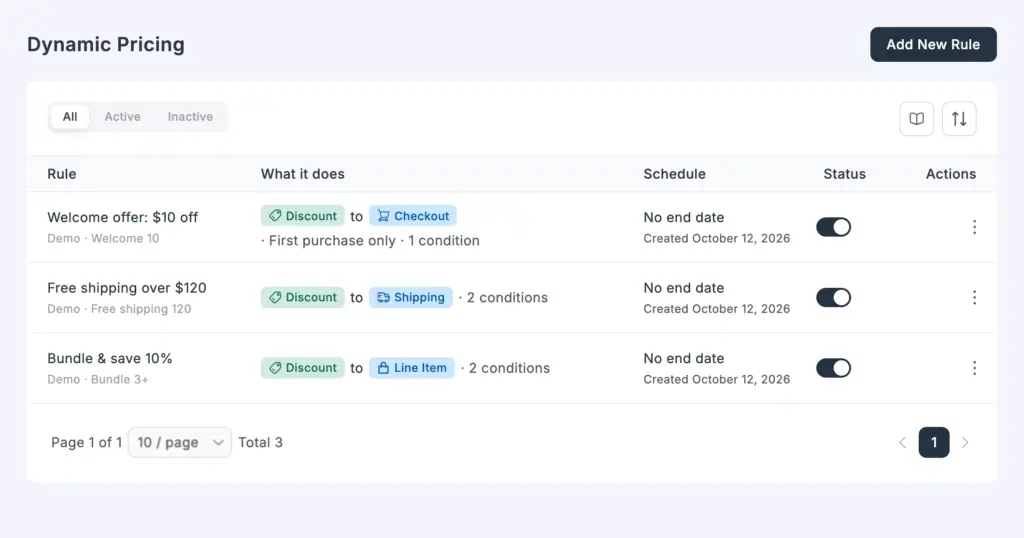
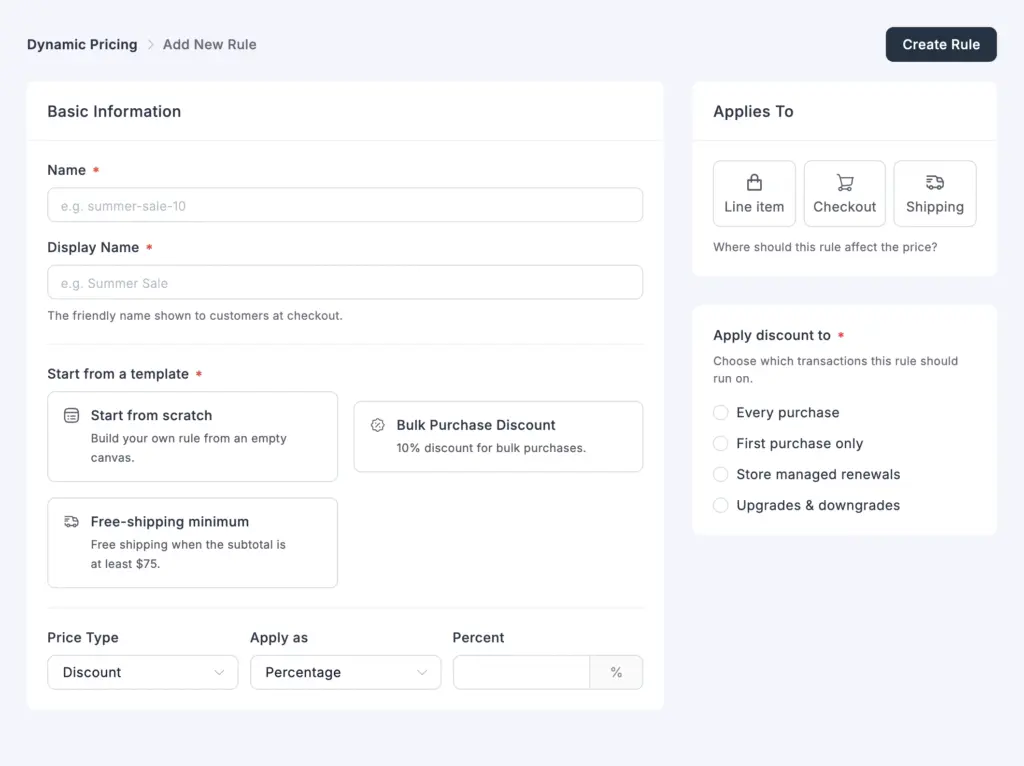
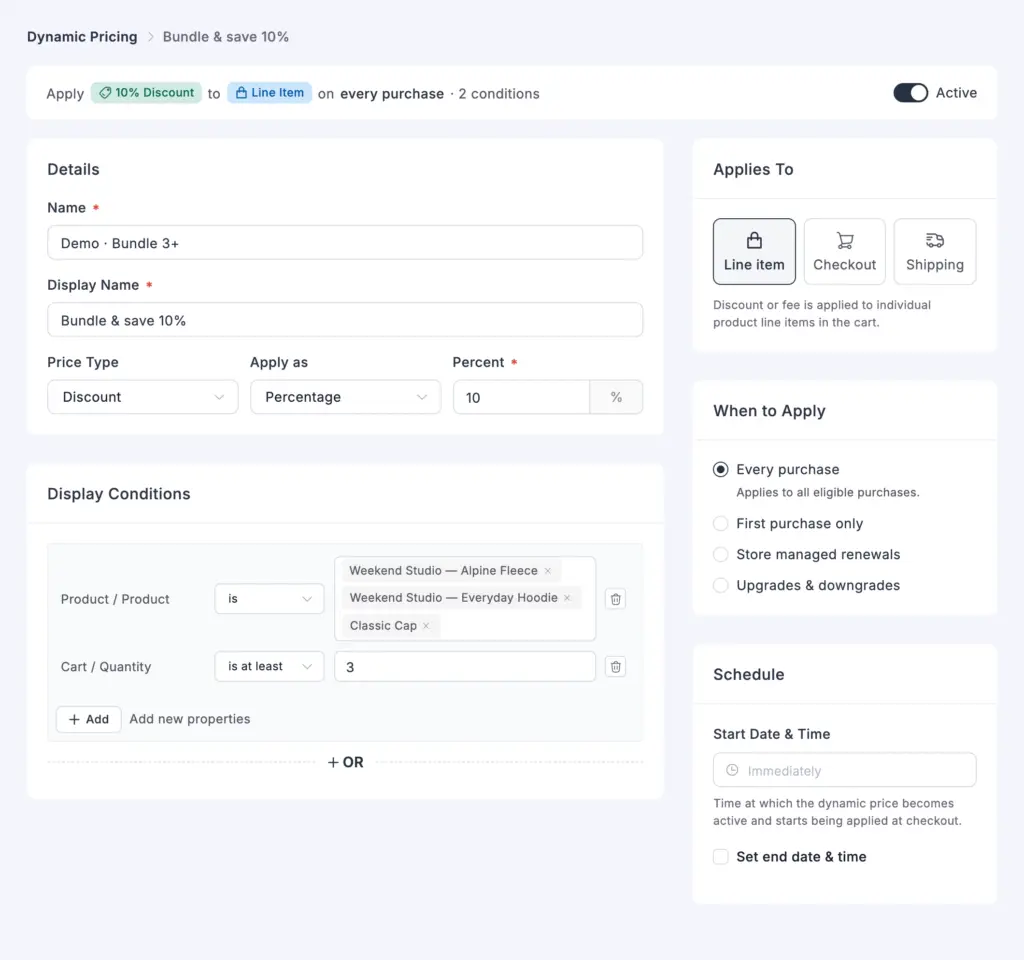
Every rule is built from three choices. It is a Discount or a Fee. It is a Percentage or a Fixed amount. And under Applies To, it lands on one of three places:
- Line item changes the price of each item in the cart.
- Checkout takes the amount off the order total, once.
- Shipping changes the shipping cost.
One more field matters to the shopper. The Display Name is the label they see in the checkout summary, so give it a name that reads as an offer.
If you would rather not start from an empty form, two templates fill the fields in for you: Bulk Purchase Discount and Free-shipping minimum.
Conditions decide which orders a rule changes
Display Conditions decide when a rule applies. A condition can check:
- The cart. Its quantity or its subtotal.
- The customer. The account itself, or how many times they have bought before.
- The product. The product, its name, or its SKU.
- The coupon applied to the order.
- The user role.
- The payment method chosen at checkout.
- Checkout fields. Basic info, business details, billing address, and shipping address.
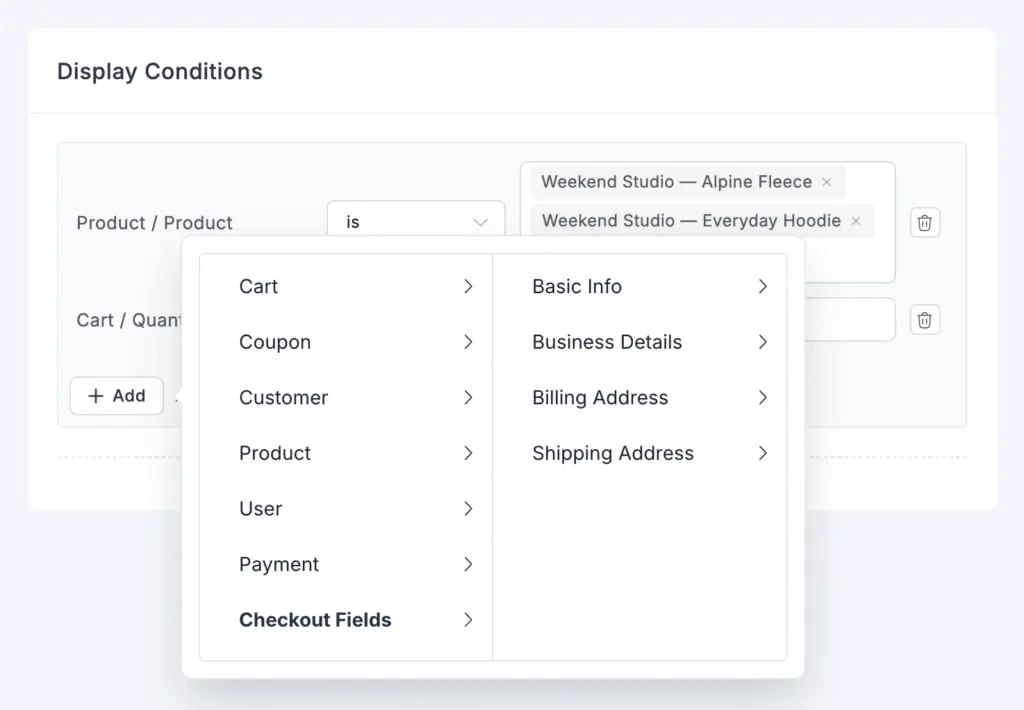
The logic is worth pausing on, because it is what lets one rule do the work of several. Every condition inside a group has to match for that group to pass. Adding an OR group gives the rule a second, independent set of terms.
One exception catches people out. A single Product condition listing several products passes when the cart holds any one of them. So to require a full bundle, add a separate Product condition for each item instead of listing them together. Dynamic Pricing Display Conditions in the FluentCart docs lists each condition and its operators.
For developers. Custom conditions can be registered through a filter hook, and they appear in the Display Conditions picker alongside the built-in ones.
Rules that know where the customer already is
Conditions describe the cart. Apply discount to describes the customer’s history with you, and it decides which orders a rule runs on at all:
- Every purchase
- First purchase only
- Store managed renewals
- Upgrades & downgrades
The edit screen shows the same choice under When to Apply.
For a store selling subscriptions, this is the part that matters most, because it turns a discount system into a retention tool. You can set a welcome price for someone who has never bought. You can hold a rate for a long-running subscriber. And you can put an offer in front of a customer at the moment they are weighing whether to move plans.
A few specifics are worth knowing before you build one. First purchase only counts paid orders, and for a guest, FluentCart looks up the checkout email.
Renewal rules discount the renewal invoices your store issues. They cannot add a fee or discount shipping, and they do not change renewals that Stripe, PayPal, or Paddle bill on their own schedule.
A start date and an end date run a sale for a set period, and the Active switch turns a rule off without deleting it.
Offers you can set up with one pricing rule
Each example below is one pricing rule. Conditions check the whole cart. When a Line item rule matches, it takes its discount off every line in the cart, not only the product a condition names.
- Role-based pricing. Under User, pick Role, set is, and choose Wholesale or another role on your site. Set a 15% Discount on Line item. Shoppers signed in with that role see the lower price at checkout. The rule does not change the price for other shoppers.
- Bulk discounts. Under Cart, pick Quantity and set is at least 5. Set a 10% Discount on Line item. The Bulk Purchase Discount template fills in these settings.
- Free shipping over an amount. Under Cart, pick Subtotal and set is at least $75. Set a 100% Discount on Shipping.
- Small order fee. Under Cart, pick Subtotal and set is less than $20. Set a Fixed Fee of $3 on Checkout.
- Welcome offer. Under Apply discount to, pick First purchase only. Set a Fixed Discount of $10 on Checkout. Customers with no paid orders yet get up to $10 off.
- Loyalty reward. Under Customer, pick Purchase Count and set is at least 5. Set a 5% Discount on Checkout. The count includes paid orders only.
- Pricing for chosen customers. Under Customer, pick Customer, set is, and choose the accounts. Set a 10% Discount on Checkout.
- Payment method fees and discounts. Under Payment, pick Payment Method, set is, and choose a method. Set a Fixed Fee on Checkout to cover the processing cost of that method. For a method with lower fees, set a Discount instead.
- Product bundles. Under Product, pick Product and choose the first product of the bundle. In the same group, add one more Product condition for each other product. The cart must then hold every product of the bundle. Set a 10% Discount on Line item. The discount comes off every line in the cart, including products outside the bundle.
- Coupon bonus. Under Coupon, pick Coupon Name and set starts with VIP. Set a Fixed Discount of $5 on Checkout. When an applied coupon code starts with VIP, the order gets one extra $5 discount on top of the coupon.
- Local delivery offers. Under Checkout Fields, open Shipping Address, pick Post Code, and set starts with the area code you deliver to. Set a 50% Discount on Shipping.
- Renewal discounts. Under Apply discount to, pick Store managed renewals. Set a 10% Discount on Checkout. FluentCart takes it off the renewal invoices your store issues.
- Upgrade offers. Under Apply discount to, pick Upgrades & downgrades. Set a 10% Discount on Checkout. The discount applies when a customer moves a subscription to another plan.
- Time-limited sales. Build the rule as usual. Under Schedule, set the Start Date & Time, select Set end date & time, and set the End Date & Time. The rule runs only between those two times.
Shoppers see each discount by name
A discount nobody notices builds no goodwill. Each discount shows as its own line in the checkout summary, under its display name. The customer reads “Bundle & save 10%” rather than an unexplained drop in the total. Discounted items show the original price struck through at checkout, on the thank-you page, and again in order emails.
When several rules match, each one applies in turn, and the discounts add to any coupon already applied. Together they never take more than the item price or the shipping cost. A rule that finds nothing left to discount shows no line at all.
To decide who on your team can see or change pricing rules, use the new View Dynamic Pricing and Manage Dynamic Pricing permissions.
Review sections can show reviews from the whole store
In 1.7.0, a review section showed the reviews of one product. A home page, a category landing page, or a testimonials page needs reviews from more than one. This works on free FluentCart.
The Product Reviews, Review List, and Rating Summary with Review blocks now have a Show reviews from setting. Its options are Current product, Selected products, and All products. Selected products opens a picker for up to 100 products.
With several products, the rating summary combines their reviews into one average and one star breakdown. A review belongs to one product, so the Write a Review button and the review form stay hidden in that section. The block editor removes those two blocks when you switch to several products, and puts the button back when you switch to one product again.
The reviews shortcode gets the same choice. Add scope="all" to for approved reviews from every published product that takes reviews.
To narrow that list, keep scope="all" and add either product_ids for chosen products or categories for product categories. A category matches the products assigned to it directly, so its subcategories do not count.
Fixes & Stability
Checkout and subscriptions. Orders from signed-in customers whose saved billing address filled the checkout no longer miss the shipping tax. On Pro, a Paddle subscription resync no longer records a payment method change as a renewal order. On Pro, licenses that a refund turned off stay off after a later subscription update.
E-invoices and PDF receipts. On Pro, the ZUGFeRD e-invoice data no longer counts VAT twice on orders with tax-inclusive prices. The seller line in the PDF Receipt Addresses block now shows your Seller VAT ID.
Security and maintenance. This release includes ongoing security audits and routine hardening across FluentCart core and FluentCart Pro, including the new Dynamic Pricing screens.
Getting 1.8.0
Update FluentCart and FluentCart Pro from your dashboard.
To use Dynamic Pricing, activate FluentCart Pro, then:
- Go to Settings → Features & addon, turn on Dynamic Pricing, and click Save Settings.
- In the FluentCart menu, open More → Dynamic Pricing.
- Click Add New Rule.
Without Pro, the Dynamic Pricing page shows Upgrade to Pro. For every setting and more rule recipes, read Dynamic Pricing in the FluentCart docs.
To show reviews from several products, select a Product Reviews, Review List, or Rating Summary with Review block. Under Show reviews from, pick Selected products or All products.
Full Changelog
Features
- Adds Dynamic Pricing, with rules that add a discount or a fee at checkout when your conditions match. Pro only.
- Adds percentage and fixed pricing rules for line items, the checkout total, or shipping. Pro only.
- Adds pricing rule conditions for cart quantity, subtotal, coupons, purchase count, products, SKUs, user roles, payment methods, and checkout fields. Pro only.
- Adds condition groups for pricing rules, so a rule applies when every condition in any one group matches. Pro only.
- Adds start and end dates for pricing rules. Pro only.
- Adds pricing rules for first purchases, store-managed renewals, and subscription upgrades and downgrades. Pro only.
- Adds Bulk Purchase Discount and Free-shipping minimum templates for new pricing rules. Pro only.
- Adds each pricing rule discount to the checkout summary under its display name. Pro only.
- Adds struck-through original prices for items a pricing rule discounts, at checkout, on the thank-you page, and in order emails. Pro only.
- Adds View Dynamic Pricing and Manage Dynamic Pricing permissions. Pro only.
- Adds a filter hook for registering custom Dynamic Pricing conditions, shown in the Display Conditions picker alongside the built-in ones. Pro only.
- Adds a Show reviews from setting, with Current product, Selected products, and All products, to the Product Reviews, Review List, and Rating Summary with Review blocks.
- Adds
scope,product_ids, andcategoriesattributes tofor reviews from all products, chosen products, or categories. - Adds a combined rating summary when reviews come from several products.
Fixes
- Fixes missing shipping tax on orders from signed-in customers whose saved billing address filled the checkout.
- Fixes a Paddle subscription resync recording a payment method change as a renewal order. Pro only.
- Fixes ZUGFeRD e-invoice data counting VAT twice on orders with tax-inclusive prices. Pro only.
- Fixes the seller line in the PDF Receipt Addresses block, which now shows your Seller VAT ID. Pro only.
- Fixes licenses that a refund turned off turning back on after a later subscription update. Pro only.
Thanks to patchstack for the security report.
In case you missed
1.7.1, Oct 8, 2026
- Adds Airwallex payments through the new Airwallex for FluentCart add-on. Pro only.
- Adds six review modules to Divi: Product Reviews, Product Review List, Rating Summary with Review, Review Form, Product Rating, and Write a Review.
- Adds six review elements to Bricks: Product Reviews, Review List, Rating Summary, Review Form, Write a Review, and Product Rating.
- Adds Border radius controls in Customize for storefront cards, buttons, and form fields.
- Adds a Brand name setting for PayPal, shown on the PayPal checkout instead of your business name.
Elementor Blocks 1.1.0, Oct 1, 2026
- Adds six Product Review widgets: Product Reviews, Product Review List, Review Summary, Review Form, Write a Review Button, and Product Rating.
- Adds a Layout Preset picker that shows the eleven review layouts as preview cards, with Classic free and the other ten in Pro.
- Adds Grid, Masonry, and Slider review views with up to six columns. Pro only.
- Adds control over each part of a review card, with fields you can reorder or hide.
- Adds Rating as a shop card element, and adds it to the bundled Shop template.
1.7.0, Sep 29, 2026
- Adds Product Reviews with star ratings on the product page.
- Adds Review settings under Store Settings: who may review, auto-approve, the verified purchase badge, star rating on or off and required, reviews per page.
- Adds Review moderation screen in the admin, with a reply from the store on each review.
- Adds My Reviews in the customer dashboard, with the reviews written so far, each one editable.
- Adds Review your order page, on a page the store chooses, reached by a link tied to the order, with every item on it reviewable.

I’m Jewel, founder of FluentCart and CEO at WPManageNinja, the team behind Fluent Forms, Fluent CRM, Fluent Support, FluentLogs and a handful of other WordPress plugins. I have been writing WordPress code since 2009 and still think of myself as a developer first and an entrepreneur second. Most of what I write on this blog comes from arguments we have had inside the team about how to build software people can actually depend on.

Subscribe now
Related Articles and Topics
-
FluentCart 1.7.1 – Airwallex payments and builder reviews
FluentCart 1.7.1 adds Airwallex as a payment method through a new add-on, Airwallex for FluentCart. Airwallex subscriptions, refunds,…
-
Elementor Blocks for FluentCart 1.1.0 – reviews, placed in Elementor
Elementor Blocks for FluentCart 1.1.0 adds six product review widgets, eleven review layouts, ratings on shop cards, and…
-
FluentCart 1.7.0 – reviews, built in
A product page carries two voices: the store’s, and the customers who already bought. Until now a FluentCart…



Add your first comment to this post