
Set up today.
Sell by tomorrow.
Install FluentCart. Add your products. Take your first order. That’s the whole journey, and this page walks every step of it.
Limited Time Exclusive offer
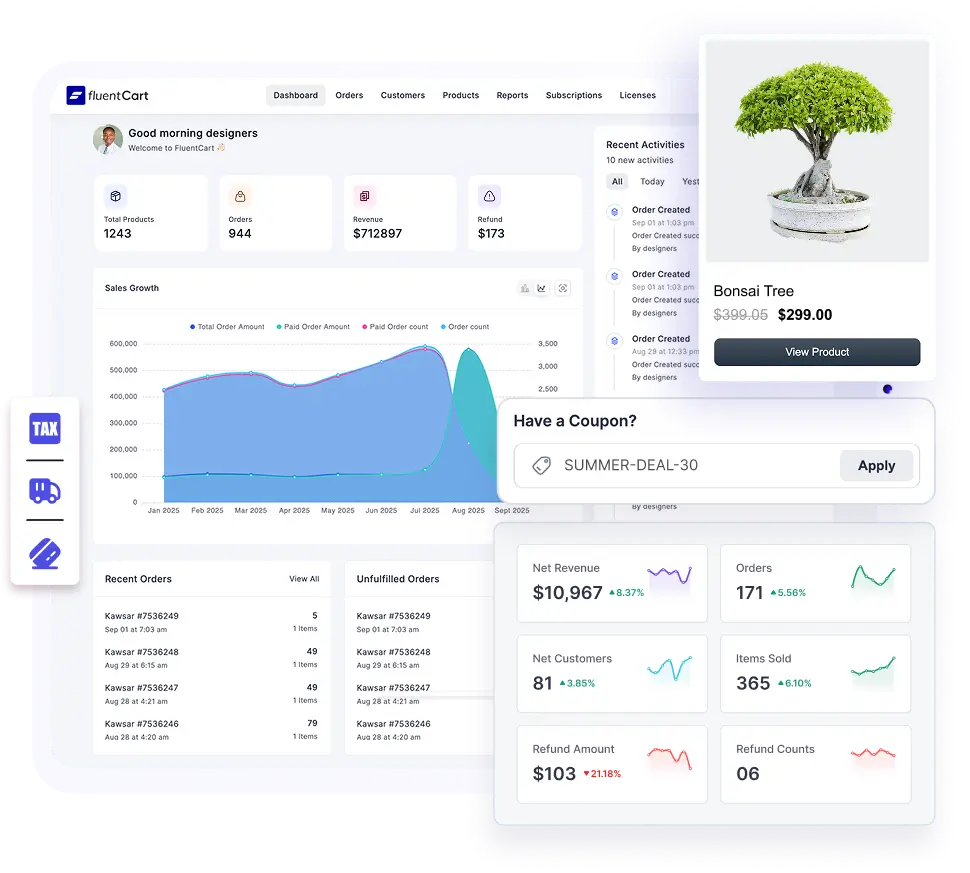
FluentCart comes in two parts: a free core plugin that covers everything you need to start, and a Pro version for licensing, EU VAT, and advanced features.
Free plugin, from WordPress.org WordPress Dashboard then;
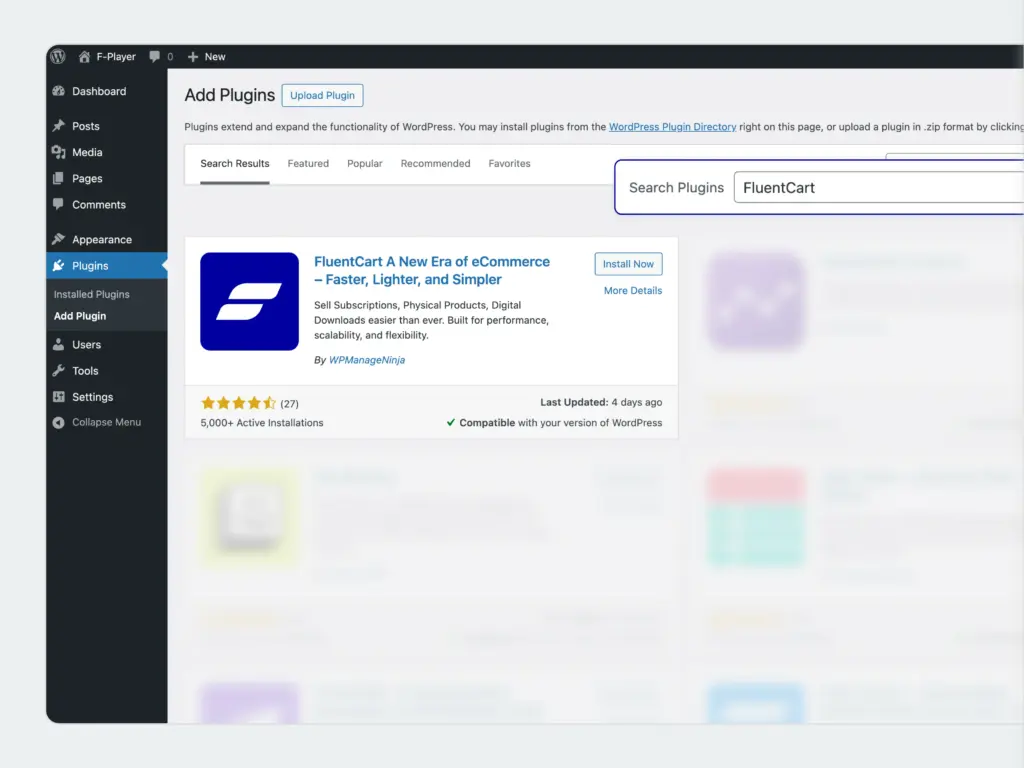
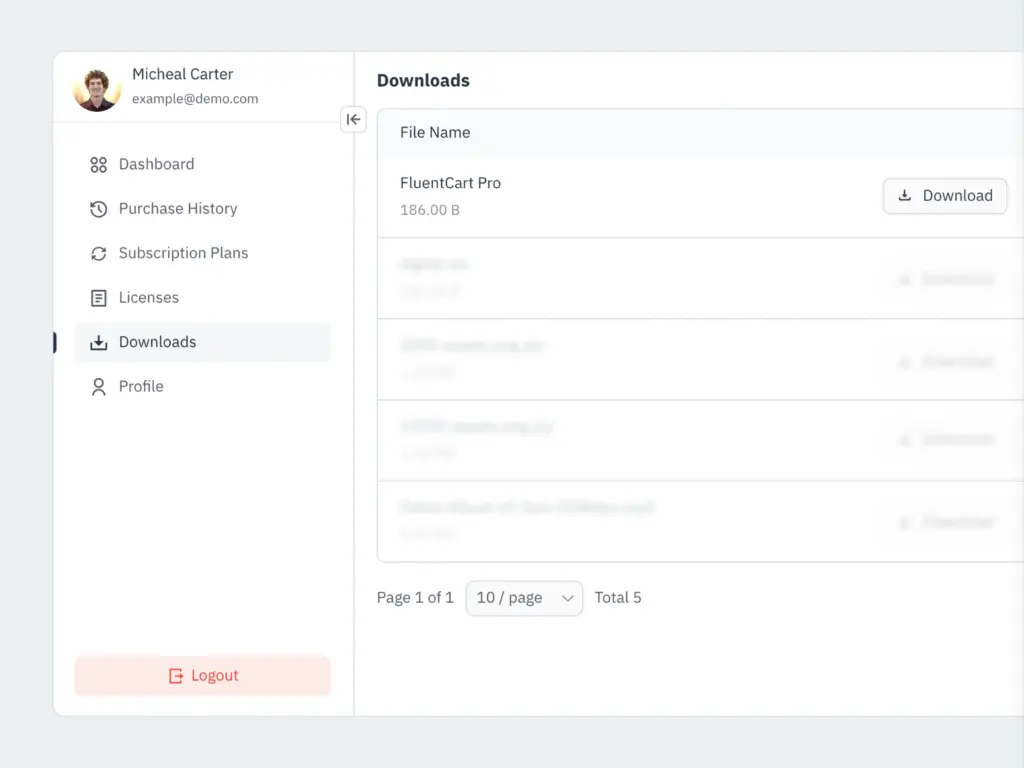
Pro version, if you have a license. Download the .zip from your FluentCart account, then;
Once activated, enter your license key under FluentCart Pro;
Minimum requirements: WordPress 5.0+, PHP 7.4+, MySQL 5.6+
FluentCart launches a setup wizard the first time you activate it. It asks four things: your store name, currency, time zone, and what you’re selling, digital, physical, or both.
That last choice shapes which settings FluentCart surfaces by default. Pick what fits closest; everything is adjustable later.
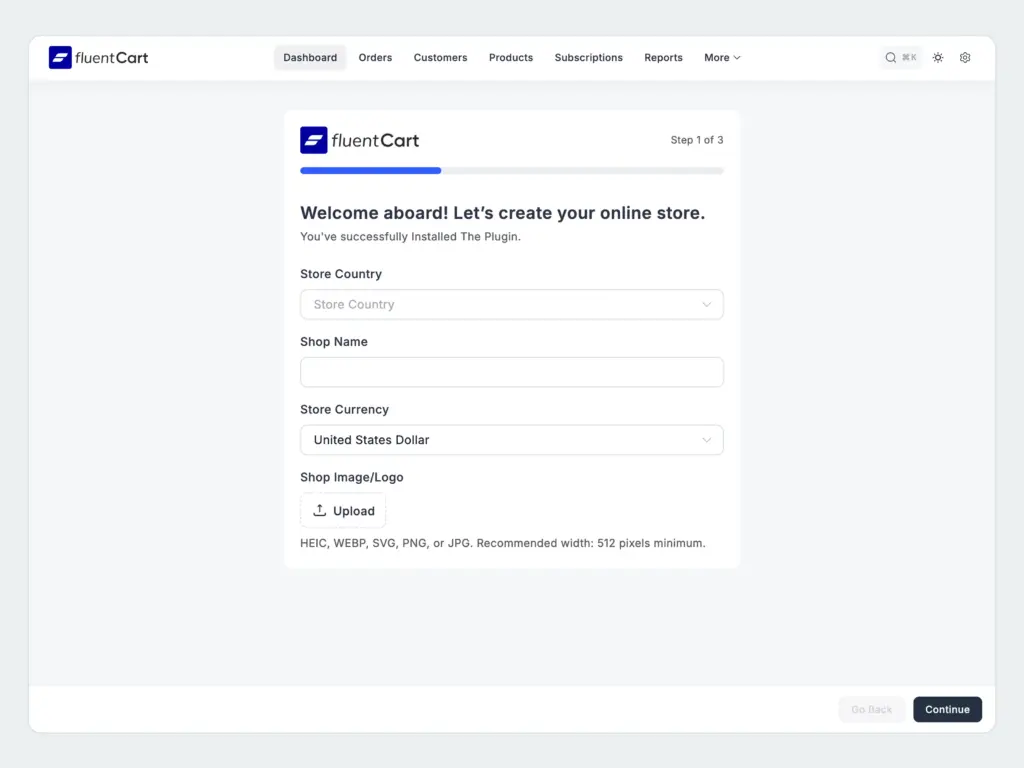
The wizard also auto-creates all the pages your store needs: shop, cart, checkout, and customer dashboard. You don’t have to set those up manually.
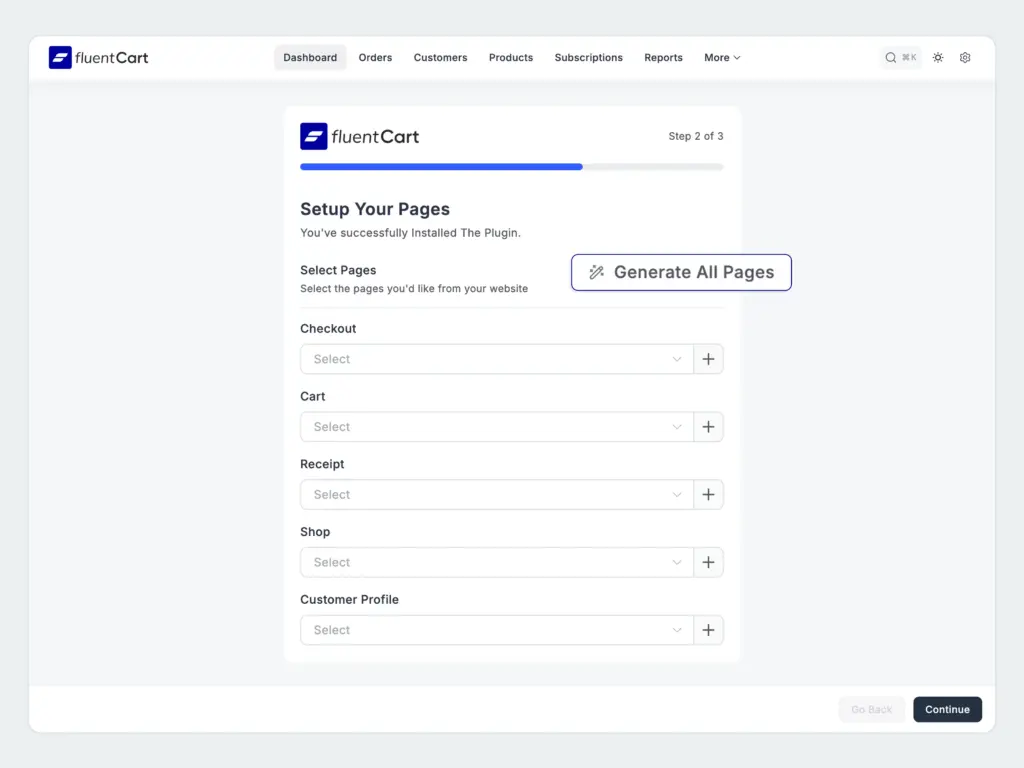
Three ways to get products into FluentCart. Pick the one that matches where you’re starting from.
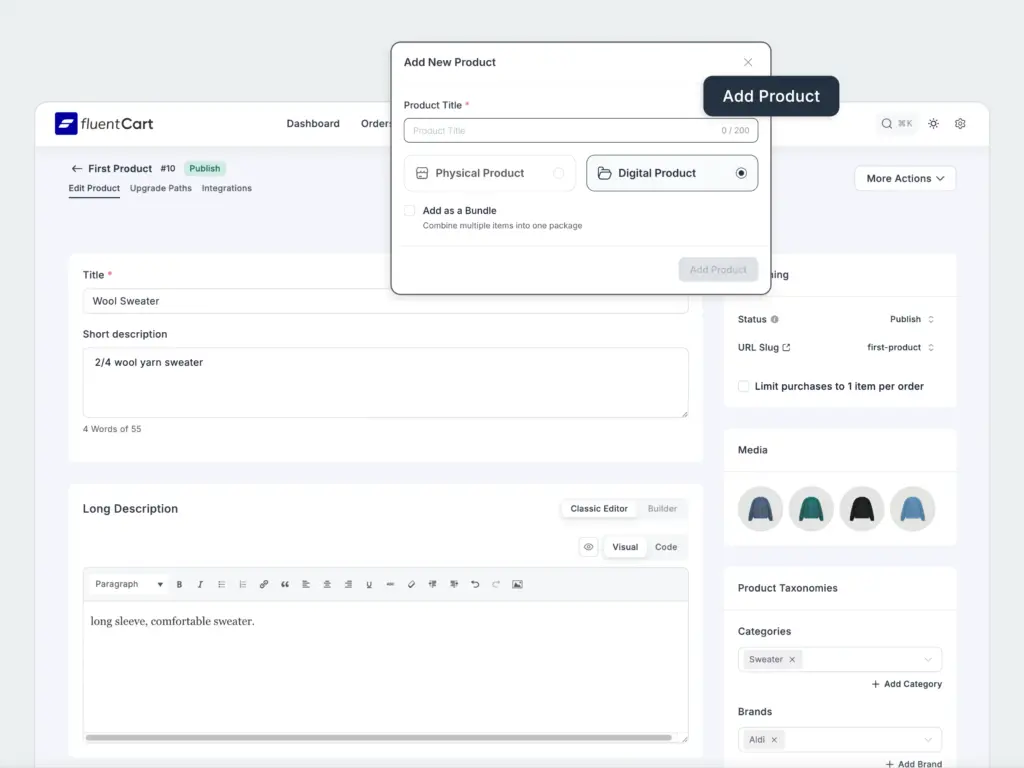
Starting fresh, add one by one
Give a Name, price, description, image, then hit publish. The product form adapts based on what you’re selling:
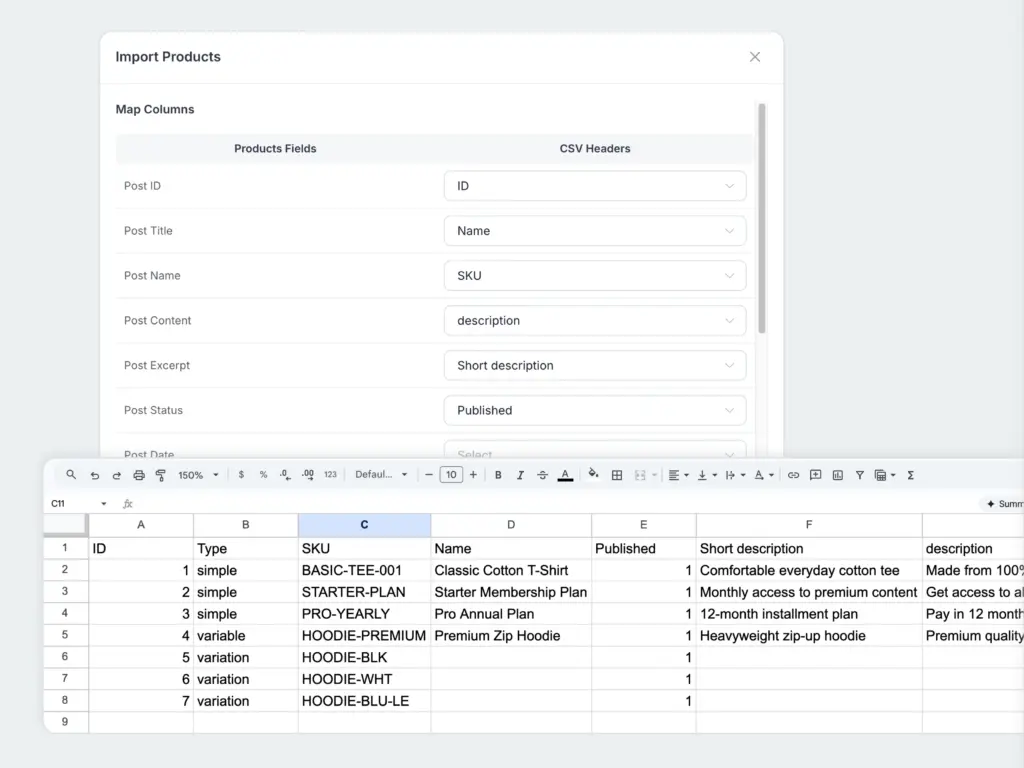
Already have a catalog, import via CSV
Upload your CSV, match the columns to the right fields, and FluentCart pulls everything in at once. No manual entry.
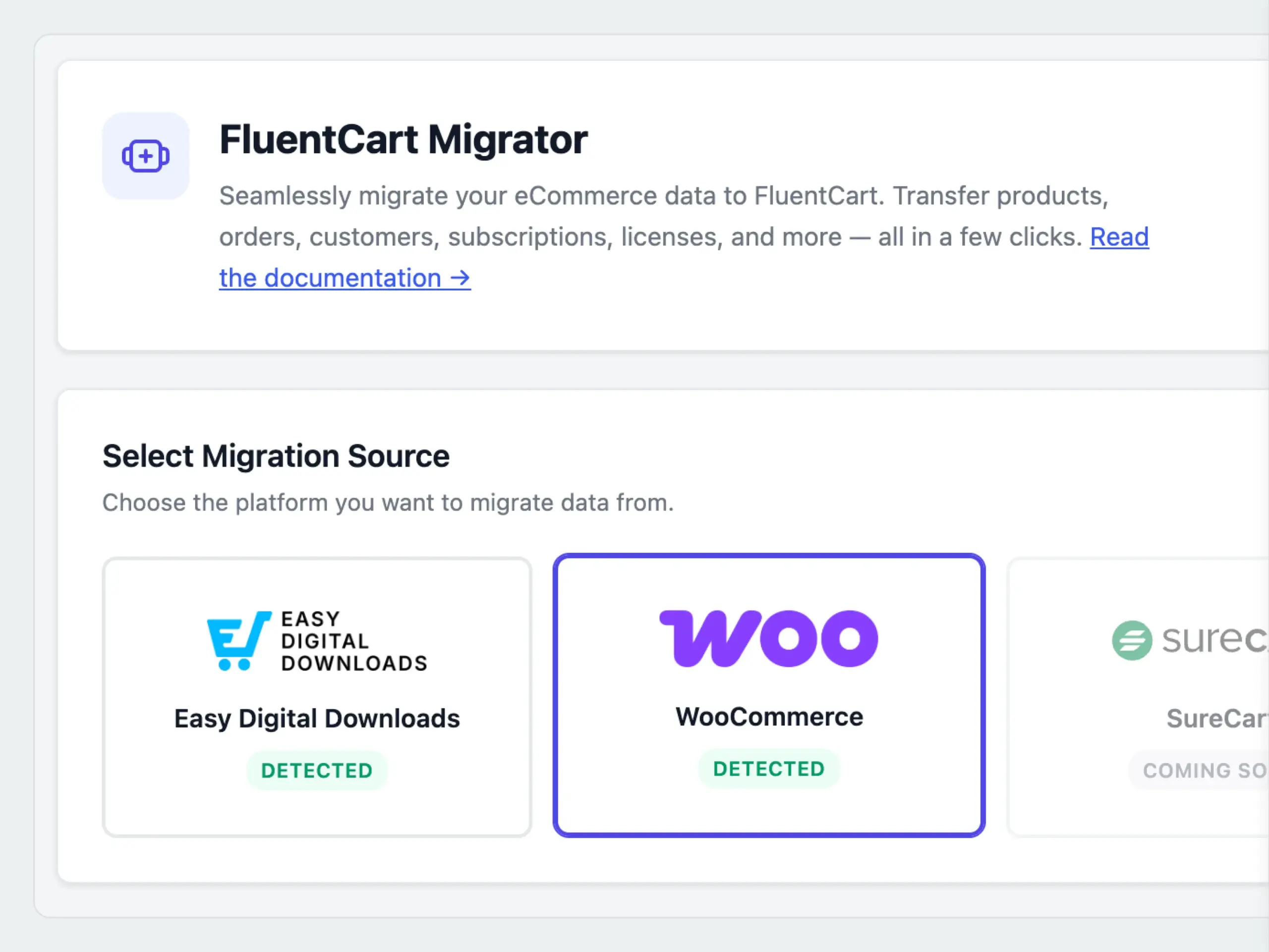
Coming from other plugins, migrate in minutes
FluentCart has a built-in migration tool. Products, orders, customers, and license keys all come over through a guided wizard, no exports, no reformatting, no data loss.
FluentCart supports all major payment gateways globally.
On WordPress Dashboard, go to
Enable your gateway, paste in your API keys, and you’re ready to take orders.
Not going live yet? Enable Stripe in test mode first, full checkout flow, no real charges. Switch to live whenever you’re ready.
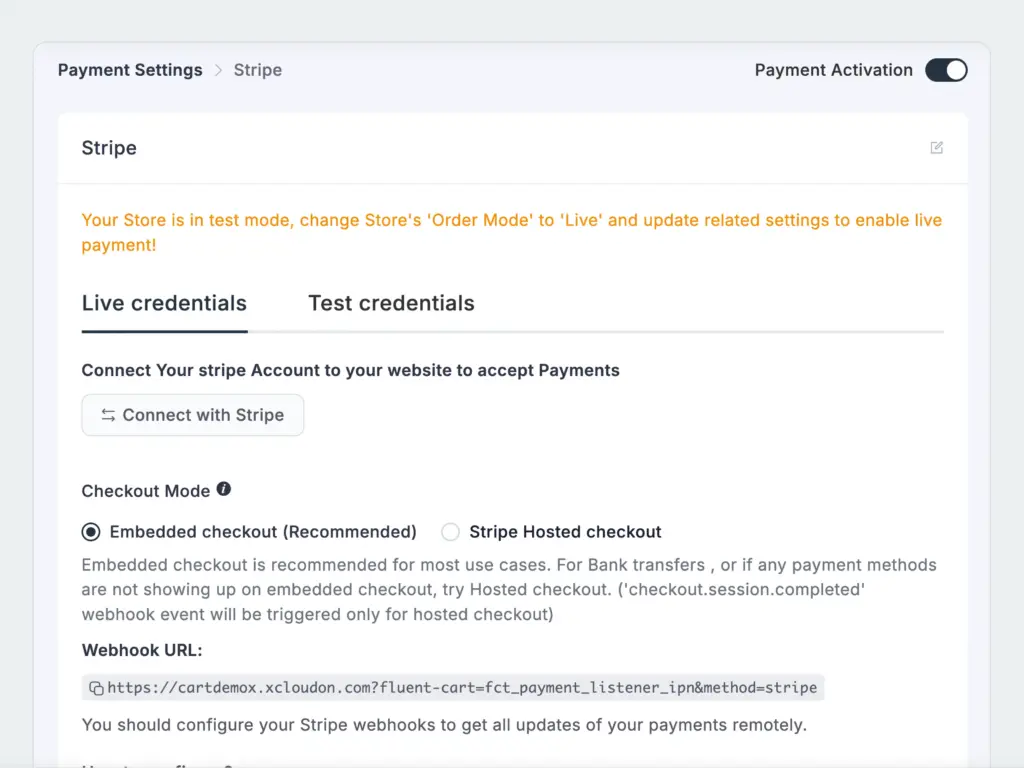










Steps 1–4 apply to every store. From here, setup depends on your product type. If you are selling both, then just keep reading.
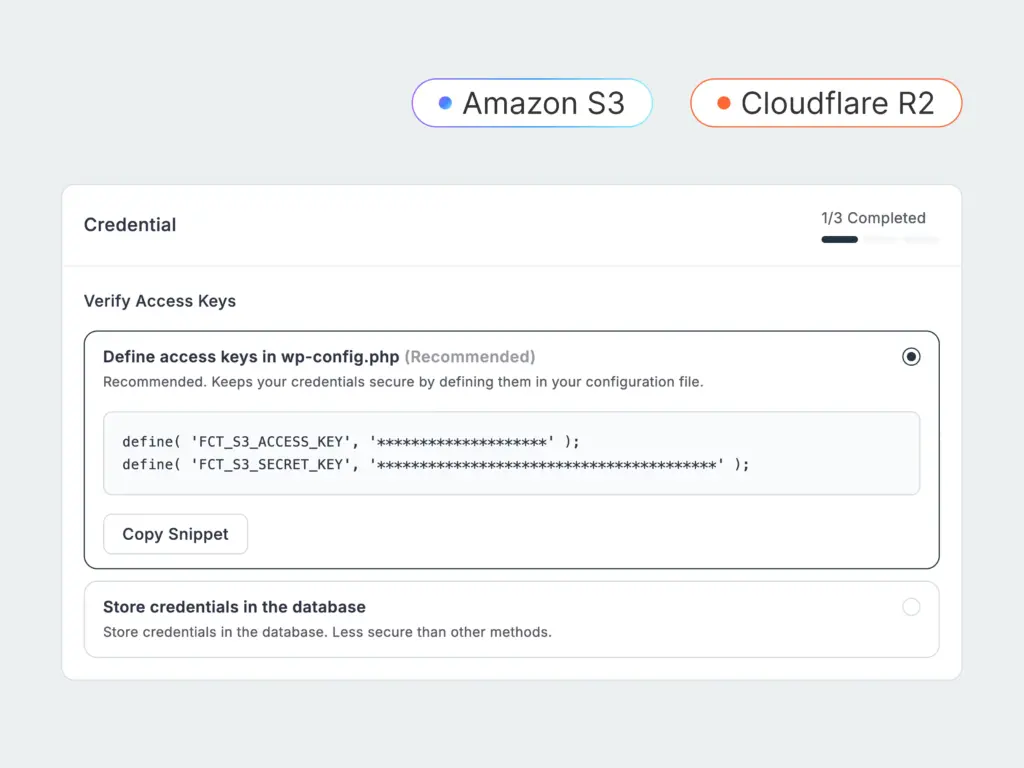
File delivery: FluentCart serves files from your server by default. Selling large files or want tighter security? Connect Amazon S3 or Cloudflare R2 under FluentCart » Settings » Storage. Files are delivered from the cloud, and customers never get direct access to your server.
Download limits: Set how many times a customer can re-download a file, or leave it unlimited. Configured per product.
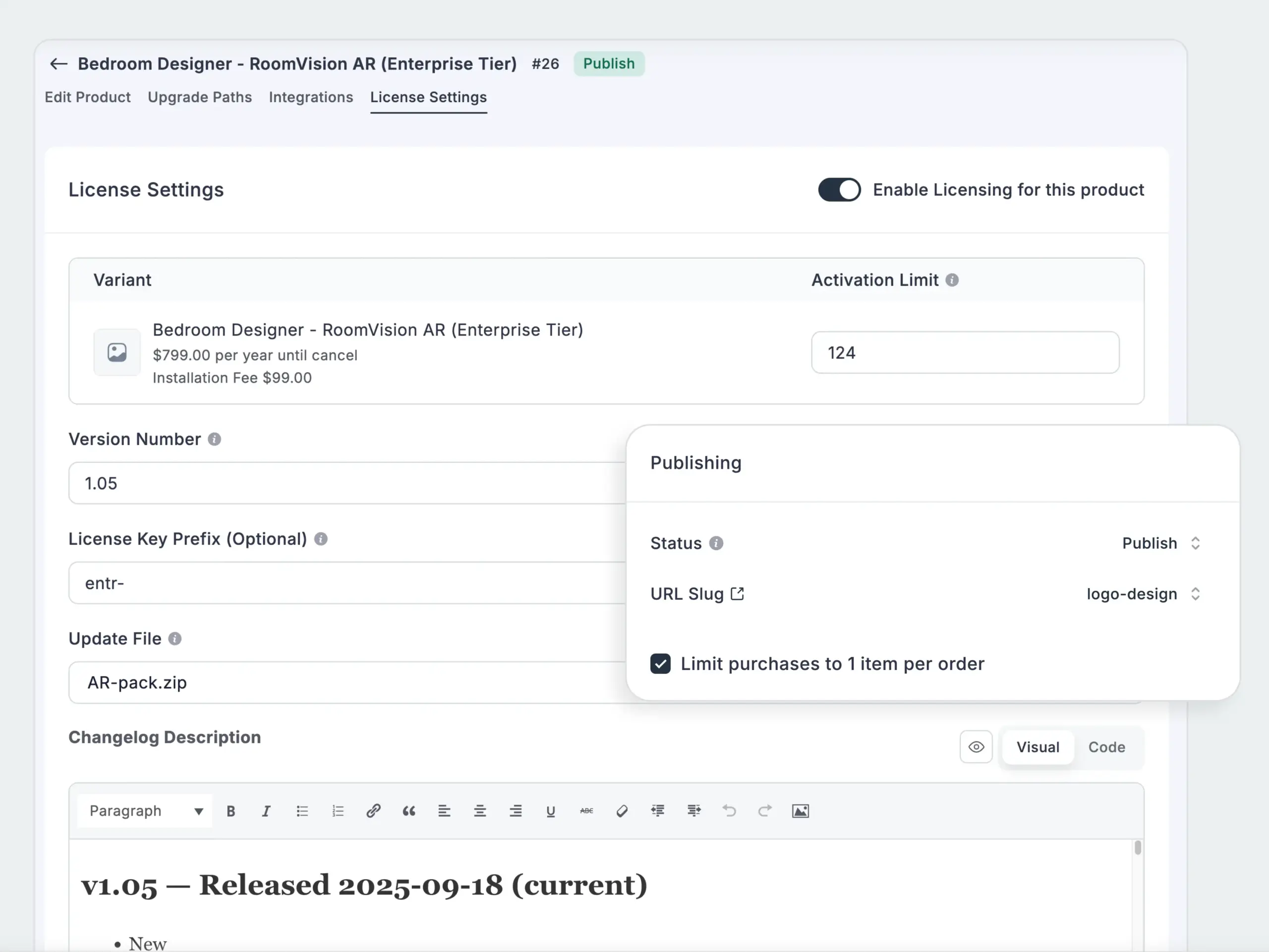
License keys. If you enabled license generation on the product in Step 3, you’re already set. To manage active licenses, revoke access, or view activation counts per customer, go to FluentCart » Licenses.
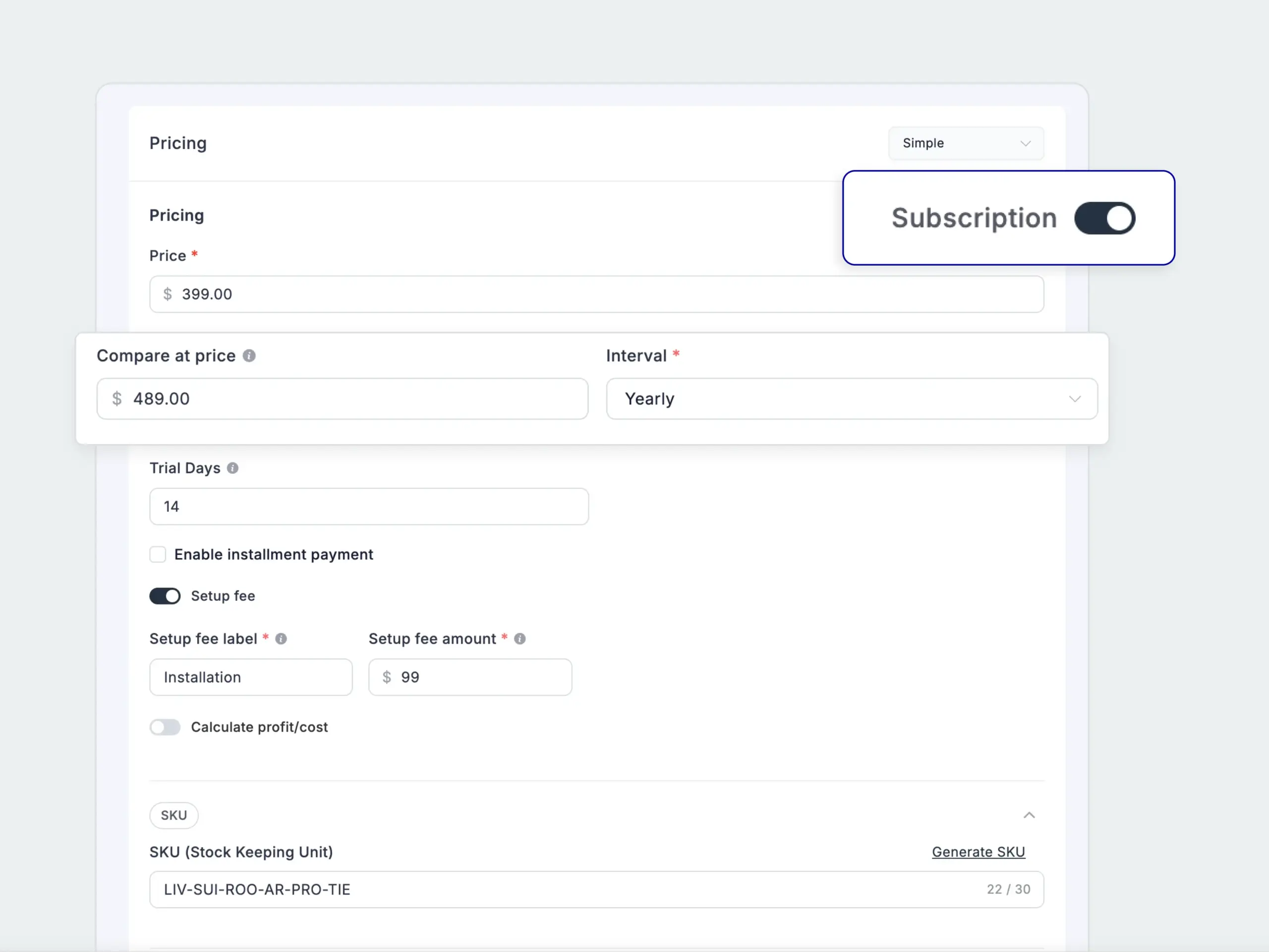
Subscriptions are also configured at the product level in Step 3. Once enabled, FluentCart handles the full billing cycle, charges, renewal emails, failed payment retries, and cancellations.
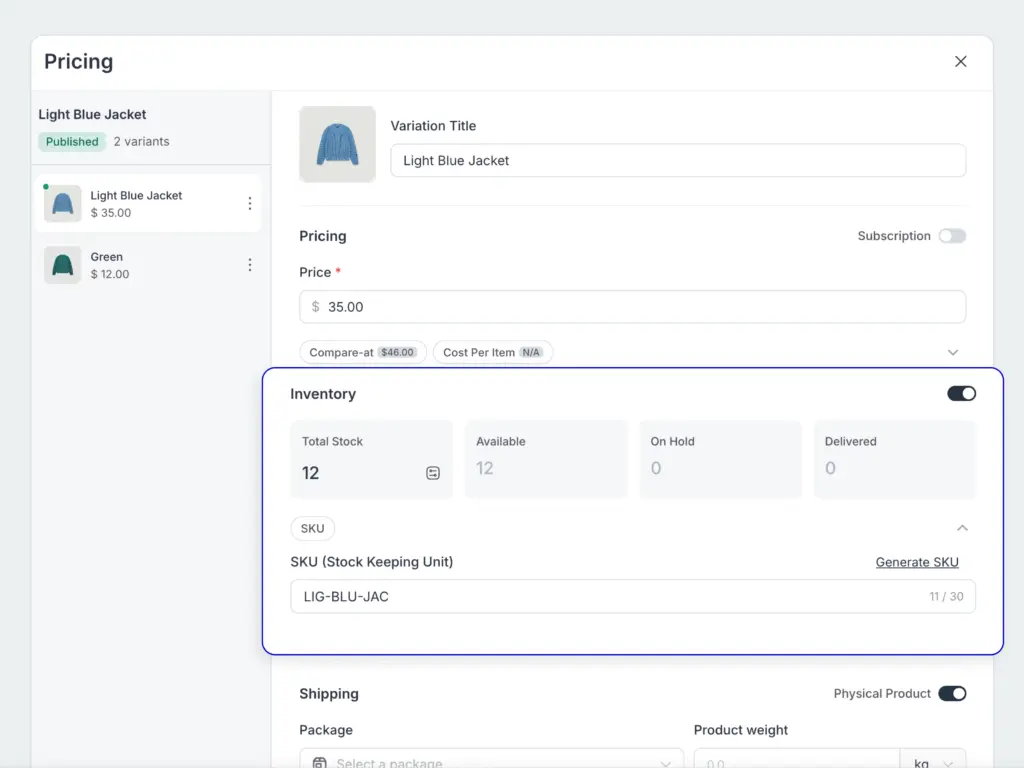
For inventory
FluentCart deducts stock automatically on every order and alerts you before you run out.
Selling variations, sizes, colors, materials? Inventory tracks per variation, not just per product.
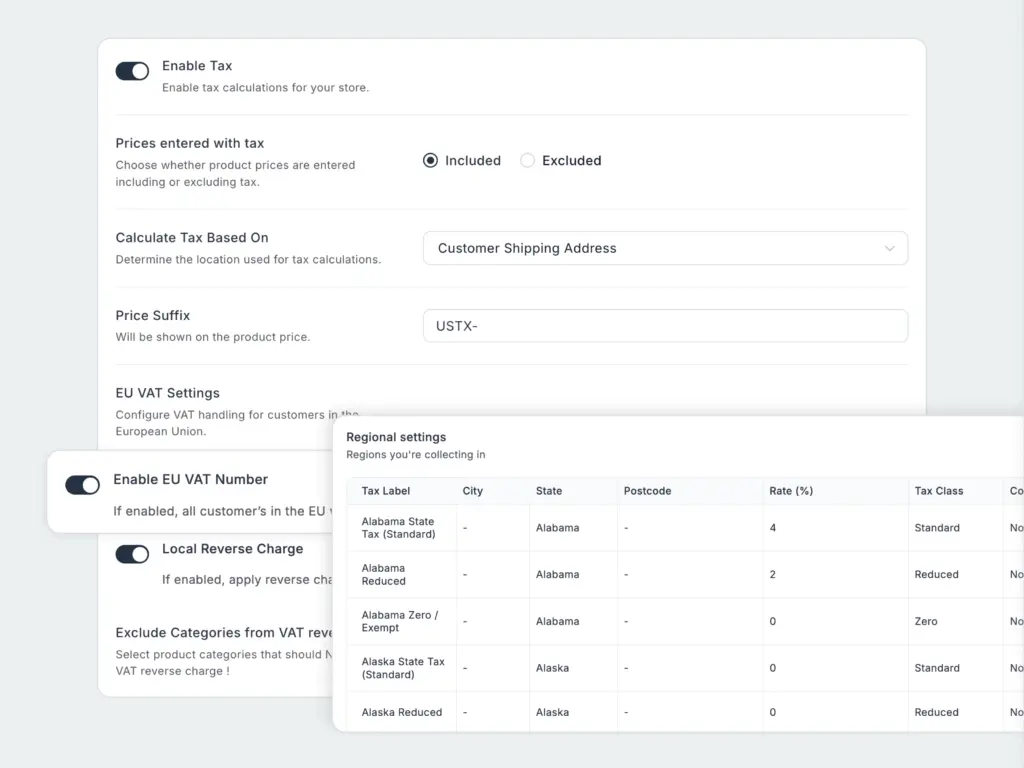
Tax FluentCart » Settings » Tax & Duties. Create tax classes, set rates by country or region, and assign the right class to each product.
Selling to EU customers? FluentCart has dedicated EU VAT handling built in, with three supported approaches: OSS (One Stop Shop), Home Country Registration, and per-country specific rates. Set it up under Tax & Duties » EU VAT.
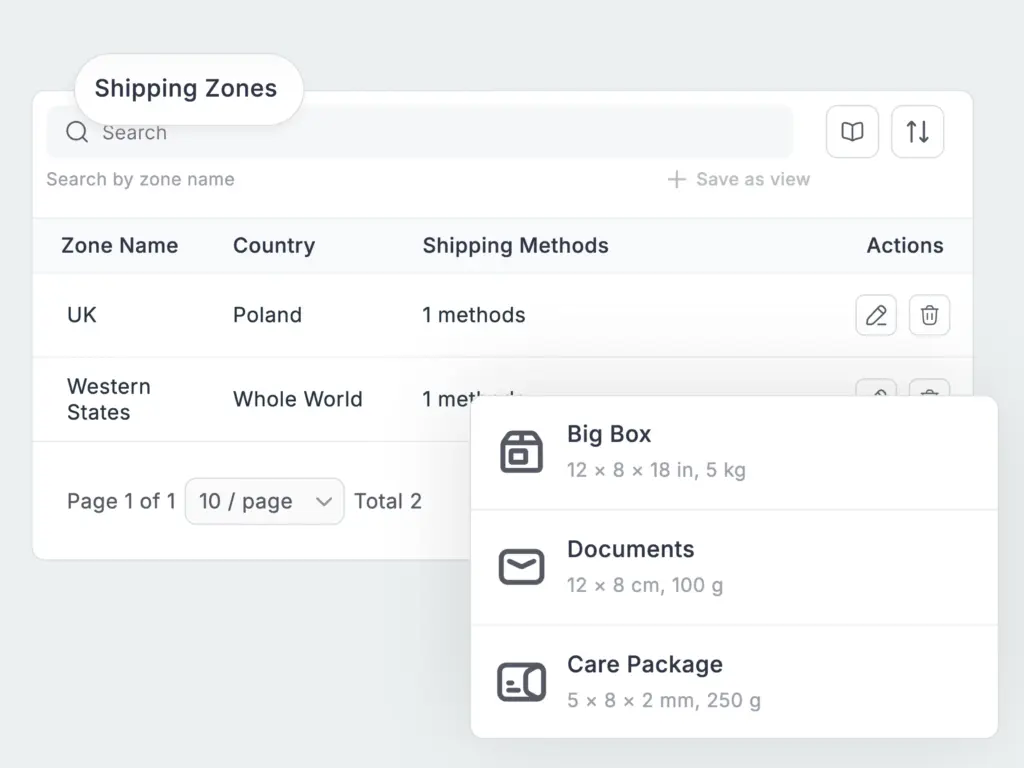
Shipping FluentCart » Settings » Shipping. Start with zones, the geographic regions you ship to (Domestic, Europe, Rest of World, or individual countries). Then add a method to each zone: flat rate, free shipping, or weight-based.
Got products that cost significantly more or less to ship? Create shipping classes and assign them per product. FluentCart factors them in automatically at checkout.
FluentCart works with your existing theme and adds a full set of blocks and widgets; drop them on any page, in any layout.
Gutenberg blocks
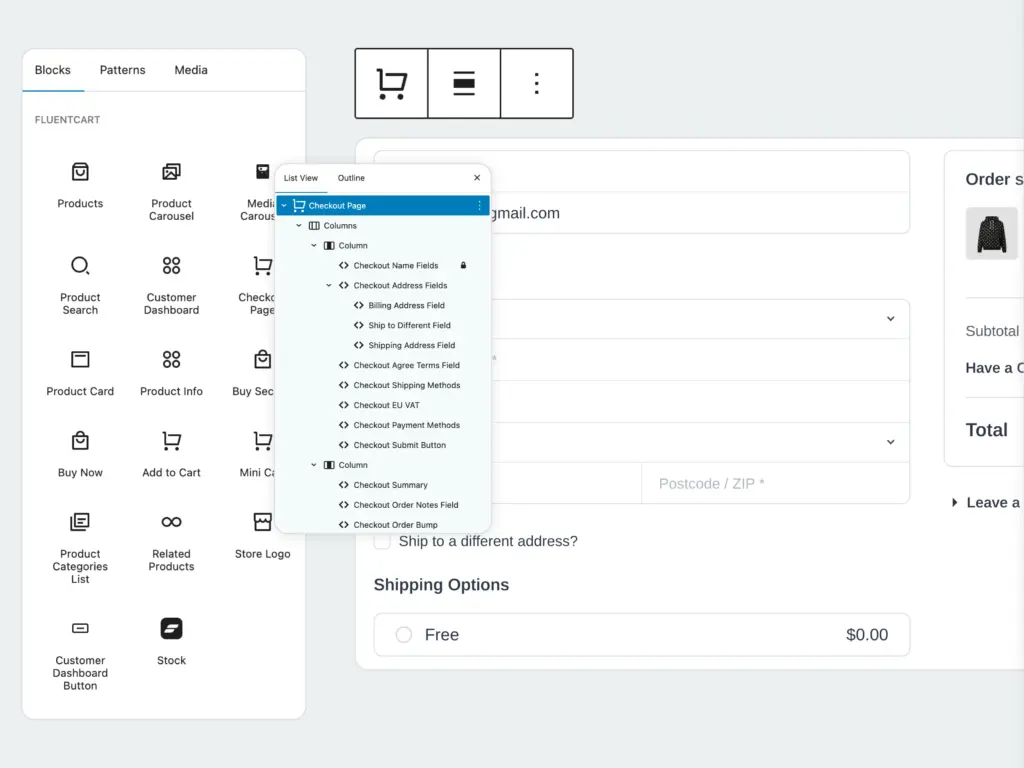
Open the block inserter on any page, search “FluentCart”, and you’ll find the full library: product grid, single product display, category filter, search bar, cart button, and more. Your theme’s typography, colors, and spacing carry over automatically.
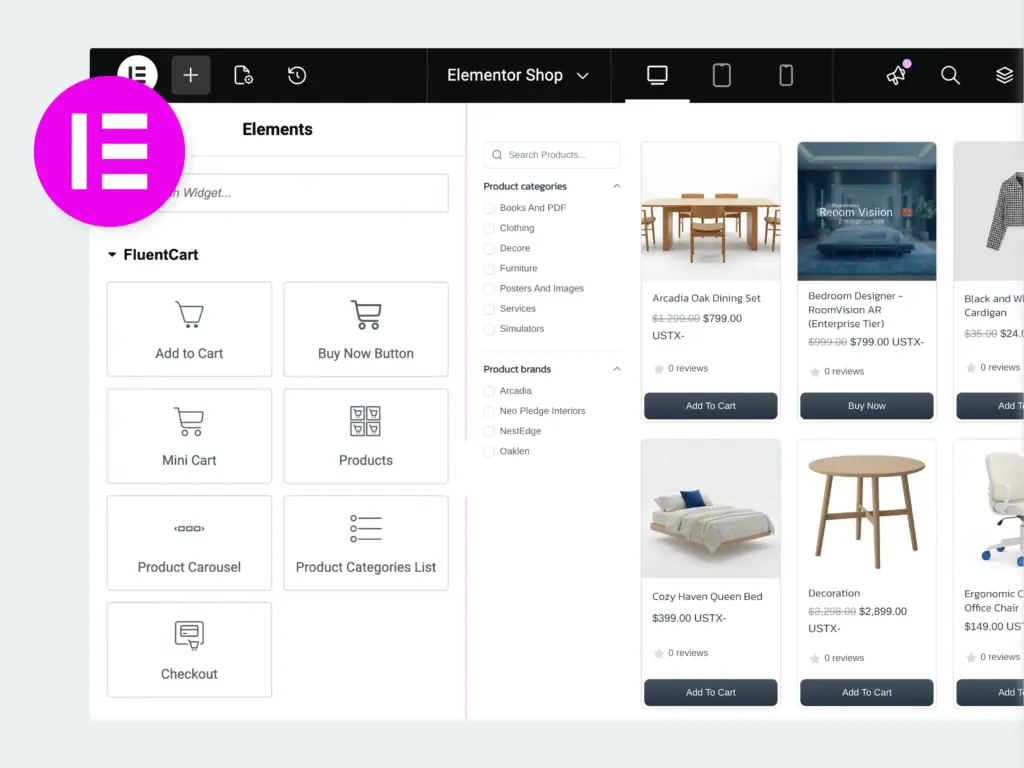
Elementor widgets
Building with Elementor? FluentCart ships 16+ dedicated widgets. Drag them into any section like any other Elementor element, product listings, filters, add-to-cart, checkout, and more. Full styling control from the widget panel.
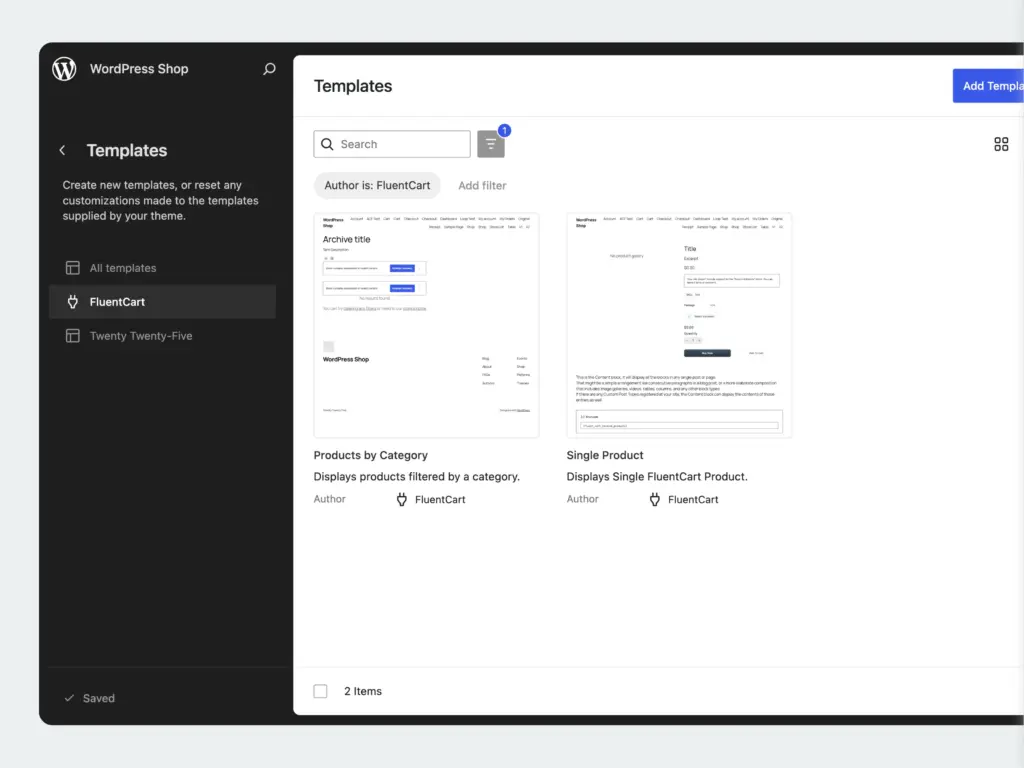
FSE theme support
Using a block theme like Kadence, GeneratePress, or Twenty Twenty-Five? Open the Site Editor and you’ll find FluentCart templates for the shop page, product pages, cart, and checkout, all editable with the block editor, all overridable per product or category.
You’re Ready to Sell
If you’ve followed the steps above, your store is live, your products are set up, payments are connected, and your storefront is displaying correctly. That’s everything you need for your first order.
What to explore next: coupons and discounts, order bumps, customer dashboard, email notification templates, and the reports dashboard, revenue, refunds, and subscription data, all built in.
Still evaluating? The free version covers installation, products, payments, Gutenberg blocks, Elementor widgets, inventory, and basic tax and shipping. Pro adds licensing, subscriptions, EU VAT, cloud storage, advanced reporting, and more.