
eCommerce Platform Migration: Guided Migration w/ Checklist
Most stores don’t lose data during a platform move. They lose it in the spreadsheet in between. An order export drops the refund lines. A customer file forgets who bought what. A subscription list shows up with no renewal dates. The copy-and-paste carried most of the risk not the new platform.
This guide for an eCommerce migration gives you the full checklist for any eCommerce platform migration, then walks through a WooCommerce migration using the official FluentCart Migrator for WooCommerce stores. You’ll see what moves on its own, what you rebuild, and how to cut over without customers noticing. The whole move runs on FluentCart Free.
TL;DR
What is eCommerce Platform Migration?
eCommerce platform migration is the process of moving a live online store from one commerce system to another while keeping its data, URLs, and customer experience intact. A complete move carries products, customers, order history, coupons, tax rates, and active subscriptions, then reconnects payments and shipping on the new system.
It helps to split the work into three layers. Data is the records: products, orders, customers. Configuration is the settings that make the store run, like gateways and shipping zones. Presentation is what shoppers see: pages, links, and templates.
A move that only handles the first layer looks finished in the admin. Then it breaks at checkout.
eCommerce Site Migration vs eCommerce Data Migration
People use these terms loosely, so here’s the split. An eCommerce data migration moves records from one database to another. An eCommerce site migration is the whole storefront move: data, settings, pages, URLs, and search rankings. This guide covers the full site migration, with the data step handled by a purpose-built tool.
Why Store Owners Need to Migrate
Store owners usually plan a WooCommerce migration when the add-on stack starts taking more attention than the store itself. Subscriptions, licensing, extra gateways, and deeper reporting often live in separate extensions. Each one brings its own updates, settings screen, and renewal date.
WooCommerce is a flexible platform, and plenty of stores run well on it. The pressure tends to build in specific places:
FluentCart takes a different approach. It stores commerce data in its own indexed database tables instead of WordPress post tables. Subscriptions, coupons, tax and EU VAT, reports, and digital downloads ship in the free core. That’s often the real reason for the move: fewer moving parts to maintain.
The Complete eCommerce Migration checklist
A complete eCommerce migration checklist covers seven phases: audit, backup and staging, data migration, configuration rebuild, SEO and URLs, cutover, and monitoring. Run them in order. Each phase produces something the next one needs, like the audit counts you’ll compare against after the import.
Use this eCommerce migration checklist before you touch the live store.
Phase 1: Audit the source store
Write everything down first. These numbers become your acceptance test later.
Phase 2: Back up and set up staging
Your first migration run should never touch production. Rehearse on a copy.
Phase 3: Migrate the data
Order matters here. Orders reference products, and coupons reference products and categories.
Phase 4: Rebuild the configuration
Settings that hold secrets or live rules rarely transfer between platforms. Budget time for them.
Phase 5: Protect SEO and URLs
Search rankings follow URLs. When a path changes, tell search engines where the page went.
Google’s documentation on moving a site with URL changes confirms that permanent redirects don’t cost you PageRank. It also notes that Google processes a move one URL at a time, so a sitemap speeds up discovery.
Phase 6: Cut over
Pick a quiet window and follow a script. Improvising at midnight is how orders go missing.
Phase 7: Monitor after launch
The first week tells you whether the move worked. Watch closely.
Want this as a printable worksheet with spaces for your audit counts? Download the WooCommerce to FluentCart migration checklist.
A step-by-step checklist for moving from WooCommerce to FluentCart.
Why a Dedicated Migrator Beats a Manual eCommerce Data Migration
A dedicated migrator reads the source store’s own data model and rebuilds each record with its relationships intact. A CSV export flattens those relationships. Orders lose their refund lines, customers lose their purchase history, and subscriptions arrive without renewal dates or payment references.
Here’s how the two approaches compare on the records that matter most:
| Record | CSV export and import | FluentCart Migrator |
|---|---|---|
| Variable products | Rebuilt by hand or through column mapping | Attributes land in one shared library with per-variation price, SKU, and stock |
| Order history | Often partial, with refunds and notes left behind | Original order numbers, line items, full and partial refunds, and order notes |
| Customers | A flat contact list | Deduplicated by email, with address book and WordPress account link |
| Coupons | Codes, sometimes amounts | Usage limits, product and category restrictions, expiry, and recurring discounts |
| Subscriptions | Rarely possible | Status, interval, trial, renewal dates, and amounts |
| Re-running a step | Risk of duplicates | Resumable; already-migrated records get skipped |
| Source store | Depends on the tool | Read only; WooCommerce data stays untouched |
So here’s the honest question. If you’re moving platforms anyway, why pick one that makes you rebuild your history by hand?
FluentCart already moved Easy Digital Downloads stores with the same wizard before WooCommerce joined as a source. That matters. A migrator that has handled one platform’s edge cases tends to be ready for the next.
Store owners wanted this enough to build it themselves. Before the official Migrator shipped, one FluentCart community member wrote her own WooCommerce migration tool. She shared it with everyone else stuck in the same spot. Now the official wizard runs on real stores: another member recently posted a completed run with 17,280 orders and 22,963 customers moved over.
How to Migrate WooCommerce to FluentCart Step by Step
To migrate WooCommerce to FluentCart, install FluentCart Free and the FluentCart Migrator addon on the same WordPress site. Pick WooCommerce as the detected source, pass the compatibility check, review the store summary, and run the seven migration steps. Larger stores can run the same steps through WP-CLI.
The Migrator reads WooCommerce through its own data API. That means it works whether your store uses High-Performance Order Storage (HPOS) or the older order tables. The full reference lives in the WooCommerce migration documentation.
Step 1: Install FluentCart Free
Go to Plugins > Add New in WordPress, search for FluentCart, then install and activate it. Leave WooCommerce active. The Migrator reads your data through WooCommerce, so both plugins run side by side during the move.
Step 2: Add the FluentCart Migrator addon
Open FluentCart > Settings > Features & Addons > Plugin Addons. Find FluentCart Migrator, install it, and activate it. A new Migrator item appears in the FluentCart menu.
The Migrator ships as a separate plugin so the team can update it faster than the main plugin. It’s currently in beta. You’ll also find it on the FluentCart addons page and in the public FluentCart Migrator GitHub repository.
Step 3: Select WooCommerce and Run the Compatibility Check
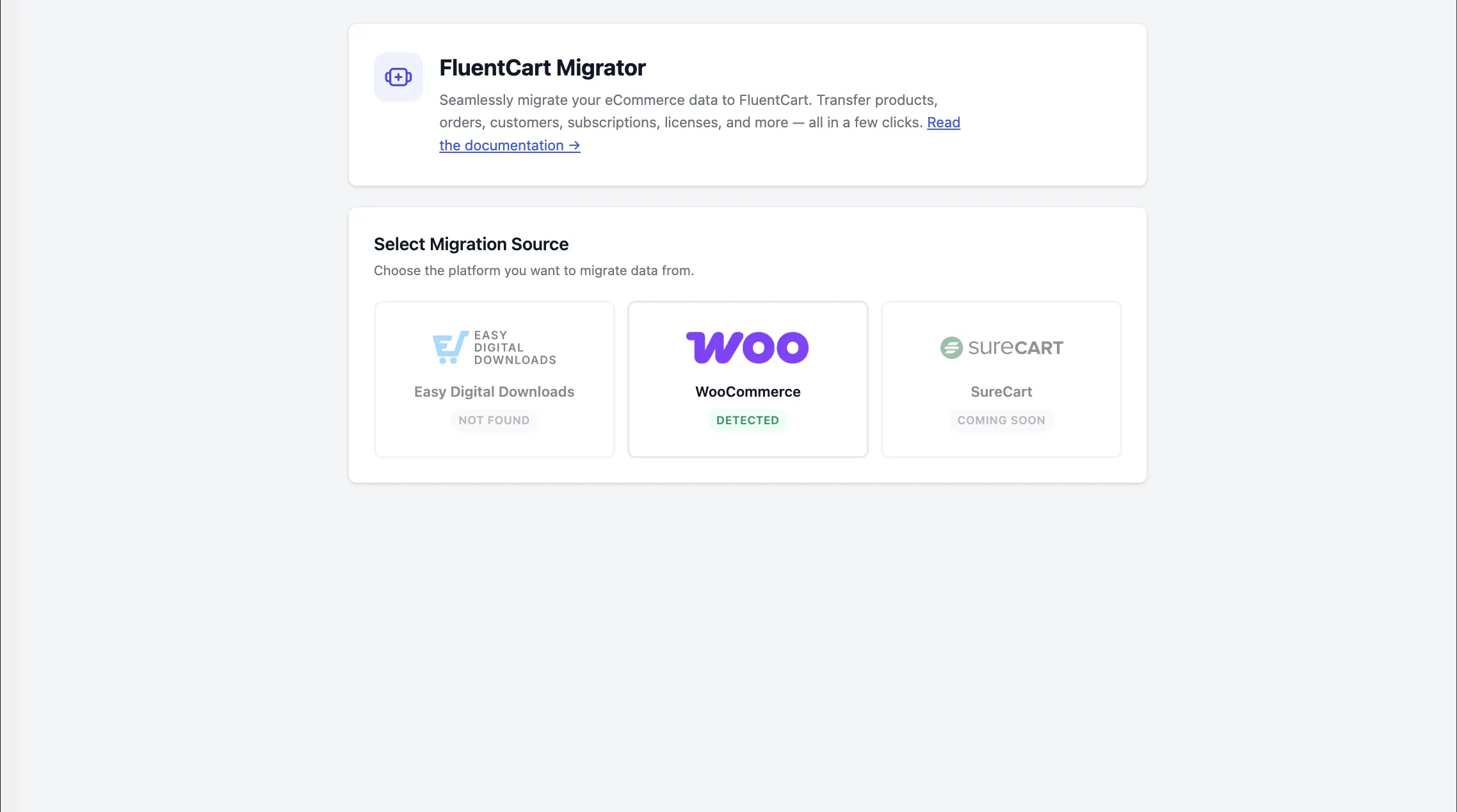
The source screen detects supported stores on the same site and marks WooCommerce as Detected. Select it. The wizard confirms WooCommerce is active, checks the version, and tests that it can read the store. WooCommerce 3.0 is the minimum, since that release introduced the data API the Migrator uses.
Step 4: Review the Pre-migration Summary
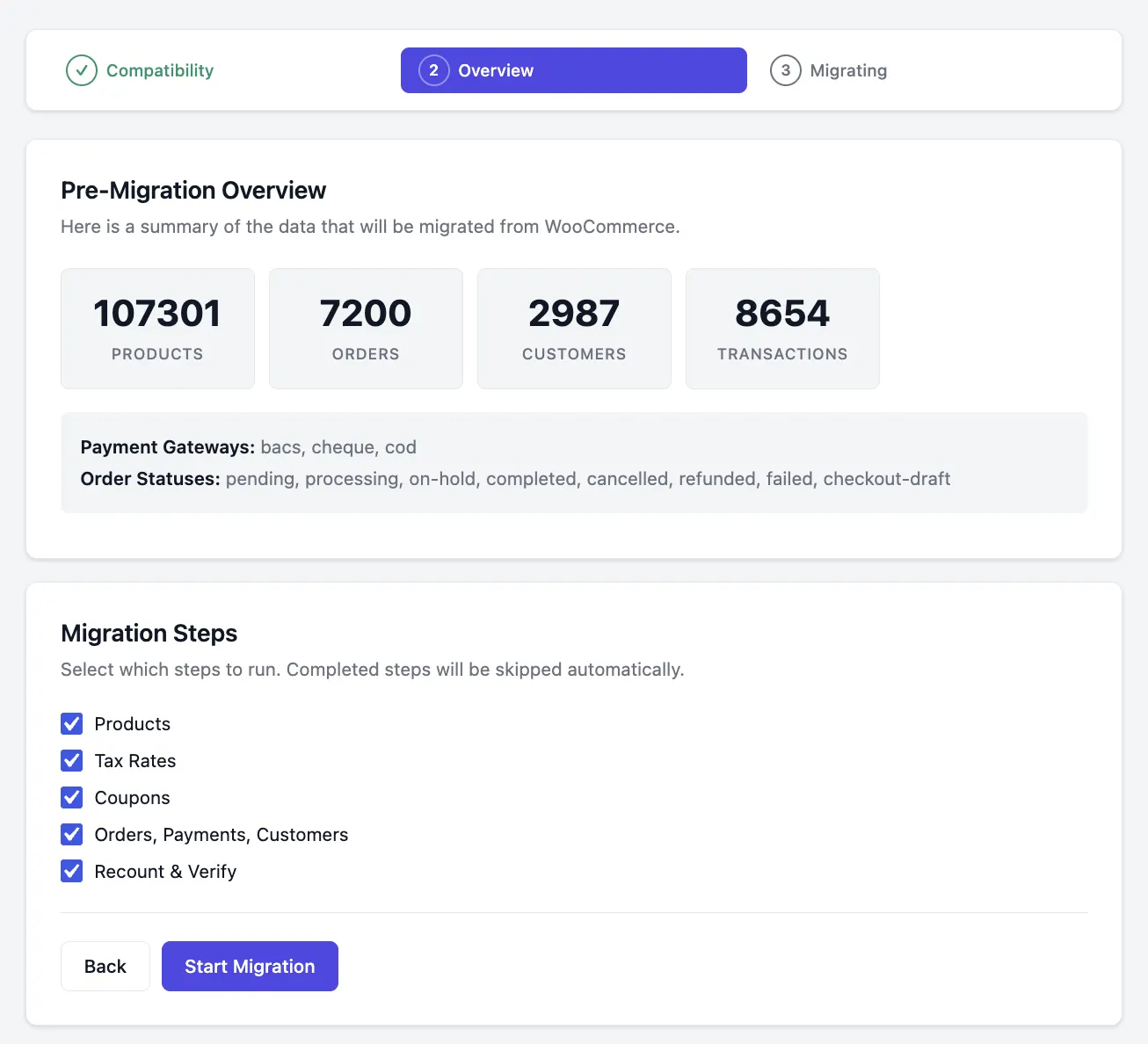
Before it writes anything, the wizard shows what it found. You’ll see products, orders, paid orders, customers, coupons, subscriptions, gateways in use, and the spread of order statuses. Compare each number against your Phase 1 audit. If something looks off, fix it in WooCommerce first.
Step 5: Run the migration
Click Start Migration and keep the tab open. The Migrator runs seven steps in a fixed order:
If a browser timeout interrupts the run, reload the page and resume. The Migrator tracks finished batches and skips them.
Use WP-CLI for large stores
Stores with a long order history can skip the browser completely. Preview the counts first, run everything, then check the log:
wp fluent_cart_migrator migrate_from_woo --stats
wp fluent_cart_migrator migrate_from_woo --all
wp fluent_cart_migrator migrate_from_woo --log
You can also run steps one at a time with flags like --products, --tax_rates, --coupons, --payments, --missing-customers, and --recount.
Step 6: Verify the imported data
Check a sample of every product type: simple, variable, subscription, downloadable, on sale, and out of stock. Expect product totals to differ from WooCommerce reports. Variations now live inside their parent product, and trashed products stay behind.
For orders, compare line items, tax, discounts, refunds, and final totals. Then confirm customer lifetime value and coupon usage after the recount step.
Check the skipped count on the completion screen, too. Trashed, draft, and abandoned checkout-draft orders get skipped on purpose. If the number looks higher than you expect, open the migration log and find out why before you sign off.
Don’t worry if your customer count is higher than your order count. The missing customers step also brings over registered users who never bought anything.
Step 7: Rebuild what doesn’t transfer
Reconnect Stripe, PayPal, and any other gateway with the same accounts. Recreate shipping zones and rates, and review your shipping and tax setup in FluentCart. Then replace WooCommerce cart, checkout, and account pages, plus shortcodes like [woocommerce_checkout] in your content.
Step 8: Cut over and keep a rollback path
Follow Phase 6 of the checklist on production. Don’t uninstall WooCommerce or delete its tables right away. Keep that data as your fallback until FluentCart has run cleanly for a while.
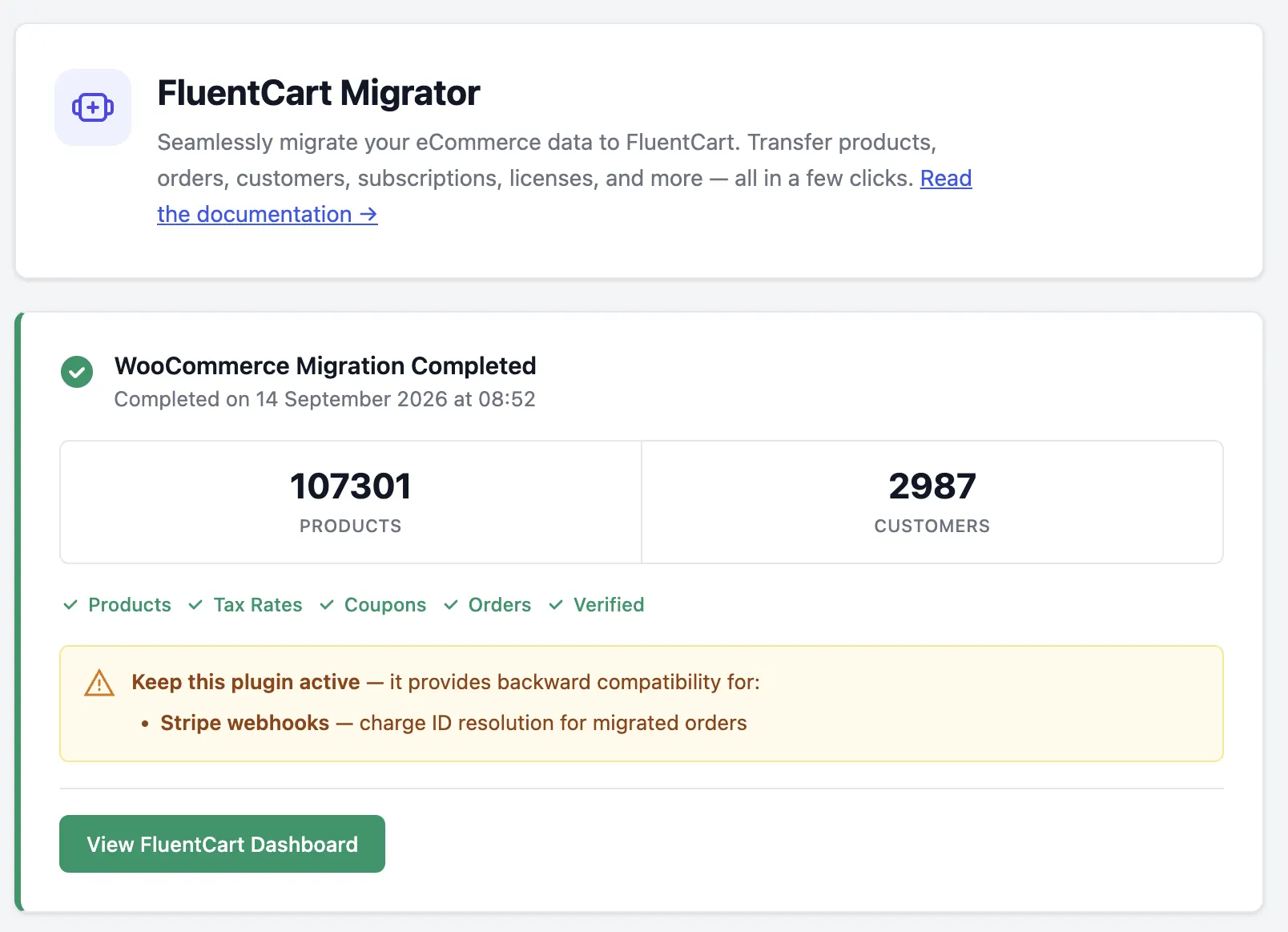
Leave the FluentCart Migrator plugin active after the move, as well. The completion screen flags that it provides backward compatibility for Stripe webhooks. It resolves Stripe charge IDs for your migrated orders.
What Moves Automatically and What You Rebuild
The FluentCart Migrator moves the records that are hardest to rebuild by hand: products, customers, orders, refunds, coupons, tax rates, and subscriptions. Anything holding secrets or live rules stays behind, including gateway keys, shipping rules, and email templates. You set those up fresh in FluentCart.
| Data | Transfers? | Notes |
|---|---|---|
| Simple and variable products | Yes | Title, slug, SKU, stock, featured image, per-variation pricing |
| Categories and attributes | Yes | Parent-child hierarchy; color and image swatches carry over |
| Grouped products and bundles | Yes | Become FluentCart bundle products |
| Downloadable files | Yes | File names and per-variation conditions |
| Orders and refunds | Yes | Original order numbers, full and partial refunds, notes |
| Customers | Yes | Deduplicated by email, with addresses and WordPress account link |
| Coupons | Yes | Limits, restrictions, expiry, recurring discounts |
| Tax rates | Yes, review | Inclusive or exclusive behavior preserved; models differ, so check rates |
| Subscriptions | Yes | Billing method depends on the saved payment token |
| Gateway API keys | No | Reconnect each gateway |
| Shipping configuration | No | Recreate zones, methods, and rates |
| Email templates | No | FluentCart has its own notification system |
| Gallery images, tags, reviews, custom meta | No | Plan a manual rebuild or separate export |
| Trashed and draft orders | No | Filtered out on purpose |
How Subscriptions Carry Over
Migrated WooCommerce Subscriptions land on FluentCart’s store-managed billing with status, interval, cycle count, trial, renewal dates, and amounts intact. Subscriptions with a modern saved Stripe card keep charging automatically. The rest continue as invoice-based renewals, where customers get a Pay Now email for each payment.
Subscriptions are live billing promises, so give them extra attention. Connect FluentCart to the same Stripe account WooCommerce used. Automatic charging needs a saved Stripe payment method and FluentCart Pro. PayPal billing agreements, older Stripe card tokens, and offline gateways switch to manual renewals.
Tell those customers before their next renewal date. A short email explaining the new Pay Now link saves a lot of support tickets.
One more rule: once you accept the migration, stop WooCommerce Subscriptions from processing the same schedules. Two systems billing one customer is the fastest way to lose trust. For the full feature set, see subscriptions and licensing in FluentCart.
What You Get with FluentCart Free after The Move
FluentCart Free is a complete store on its own. It covers products and variations, cart and checkout, Stripe, PayPal, and cash on delivery, subscriptions, coupons, orders, customers, basic inventory, shipping, tax and EU VAT, reports, downloads, emails, and PDF receipts. FluentCart charges no transaction fee in Free or Pro.
Pro adds tools for specific business models. That includes software licensing, order bumps, advanced inventory, installment plans, saved payment methods, and Paddle, Mollie, and Authorize.Net. It also adds staff roles, data export, and LearnDash and LifterLMS integrations.
Start on Free, migrate, and run the store. Upgrade only if a Pro feature fits how you sell. The FluentCart Free vs Pro breakdown lists every difference.
eCommerce site migration FAQs
These are the questions store owners ask most before an eCommerce site migration to FluentCart. Each answer reflects how the FluentCart Migrator works today, based on the 1.6.2 release and the official migration guide.
Frequently asked questions
Does the FluentCart Migrator change my WooCommerce data?
No. The Migrator only reads from WooCommerce and writes into FluentCart. Your original store stays intact, so you can compare both side by side.
Will customers need new passwords?
No. Customers keep their existing WordPress accounts and log in with the same credentials.
Do I need FluentCart Pro to migrate?
No. FluentCart Free runs the full migration. You only need Pro if migrated WooCommerce Subscriptions should keep auto-charging saved Stripe cards.
Does it support HPOS?
Yes. The Migrator reads through WooCommerce’s data API, so it works with High-Performance Order Storage and legacy order tables.
Can I run the migration more than once?
Yes. Every step is resumable and skips records it already moved. On staging, developer mode also lets you reset FluentCart data and rehearse again.
Can I deactivate the Migrator after migrating?
No, keep it active. The Migrator provides backward compatibility for Stripe webhooks on migrated orders by resolving their charge IDs.
How long does a WooCommerce migration take?
It depends on catalog size and order history. The FluentCart team says a store can test the move on staging in an afternoon. Large stores should use WP-CLI for the production run.
Can I run the migration more than once?
Yes. Every step is resumable and skips records it already moved. On staging, developer mode also lets you reset FluentCart data and rehearse again.
Wrapping Up
You now know the three layers of a migration, the seven-phase checklist, and exactly what the FluentCart Migrator moves and what it leaves for you. The hard part of switching platforms was always the history. With a dedicated migrator, that history comes with you: orders, refunds, coupons, customers, and live subscriptions.
Your next step is small. Start with FluentCart Free, add the Migrator on a staging copy, and look at your own store inside FluentCart before you decide anything.
Planning your move and want a second pair of eyes? The FluentCart community is where store owners post their migration plans, the tools they’ve built, and their results, including completed WooCommerce runs with thousands of orders. Join the FluentCart community to ask questions and learn from people who’ve already made the switch.

Rasel leads the marketing function at FluentCart, driving both high-level strategy and ground-level execution across the product’s growth engine. He plays a central role in defining how FluentCart is positioned, how it enters the market, and how it evolves based on user behavior and feedback. His responsibilities span go-to-market planning, funnel architecture, conversion strategy, and narrative development. He works across teams to ensure that product decisions, marketing efforts, and customer experience stay tightly aligned.

Subscribe now
Related Articles and Topics
-
Teachable vs Kajabi vs MemberPress: Which One Fits You Best in 2026?
Teachable vs Kajabi vs MemberPress compared on pricing, fees, and features to help you choose the right platform…
-
How to Build an Online Community With FluentCart
Learn how to build an online community with FluentCart and FluentCommunity, from planning access levels to testing the…
-
Easy Digital Downloads Free vs Pro: What Actually Changes When You Upgrade
Here’s exactly where Easy Digital Downloads free stops, and why most sellers end up paying sooner for pro…




Leave a Reply