
eCommerce Migration Best Practices: A Complete Checklist for 2026
Switching ecommerce systems sounds simple until you remember everything tied to your store. Products, orders, customer accounts, subscriptions, payment history, downloadable files, and search rankings all need to survive the move.
Unlike redesigning your storefront, migration affects the systems that keep your business running. A small mistake can interrupt payments, customer access, or search visibility even if the new platform itself works perfectly.
Migrations fail sometimes because the move was rushed, assumptions were made about what would transfer, or the migrated data was never verified.
In this guide, we’ll cover the best practices for ecommerce migration. Also, we’ll explain the differences between self-hosted and SaaS migrations, and walk through the checks that help you move your store with confidence.
TL;DR
- Know your reason for migrating before you start
- Back up everything and test on staging first
- Confirm what data transfers automatically and what needs manual setup
- Verify products, orders, customers, and subscriptions after the move
- Reconnect payment gateways and other services by hand
- Keep your old store running until the new one is proven
- Protect your SEO with proper redirects
What Is eCommerce Migration?
eCommerce migration is the process of moving a store’s data and operations from one system or platform to another. This covers products, customer records, order history, subscriptions, coupons, and tax settings.
A migration involves more than a simple export and import. Different systems structure data differently, so fields need to be mapped correctly rather than copied as is.
Some parts of a store, such as payment gateway credentials, are never meant to transfer for security reasons. A well-planned migration accounts for how these systems depend on each other before anything gets moved.
Self-Hosted vs SaaS Migration
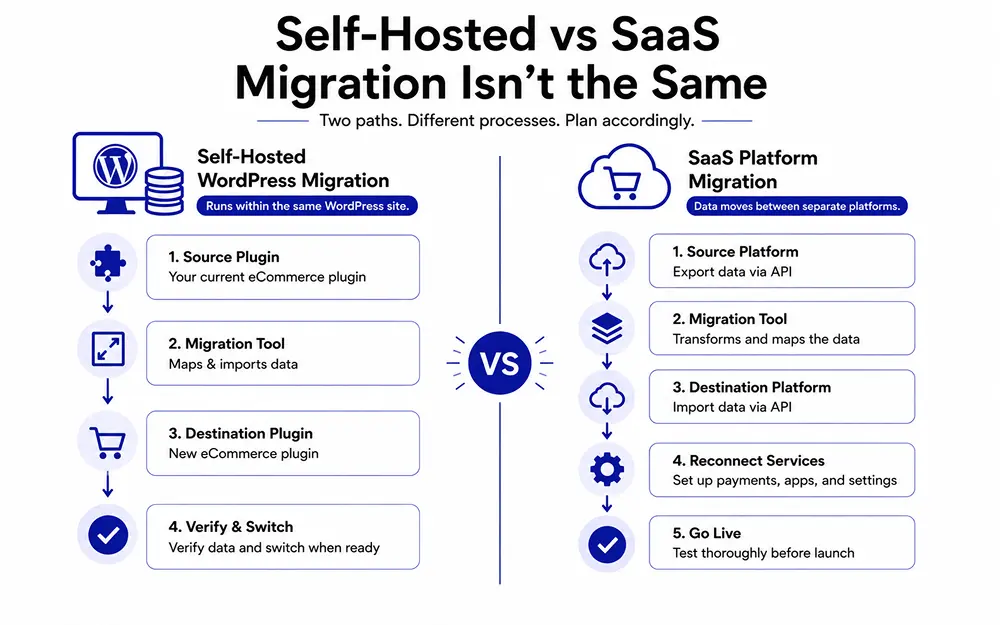
Before planning a migration, understand which type of migration you’re actually performing. Moving between two WordPress ecommerce plugins is very different from switching between two hosted platforms.
The tools available, the way data is transferred, and your rollback options all depend on this distinction. The migration process for each differs enough that treating them the same way causes avoidable mistakes.
WordPress to WordPress Migration
Moving between two WordPress ecommerce plugins usually happens within the same WordPress installation. Because you control the database, migration tools can often read data directly from the source plugin and write it into the new one without leaving your server.
This also makes rollback easier. Many migration tools leave the original data untouched, allowing both systems to exist side by side while you verify the results before retiring the old store.
The FluentCart Migrator works this way for EDD stores. It copies data across without modifying the original EDD tables, so both systems can run side by side until you are confident in the switch.
SaaS to SaaS Migration
Moving from one SaaS platform to another, such as Shopify to BigCommerce, works differently because you never get direct database access. Each platform exposes its own API, and a migration tool has to pull your data out, transform it, then push it into the new platform.
You cannot run both platforms on the same backend, so the two stores exist as separate systems connected only by whatever tool moved the data.
Expect more reliance on third-party migration apps, stricter rate limits, and a harder rollback if something goes wrong after launch. Since direct database access isn’t available, successful SaaS migrations rely much more heavily on API limits, third-party migration tools, and careful testing before launch.
If your destination platform offers a sandbox or trial environment, use it to validate the migration before switching your live store.
Know Why You Are Migrating
Not every migration is worth the effort. Write your reason down before you start, since it shapes which data matters most.
- Performance: Your current system slows down as your catalog or order volume grows.
- Cost: Transaction fees or subscription costs run higher than they need to be.
- Features: You need subscriptions, licensing, or a checkout flow your current system cannot support.
- Maintenance: You want fewer plugins and less manual upkeep to manage.
A clear reason keeps the migration focused instead of becoming a project without a real goal.
What Data Needs to Migrate
Not everything in your store moves the same way. Some data transfers automatically, some needs manual verification, and some should never transfer for security reasons.
| Store Data | Typical Migration | Verify Manually |
| Products | ✓ | ✓ |
| Customers | ✓ | ✓ |
| Orders | Usually | ✓ |
| Subscriptions | Often | ✓ |
| Coupons | Often | ✓ |
| Tax settings | Usually | ✓ |
| Download files | Depends | ✓ |
| Payment credentials | No | ✓ |
| Email templates | Rarely | ✓ |
| Custom metadata | Depends | ✓ |
Every migration tool supports a different set of data. Review exactly what your chosen tool transfers before you begin, and make a checklist for everything that requires manual verification or setup afterward.
Back Up Before You Start
Even a migration tool that only reads your original data deserves a fresh backup first. A backup works like an insurance policy you hope never to need. Keep a copy of your database, uploaded files, and current configuration somewhere separate from your live site.
If a migration stalls partway through or a plugin conflict corrupts a table, a recent backup lets you restore your store in minutes instead of rebuilding it from memory. This single step prevents most of the worst-case scenarios teams worry about before a switch.
Test on a Staging Site
Run your first migration attempt on a staging copy so problems surface before customers ever see them. A staging environment lets you check plugin conflicts, timeout issues, and checkout flows without risking live orders.
Reset and repeat the process as many times as needed until the results look correct, then apply the same steps on production. Skipping this step to save time is one of the most common reasons migrations go wrong, because the first attempt is rarely the cleanest one.
Verify Your Data After Migration
A completed migration still needs a manual check before you trust it. Spot check a representative order from each scenario in your store: a one-time purchase, a subscription with renewals, an order with a coupon applied and a refund.
Confirm product prices, variations and downloadable files. Check that customer emails, order totals and subscription billing dates match what you expect. Compare the total record counts against your original store so nothing quietly went missing. A short manual review now saves a support ticket flood later.
Reconnect Payment Gateways
Payment gateway credentials intentionally do not transfer during a migration for security reasons. Reconnect Stripe, PayPal, or other processors manually using the same accounts you used before, so existing subscriptions keep renewing correctly.
The same applies to SMTP settings, webhook connections, and any email or CRM integrations tied to your store. Treat this as a fixed step on your checklist rather than an afterthought, since a missed reconnection can quietly stop payments from processing.
Keep Your Old Store Running
Do not delete your original store the moment migration finishes. Keep both systems running in parallel for a period of time so you can compare, verify and catch anything the migration missed. Some migration tools are designed to work this way.
They copy data only and leave the source system untouched. Set a review date several weeks out before you consider removing the old store, and only follow through once every order type and customer scenario has been confirmed correct on the new system.
Protect Your SEO During Migration
URL structures often change during a migration, and search engines need to be told where content moved. Set up permanent redirects from every old URL to its new equivalent, update internal links, and resubmit your sitemap through Google Search Console.
If your platform allows it, preserve page titles, meta descriptions, canonical URLs, and structured data wherever possible. These elements help search engines understand that your content has moved rather than disappeared.
Expect some ranking fluctuation while pages are recrawled, but monitor Search Console closely during the first few weeks to catch indexing errors, broken redirects, or unexpected traffic drops early.
Google’s own site move guidance recommends mapping every indexed URL before launch. Expect some ranking fluctuation while pages get recrawled, and monitor Search Console closely during the first few weeks rather than assuming everything indexed correctly on its own.
Common Migration Mistakes
These mistakes show up in almost every rushed migration, and each one is easy to avoid.
- Skipping backups: Running the migration without a fresh backup removes your safety net.
- Testing on production: Running the first attempt on your live store risks real orders and real customers.
- Ignoring custom fields: Custom metadata often gets left behind if it is never explicitly checked.
- Deleting old data too early: Removing the source store before full verification leaves no way to compare records.
- Forgetting payment setup: Leaving gateways disconnected stops revenue quietly until someone notices.
- Skipping subscription checks: Renewal dates and billing intervals need manual confirmation rather than assumption.
Monitor Your Store After Launch
Migration does not end when the progress bar reaches 100 percent. Spend the next several days monitoring your store as customers begin using it.
Watch for failed payments, subscription renewals, broken download links, unexpected support requests, and changes in conversion rate. Review analytics alongside order reports to make sure customers can browse, purchase, and access products without issues.
Catching small problems during the first week is much easier than discovering them months later.
Migrating to FluentCart?
If you’re planning to migrate from Easy Digital Downloads to FluentCart, the FluentCart Migrator is designed to copy supported store data while leaving your original EDD installation untouched. That allows you to compare both systems before completing the transition.
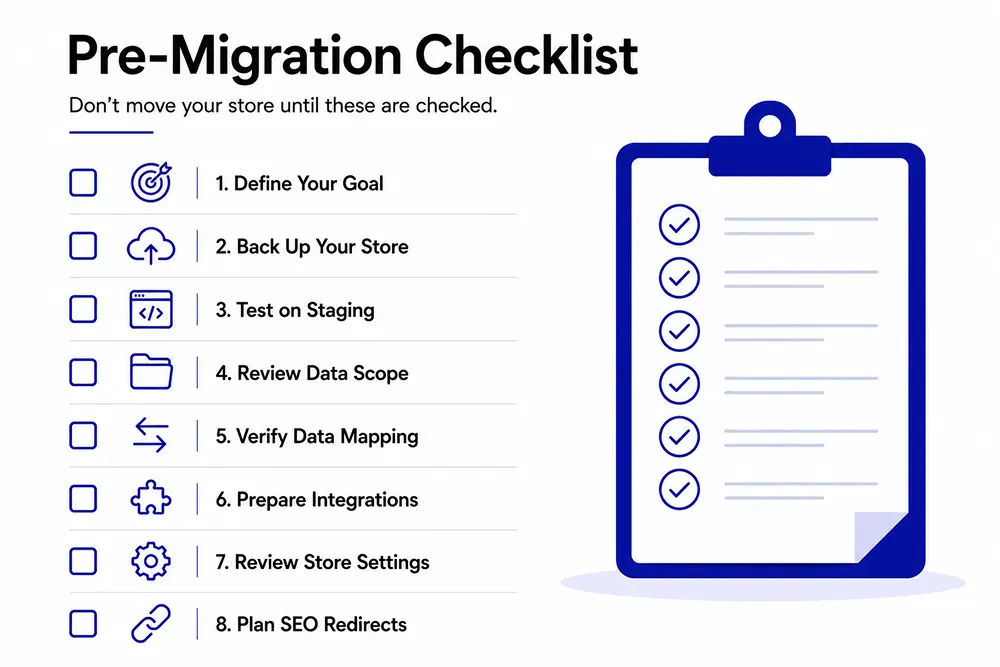
As with any migration, you should still back up your store, test on staging, verify the migrated data, reconnect payment gateways, and keep the original store available until you’re confident everything works as expected.
WooCommerce migration support for FluentCart is currently in development. If you’re planning that move, following the best practices in this guide will help you prepare before the migration tool becomes available.
Wrapping Up
A successful migration shows up in what customers never notice. Plan your backups, test on staging, verify your data, and give your old store time before you retire it.
Whether you move between two WordPress ecommerce systems or switch SaaS platforms entirely, the same discipline applies. Plan carefully, verify thoroughly, and monitor closely for the first few weeks before you call the migration done.

Deputy Marketing Lead, published literary author, and musician. I thrive on marketing for tech companies while composing music, collecting books of lasting depth, exploring cinema with a discerning eye, and studying the arts and history.

Subscribe now
Related Articles and Topics
-

Best WooCommerce Plugins: For Physical and Digital Sellers
Skip the 30-plugin lists. 12 WooCommerce add-ons sorted by store type, with an honest note on what’s free,…
-
Teachable vs Kajabi vs MemberPress: Which One Fits You Best in 2026?
Teachable vs Kajabi vs MemberPress compared on pricing, fees, and features to help you choose the right platform…
-
eCommerce Platform Migration: Guided Migration w/ Checklist
Ecommerce platform migration checklist: move WooCommerce to FluentCart Free.




Leave a Reply