
FluentCart 2.1.0 – Reports that add up
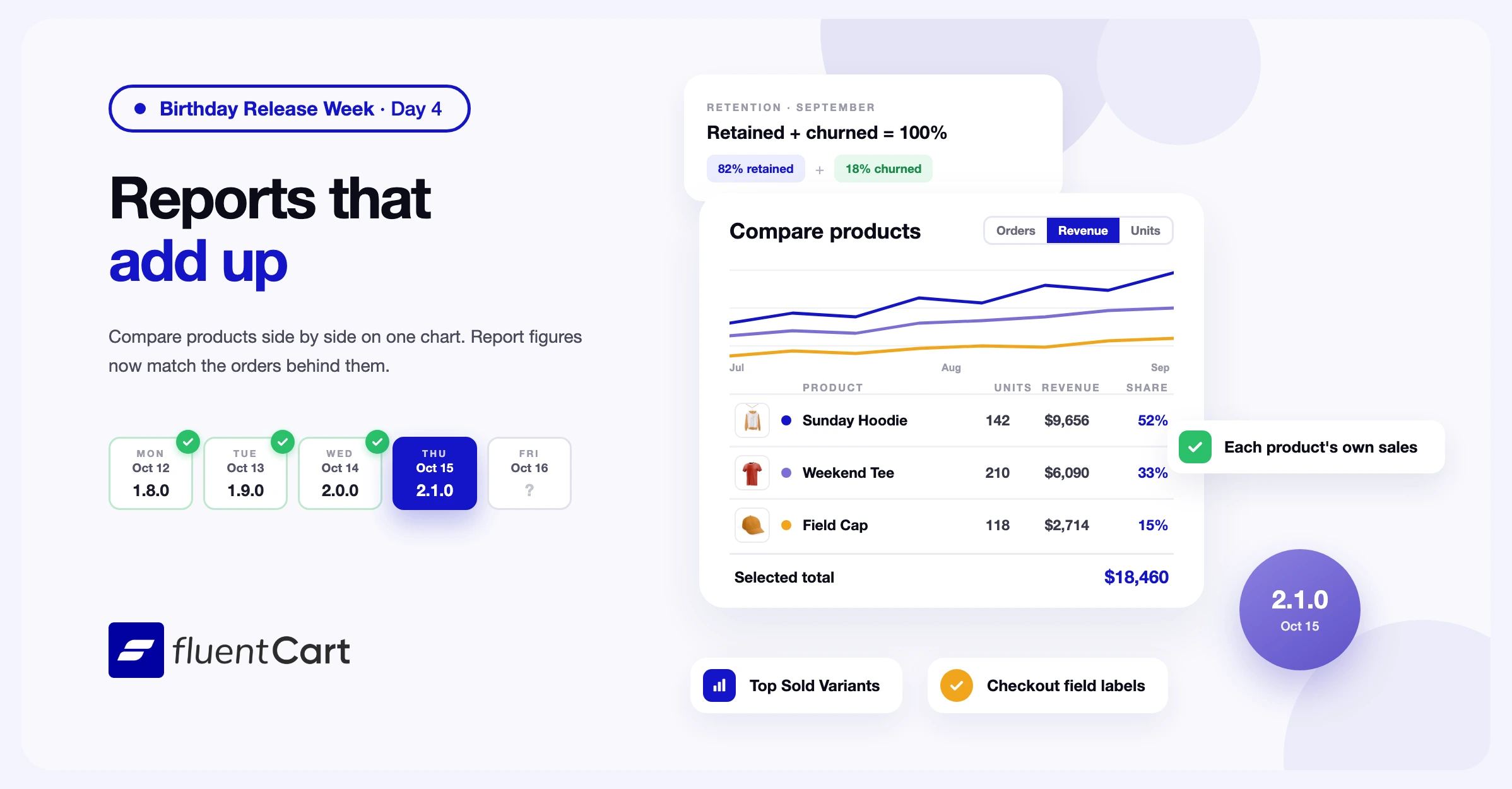
To decide which product to promote or restock, you need to see two products side by side. Until now, the Products report added every product you picked into one set of totals. To compare two products, you ran the report once for each and compared the figures yourself. FluentCart 2.1.0 adds a Compare report that puts two or more products on one chart and one table.
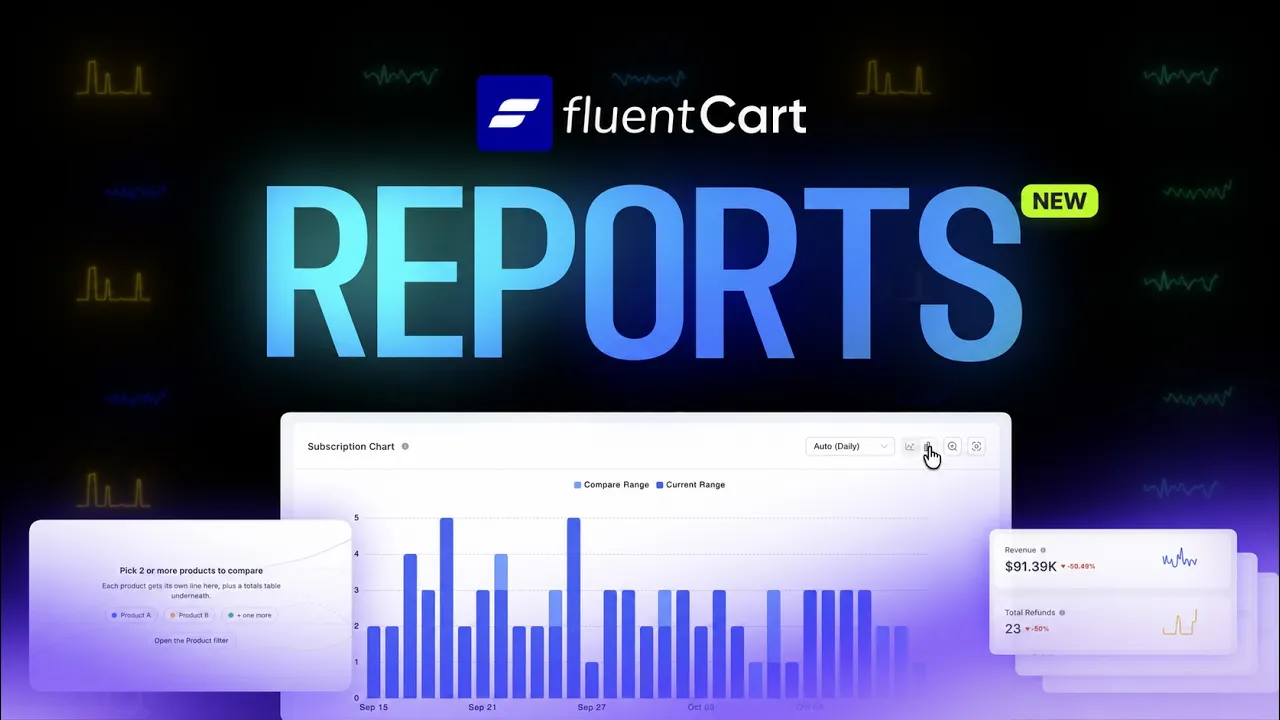
The release also makes report figures match the orders behind them, across the Products, Subscriptions, Retention, Cohorts, Overview, Orders, and Refunds reports. Outside Reports, checkout fields get a choice of label styles, and receipts and emails show payment method names. This is day 4 of Birthday Release Week.
Two or more products now share one chart and one table in the new Compare report
Compare is a new report under Products in the Reports menu. Pick two or more products in the Product filter. Each product gets its own line on the chart and its own row in the table. Switch the chart between Orders, Revenue, and Units. Group by Product, or group by Variation to compare the sizes or plans of one product.
The table lists units, revenue, orders, refunds, customers, and discounts for each product. The Share column shows each product’s part of the selected total. The table opens with the top 5 rows, and Show all lists the rest. When you set a Compare to period, each row also shows its change against that period. Compare is part of FluentCart Pro.
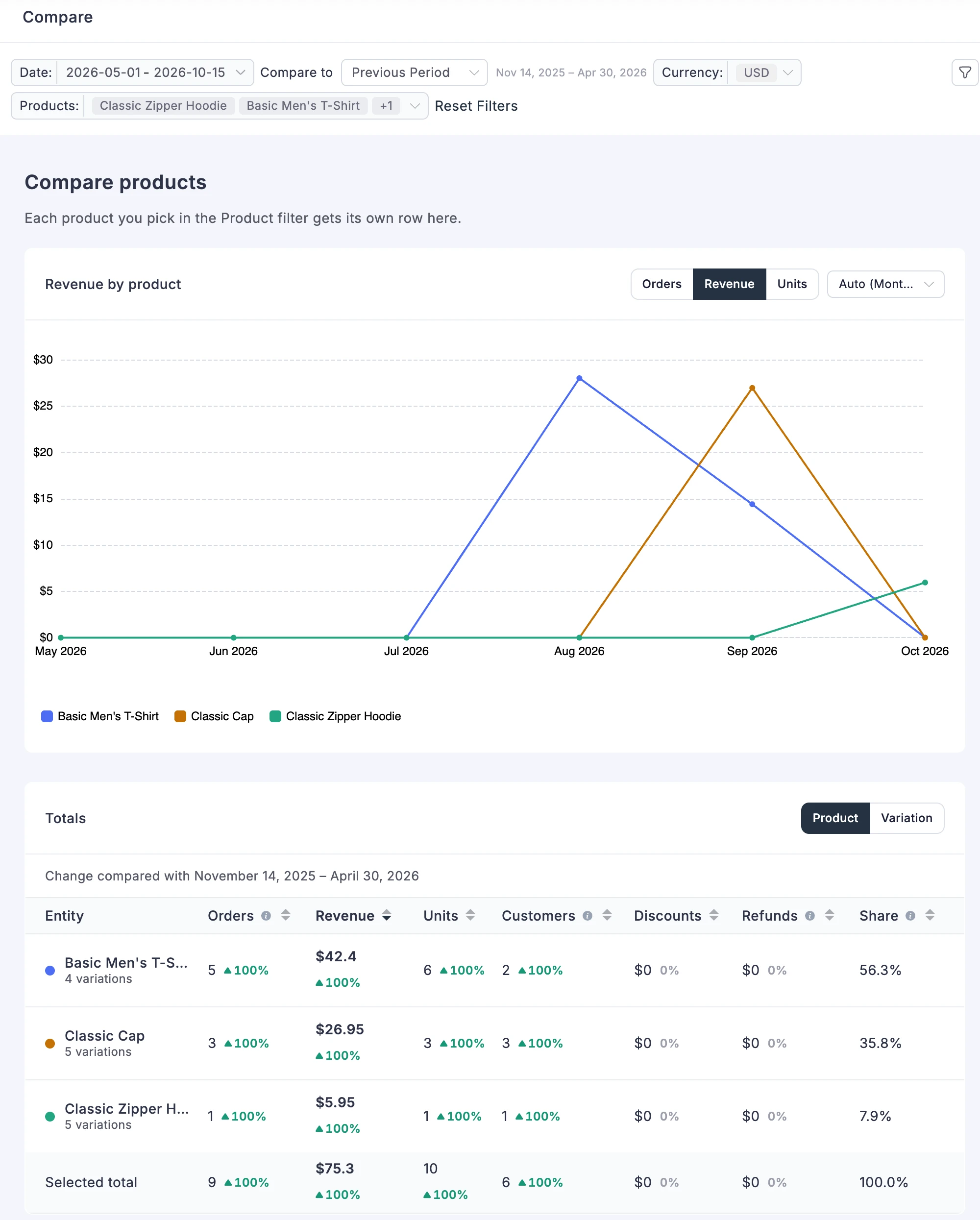
One limit worth knowing before you read the totals. When a product row adds up its variations, an order or a customer that bought two variations of the product counts twice. Refunds count by the date of the order, not by the date of the refund.
The Products report counts each product’s own sales and adds customers, discounts, and variants
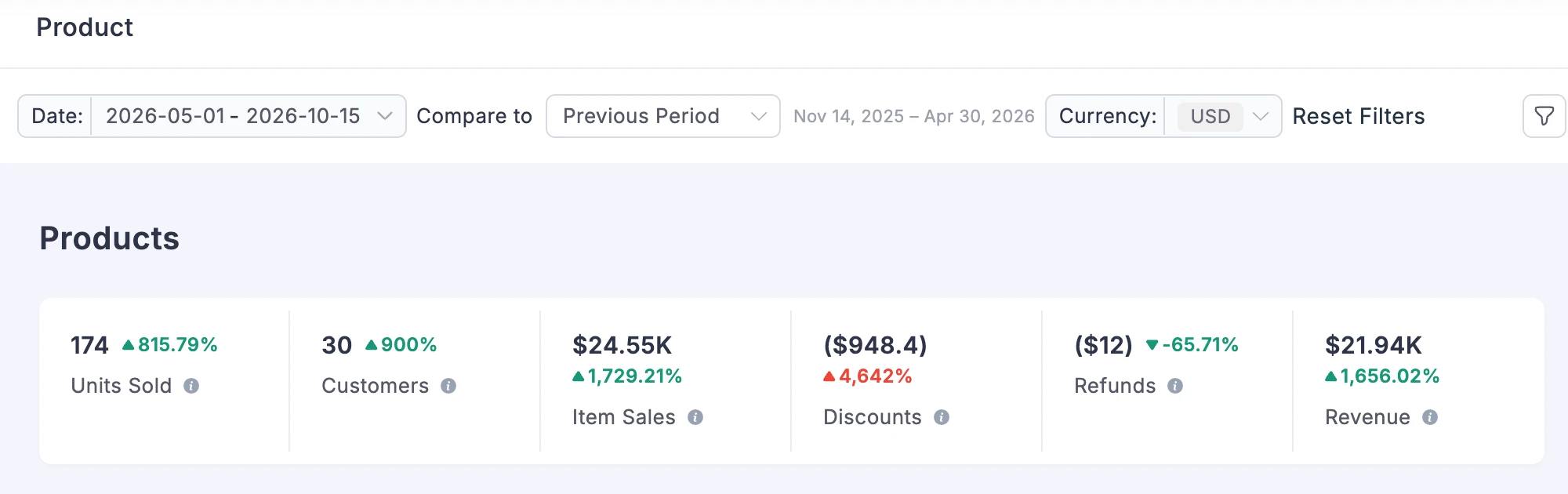
You open the Products report to see which products bring in money. FluentCart now takes each product’s sales, refunds, and revenue from that product’s own line on the order. In an order with three products, each product counts only its own line, and a report filtered to one product counts only that product. When you give a manual discount on a whole order, FluentCart splits it across the items in that order.
The card that was called Gross Sale is now Item Sales, and the info icon on each card says what the card counts and which order statuses it includes. In the Product Performance Comparison chart, the Year view shows a full year of units.
The report has new parts too. The Customers card counts the customers who bought the products in the period. The Discounts card adds up the coupon, manual, and order discounts on those products. The Top Sold Variants card is next to Top Sold Products, so you can see which size or plan sells, as well as which product. Under the chart, the Units Sold by Period table lists units, item sales, discounts, refunds, revenue, and customers for each period on the chart. You can export the table as CSV.
Subscription reports count only subscriptions that started, and Future Renewals shows each variant
Retention and churn tell you whether subscribers stay, so FluentCart 2.1.0 changes what those figures count. Installment plans no longer count as subscriptions in the Subscriptions charts or in the Retention, Cohorts, and Future Renewals reports. Daily Signups and the Retention Chart leave out subscriptions whose first payment never went through.
Each subscription now counts from the day it starts until it cancels or expires, whichever comes first. Cohorts use the same dates. The card that was called Future Installments is now Installments Still Due, and it leaves out canceled plans.
On the Retention report, the retention rate and the churn rate for a month now add up to 100%. The averages for a period skip months that started with no subscribers. The Lifetime card stops at over 10 years. The Retention Rate and Churn Rate charts draw as soon as their data loads.
The Cohorts Year view now counts every monthly cohort in a year. A year that is not complete carries a mark, and its tooltip says how many monthly cohorts have reached that point. Next to Generate Snapshots, the Cohorts report shows when you last generated them.
Future Renewals has a new Renewals by Variant table. It lists each product variant with its renewals and projected revenue, so you can see which plan your coming renewals depend on.
Overview, Orders, Refunds, and the store digest email count every order they should
The Overview Top Country cards now include partially paid and partially refunded orders. The Sales report includes renewal orders, and so do the totals in the store digest email, which come from the same figures. The Orders chart counts every order in the range, and Avg. Order Items averages the items across all orders in each period.
On the Refunds report, Average Amount now divides the refunded money by the number of refunded orders. The Refunds column in the Refunds Grouped By table shows the refund count.
The New vs. Returning Customers chart now puts each paid order in one of four rows: New, Returning, Renewal, or Guest.
The Overview quarterly summary now compares the current quarter with the previous quarter. When last year had no sales, the cards show New. The View full reports link in the store digest email opens the Overview report. Revenue figures that include shipping and fees are called Revenue on the Overview and Sources reports and in the store digest email.
Date ranges, comparisons, and currencies stay the way you set them
With FluentCart Pro, you can pick any date range, compare it with an earlier period, and view reports in another currency. The changes in this section apply to stores on FluentCart Pro.
The Compare to period now has the same number of days as your range and ends the day before your range starts. The Compare to menu shows the dates of each period, and the dates of the selected period appear next to the menu. Every percentage change on the summary cards uses this period, so expect those percentages to change after you update. A This Year range stops at today, and Average Monthly cards divide by the months that have passed.
When you change the date range, tables and charts keep your grouping and your new range.
With another currency selected, report amounts use the sign of the currency you picked, and so does the Previously amount in each change tooltip. Your currency choice stays after a page reload, and the Sources report has the filter bar too.
When you set a comparison, the Revenue Breakdown table shows Compare Revenue and Change (%) columns in place of the separate Revenue Comparison card. Products you pick in the filter bar show as one tag for each product. When you picked some of a product’s variations, the tag shows a count such as 2 of 5. Clearing the currency tag resets the report to the default currency.
Checkout fields show their name after the shopper types
Until now, a checkout field showed its name as placeholder text, and the name disappeared once the shopper typed. A shopper who checks a filled-in form before paying sees values with nothing to say which field is which. A postcode and a phone number look alike once the names are gone.
The Checkout block has a new Field Labels setting with three styles. Docked is the new default and shows the field name small at the right edge of the field once the shopper types. Floating moves the name above the value. Placeholder only keeps the earlier look. Country and state selects always show their name.
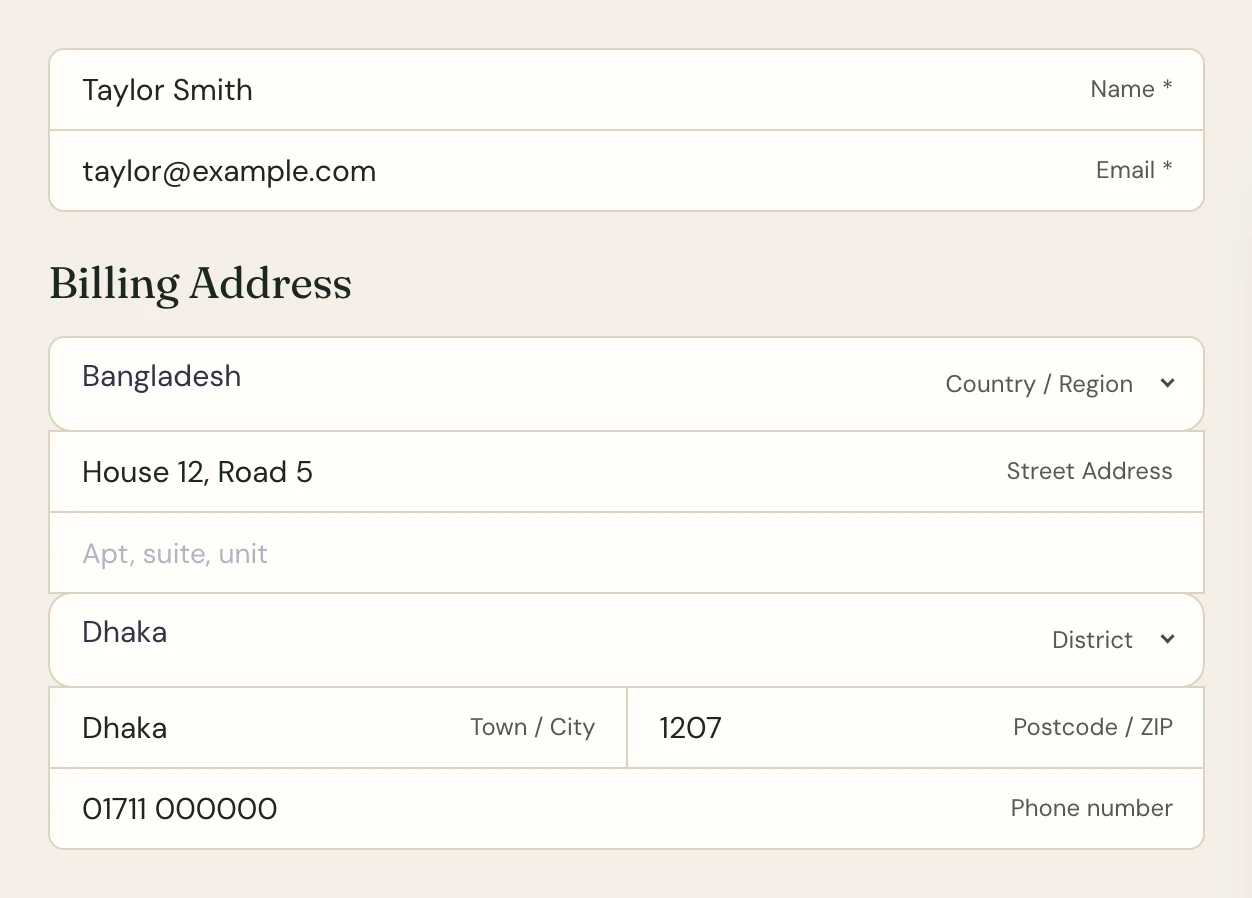
If your checkout page uses the fluent_cart_checkout shortcode, set the style with the field_label_style attribute. Add field_label_style="placeholder" to keep the earlier look.
The lines between grouped fields, such as first name and last name, are now 1px. The Company, Legal Registration ID, and VAT fields have labels too. In the add-address popup, the field you are typing in uses your checkout’s border color.
Developers can hide or mask reviewer names in review blocks
Some stores do not want a buyer’s full name and photo next to a public review. FluentCart 2.1.0 adds filters for that. Your review blocks stay the same until a developer uses them.
For developers. fluent_cart/review/show_reviewer_name and fluent_cart/review/show_reviewer_avatar hide the name or the avatar in review blocks across the store. fluent_cart/review/reviewer_name_format picks full, first, first_initial, anonymous, or masked, and masked shows Taylor Smith as Tay***ith. fluent_cart/review/reviewer_display_name sets a format of your own. Store replies keep the store’s name.
Fixes & Stability
Reports. When a report fails to load, it now shows “This report could not be loaded.” and a Retry button.
Payments and emails. Receipts, order emails, subscription emails, and the customer portal now show the card and its last 4 digits, or the payment method name that shoppers see at checkout. Admin screens, report groupings, and license screens show the payment gateway’s name. When a customer reactivates a Stripe subscription with a new billing address, FluentCart now sends that address to Stripe for future invoices. The new {{transaction.payment_method_title}} smart code puts the checkout name of the payment method in your emails.
Checkout and reviews. The Write a Review button now fits inside the rating summary card on block themes such as Twenty Twenty-Five. In the admin Products list, the Reviews column lines up with its header. On an on-page checkout built from separate blocks or a page builder, the order summary heading and totals appear once.
Security and maintenance. This release includes ongoing security audits and routine hardening across FluentCart core and FluentCart Pro, including the new Compare report.
Past figures change after you update
Most reports read your orders each time you open them, so the changes apply to past months too. Expect some past figures to change. Cohort figures come from saved snapshots, and FluentCart rebuilds them once in the background after the update.
Getting 2.1.0
Update FluentCart and FluentCart Pro from your dashboard, and update both plugins together. With FluentCart 2.1.0 and an older FluentCart Pro, the licensing screens show Update FluentCart Pro to use Licensing. Update Pro to use them again. The Compare report needs an active FluentCart Pro license.
To compare products:
- Go to Reports, and click Compare under Products.
- In the Product filter, pick two or more products.
- To see the change against an earlier period, pick a period in Compare to.
To pick a style for checkout field names:
- Open your checkout page in the block editor and select the Checkout block.
- Open the Field Labels panel and pick Docked, Floating, or Placeholder only.
- Save the page.
The checkout page that FluentCart creates uses the fluent_cart_checkout shortcode. To change its style, add field_label_style="floating" or field_label_style="placeholder" to the shortcode.
Full Changelog
Features
- Adds a Compare report under Products, with a totals table and a chart for two or more products. Pro only.
- Adds Customers, Discounts, and Top Sold Variants cards and a Units Sold by Period table to the Products report.
- Adds a Renewals by Variant table to the Future Renewals report.
- Adds sorting to the number columns of the Revenue, Refunds, Orders, and Sources report tables.
- Adds a Field Labels setting with Docked, Floating, and Placeholder only styles for checkout fields, with Docked as the new default.
- Adds the
{{transaction.payment_method_title}}smart code, which shows the payment method name in emails. - Adds
fluent_cart/review/*filters for hiding reviewer names and avatars and for setting the reviewer name format, including a masked name.
Improvements
- Improves the Revenue Breakdown table, which shows Compare Revenue and Change (%) columns in place of the Revenue Comparison card. Pro only.
- Improves the Overview breakdown cards, which show the period summary as one line under the card title.
- Improves chart contrast on reports and the Dashboard Sales Growth chart, with a lighter dotted line or faded bars for the comparison period.
- Improves the Compare to menu, which shows the dates of each comparison period. Pro only.
- Improves product pickers and filters across the admin, such as coupons and reports, which show one tag per product and a +N tag.
Fixes
- Fixes the Products report so each product counts only its own sales, refunds, and revenue.
- Fixes the Product Performance Comparison Year view so it shows a full year of units.
- Fixes the Refunds report so Average Amount divides by refunded orders and the Refunds Grouped By table shows the refund count.
- Fixes subscription reports so they count only recurring subscriptions, from the day each starts until it cancels or expires.
- Fixes the Retention report so retention and churn rates add up to 100% and averages skip months with no subscribers.
- Fixes the Retention Rate and Churn Rate charts so they draw as soon as their data loads.
- Fixes the Cohorts Year view so it counts every monthly cohort and marks years that are not complete.
- Fixes the New vs. Returning Customers chart so renewals and guest orders have rows of their own.
- Fixes the Overview report so the quarterly summary compares with the previous quarter and Top Country cards include partially paid orders.
- Fixes the Orders chart and the Sales report so they count every order in the range, including renewals.
- Fixes the store digest email so its totals include renewal orders and its report link opens the Overview report.
- Fixes reports that fail to load so they show an error message with a Retry button.
- Fixes report labels and tooltips so each one says what its figure counts.
- Fixes Compare to periods so they match the length of your range and end before it starts. Pro only.
- Fixes report date ranges and groupings so they stay as you set them. Pro only.
- Fixes report amounts so they use the sign of the currency you picked, after a page reload too. Pro only.
- Fixes receipts, emails, the customer portal, and admin screens so they show the payment method name.
- Fixes Stripe subscription reactivation so Stripe gets the customer’s new billing address.
- Fixes grouped checkout fields so the lines between them are 1px.
- Fixes the checkout add-address popup so the field you type in uses your checkout border color.
- Fixes the Write a Review button so it fits inside the rating summary card on block themes.
- Fixes the Reviews column in the admin Products list so it lines up with its header.
- Fixes on-page checkouts built from separate blocks so the order summary heading and totals appear once. Pro only.
In case you missed
2.0.0, Oct 14, 2026
- Adds Multi Currency as a beta, so shoppers see prices, the cart, and checkout in their own currency. Pro only.
- Adds Price adjustment, Rounding, and Charm pricing settings for each currency, with charm endings of .99 and .95. Pro only.
- Adds a stored exchange rate on every order, which the order’s renewals and refunds reuse. Pro only.
- Adds a currency switcher with flags as a block, a shortcode, and a site menu item. Pro only.
- Adds Reports → Export, an accounting export of every sale and refund with its tax line, as CSV or JSON. Pro only.
1.9.0, Oct 13, 2026
- Adds on-page checkout, so the Checkout Page block or the
fluent_cart_checkoutshortcode sells products you choose on any page. Pro only. - Adds a Checkout Source setting to the Checkout Page block, with Default Cart and Custom Product options. Pro only.
- Adds Select one and Select many modes for on-page checkout, with a Maximum Selectable Items limit for Select many. Pro only.
- Adds subtotal, shipping, tax, and total updates each time a shopper changes their on-page checkout selection. Pro only.
- Adds a separate cart for each on-page checkout page, so the shopper’s main cart stays unchanged. Pro only.
1.8.0, Oct 12, 2026
- Adds Dynamic Pricing, with rules that add a discount or a fee at checkout when your conditions match. Pro only.
- Adds pricing rule conditions for cart quantity, subtotal, coupons, purchase count, products, SKUs, user roles, payment methods, and checkout fields. Pro only.
- Adds pricing rules for first purchases, store-managed renewals, and subscription upgrades and downgrades. Pro only.
- Adds struck-through original prices for items a pricing rule discounts, at checkout, on the thank-you page, and in order emails. Pro only.
- Adds a Show reviews from setting, with Selected products and All products, to the Product Reviews, Review List, and Rating Summary with Review blocks.

I’m Jewel, founder of FluentCart and CEO at WPManageNinja, the team behind Fluent Forms, Fluent CRM, Fluent Support, FluentLogs and a handful of other WordPress plugins. I have been writing WordPress code since 2009 and still think of myself as a developer first and an entrepreneur second. Most of what I write on this blog comes from arguments we have had inside the team about how to build software people can actually depend on.

Subscribe now
Related Articles and Topics
-
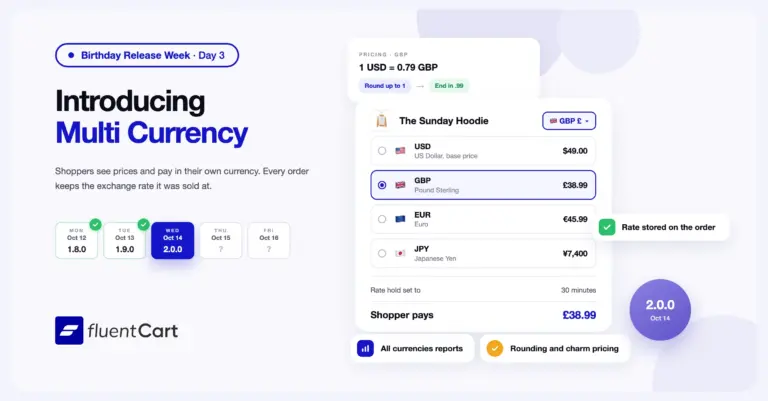
FluentCart 2.0: Multi Currency for our first birthday
FluentCart 2.0.0 adds Multi Currency. Shoppers see prices, check out, and get their emails in their own currency,…
-
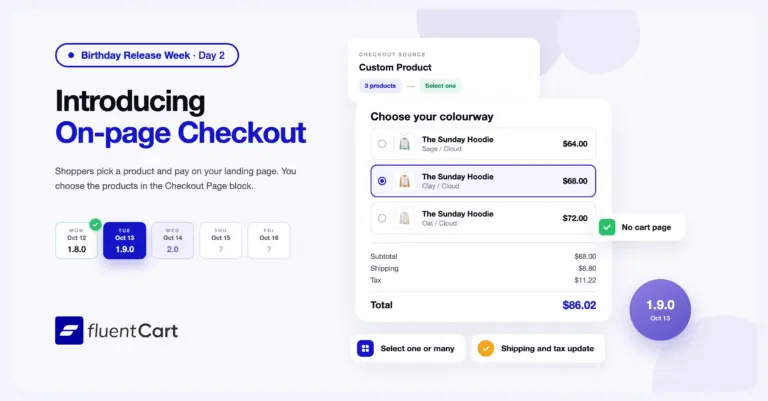
FluentCart 1.9.0 – One page, from offer to order.
FluentCart 1.9.0 adds on-page checkout to FluentCart Pro. You choose the products in the Checkout Page block, and…
-
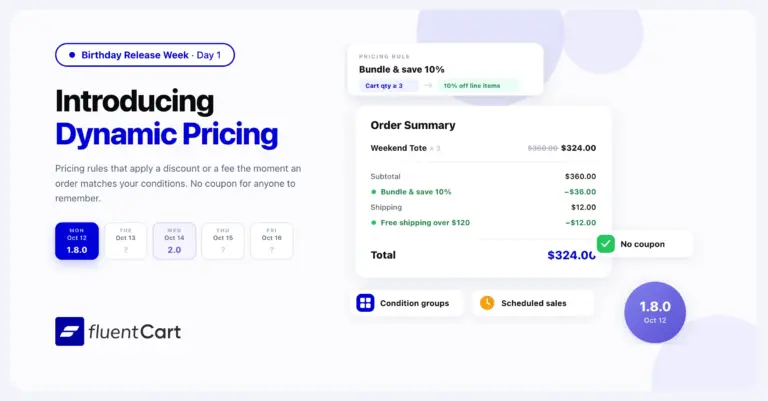
FluentCart 1.8.0 – Dynamic Pricing that follows your conditions
FluentCart 1.8.0 adds Dynamic Pricing to FluentCart Pro. A pricing rule adds a discount or a fee at…



Add your first comment to this post