

What Is Browser? How It Works & Examples
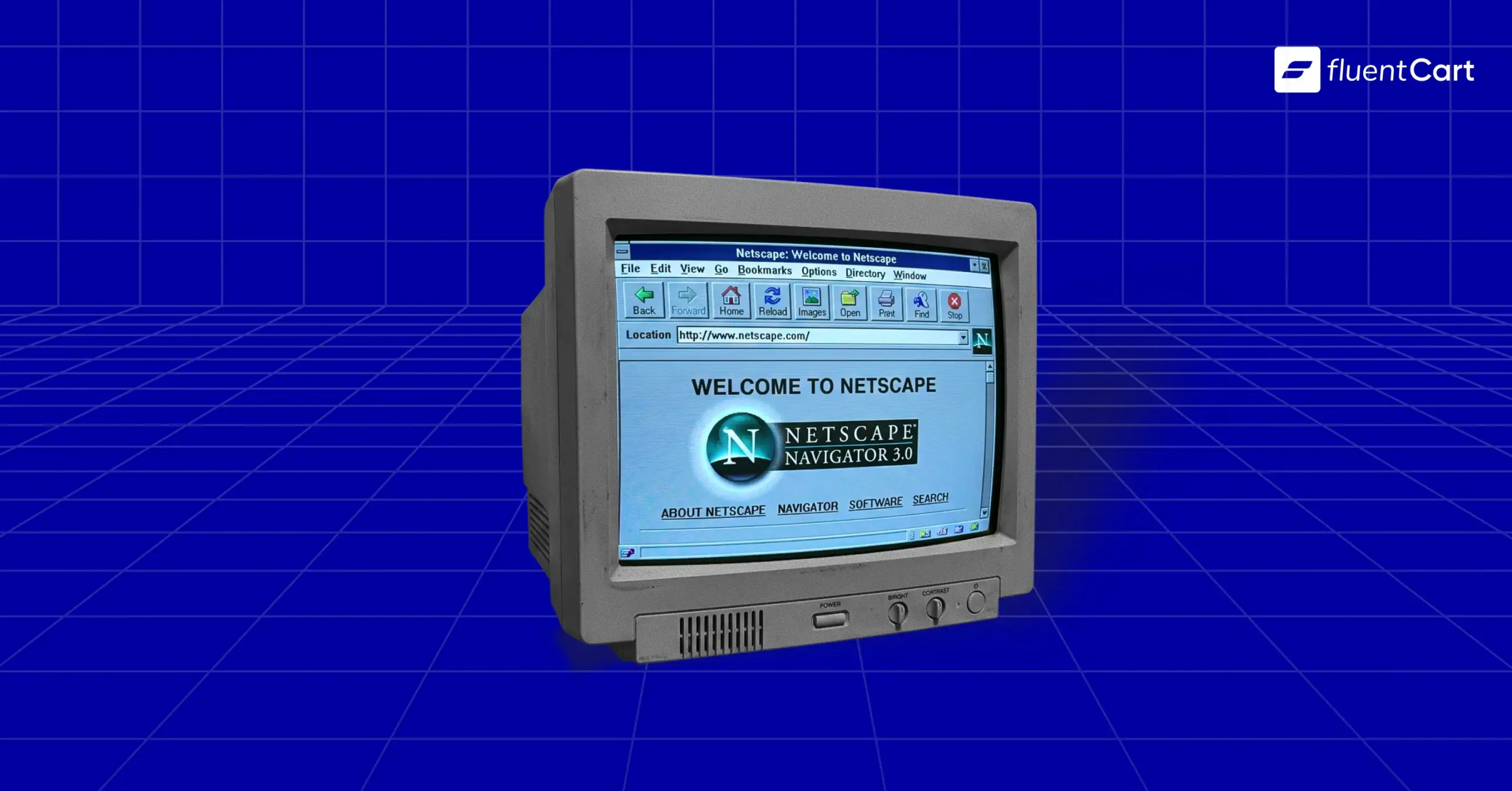
Everyone knows what a browser is. You open one a dozen times a day, so the question feels almost silly. But if you’ve ever typed “what is browser” into Google and then wondered whether Google itself was the browser, you’re in very good company.
Or are you sure you know?
In 2009, Google sent a team to Times Square with one simple question: “What is a browser?” Less than 8% of the people they interviewed knew the answer. These were busy, smart people who used a browser every single day. They just never needed a name for it.
So let’s give it one. A browser is the app you use to open websites, like Chrome, Safari, Edge or Firefox, and it turns raw code from the internet into the pages you see. The longer story explains why a shop looks broken on someone else’s phone, why “incognito” hides less than you think, and why “clear your cache” fixes so many problems.
And if a support person has ever told you to “try a different browser” and you nodded without being sure what that meant, this one is for you.
TL;DR
- What is browser, in one line? The app you use to open and view websites.
- It requests pages from web servers and turns HTML, CSS and JavaScript into what you see.
- Google is a search engine. Chrome is a browser. You reach Google through a browser.
- Chrome, Safari, Edge, Firefox, Opera and Samsung Internet are the most used browsers.
- Beyond the big names, there are privacy-first, aesthetic and AI browsers.
- Every major browser is free, and your phone or computer already came with one.
- Core features include the address bar, tabs, bookmarks, history, extensions and private mode.
- Incognito mode only hides your history on your own device.
- If you run a website, every visitor sees it through a browser, so it has to work in all of them.
What Is Browser, Exactly?
A web browser is a software application that fetches content from the internet and displays it on your device.
Now let’s make that make sense.
Think of the internet as a giant warehouse of files, spread across computers all over the world. Your browser is the delivery driver and the unpacker in one. It goes to the right shelf, brings the box back, opens it and lays everything out neatly on your screen.
And it doesn’t only live on laptops. Phones, tablets, smart TVs and game consoles all have one built in. On your phone, it often hides in plain sight, since many apps open links in a small browser window without ever leaving the app.
So whenever you’re looking at a website, a browser is doing the work, whether you remember opening it or not.
A 30-Second Browser History
Ask “what is browser” in 1990 and the honest answer was one program on one computer at CERN. Things moved fast after that:
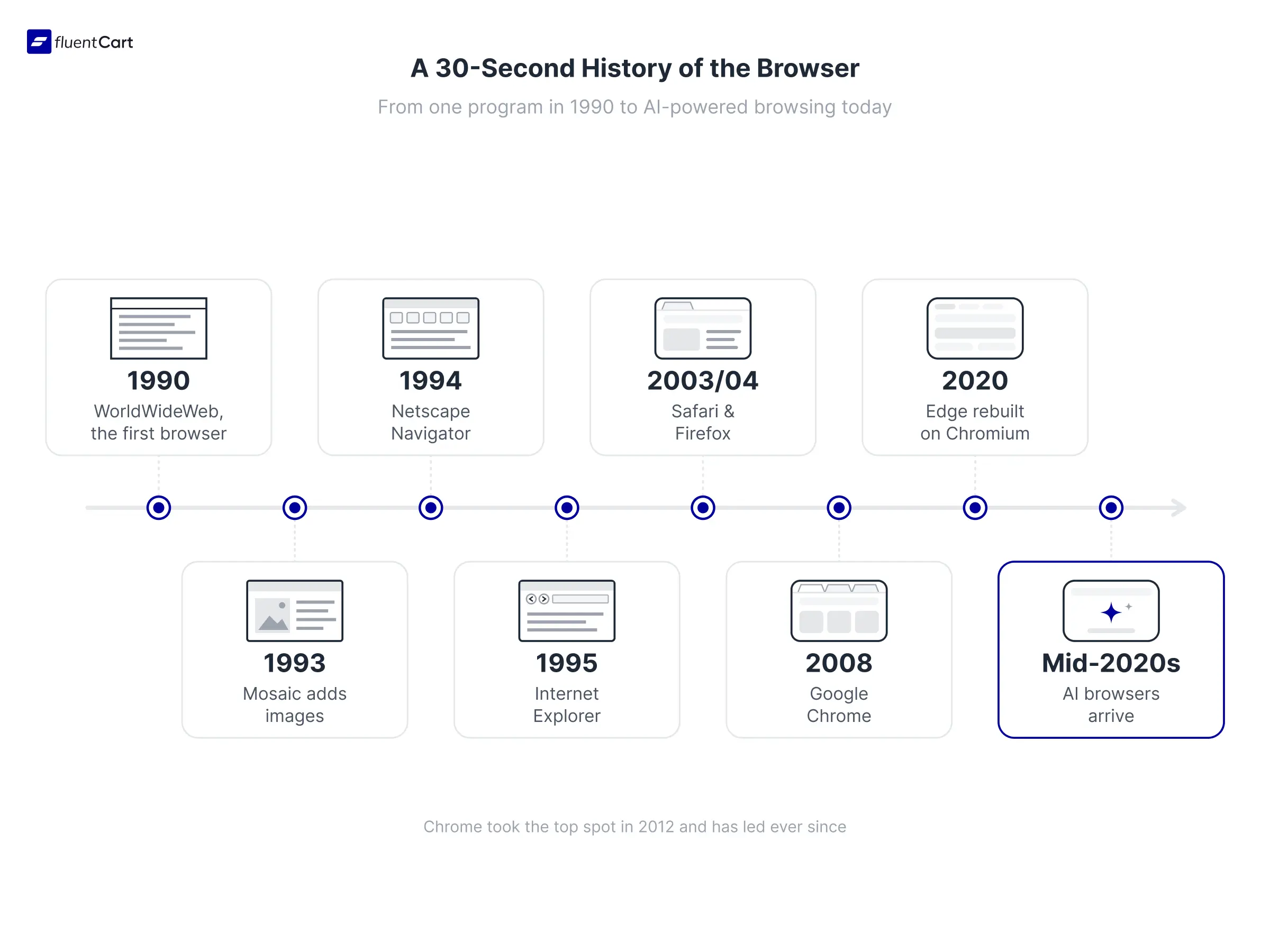
- 1990: Tim Berners-Lee builds WorldWideWeb, the very first browser
- 1993: Mosaic brings images and a point-and-click graphical user interface to regular people
- 1994: Netscape Navigator takes the lead
- 1995: Internet Explorer ships with Windows, and the first browser war begins
- 2003 to 2004: Safari and Firefox launch
- 2008: Google Chrome arrives and becomes number one by 2012
- 2020: Microsoft rebuilds Edge on Chromium
- Mid-2020s: AI browsers join the race
Now you know why some people still call every browser “the Internet Explorer.”
How Does a Web Browser Work?
Every browser on that timeline does the same core job. Here’s what’s actually happening when you type an address and hit Enter.
Let’s say you type wikipedia.org into the address bar. In well under a second, your browser runs through this relay:
- Read the URL: the web address, including its top-level domain like .org or .com, points to the right server
- Send a request: a message over HTTP, or HTTPS when the line is encrypted
- Get the files: HTML for structure, CSS for style, JavaScript for interaction, plus images
- Render the page: the rendering engine builds the layout
- Run the interactive bits: a JavaScript engine powers menus, buttons and forms
- Keep copies: the cache stores files so your next visit loads faster
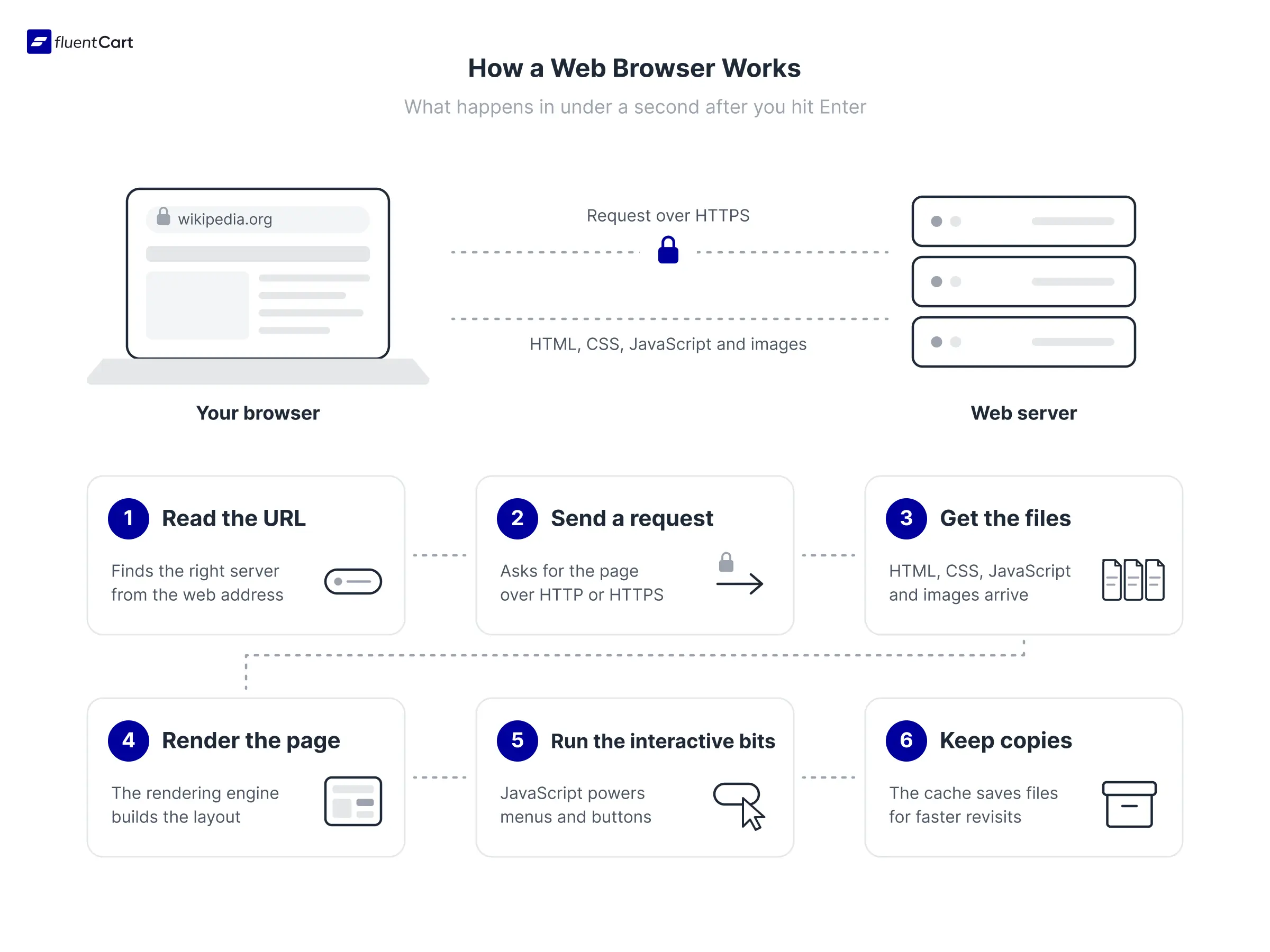
As you can see, one tap sets off a conversation between your device and a computer that could sit on another continent.
That fourth step deserves a closer look. A rendering engine is the part of the browser that turns code into the visual page. Chrome, Edge and Opera use one called Blink, Safari uses WebKit, and Firefox uses Gecko, and each one reads the same code a little differently.
Then there’s the padlock next to the address bar. It means the connection runs on HTTPS. That way, anything you type, like a card number at checkout, travels in a scrambled form nobody in the middle can read.
That cache also explains the old “clear your cache” trick. When a site updates but your browser keeps serving an old saved copy, pages can look broken or half-loaded. Wiping those copies forces a fresh download.
So a browser is part messenger, part translator and part painter, all working in the time it takes you to blink.
Browser vs Search Engine
So is Google a browser?
No. Google is one of those websites your browser fetches, and this mix-up is exactly what tripped up so many people in Times Square. A search engine is a website that helps you find other pages by searching a huge index of the web. Google, Bing and DuckDuckGo are search engines, while Chrome, Safari, Firefox and Edge are browsers.
The confusion makes sense. Google makes Chrome, and most browsers let you search straight from the address bar, so the two feel glued together. But you can run Google inside Safari, or set Chrome to search with Bing.
| Browser | Search engine | |
|---|---|---|
| What it is | An app on your device | A website you visit |
| Its job | Opens and displays any web page | Finds pages that match your search |
| Examples | Chrome, Safari, Edge, Firefox | Google, Bing, DuckDuckGo |
| Install needed? | Usually comes pre-installed | No, you just visit it |
Let’s say your dad calls and says, “Google stopped working.” Ask him to open any other site. If nothing loads, the browser or the Wi-Fi is the problem, and if only the search page fails, the trouble sits with Google.
See what we did here. Knowing the two layers turns a vague complaint into a two-minute fix.
Now you can settle that family tech argument with a straight face.
Examples of Web Browsers
Ask a room “what is browser” and most people answer with a name, usually Chrome. Fair enough. Hundreds of browsers exist, yet a handful carry almost all of the world’s traffic, and the split below comes from StatCounter’s worldwide browser market share for October 2026:
| Browser | Made by | Global share | Comes as the default on |
|---|---|---|---|
| Google Chrome | 68.8% | Most Android phones, Chromebooks | |
| Safari | Apple | 16.6% | iPhone, iPad, Mac |
| Microsoft Edge | Microsoft | 5.4% | Windows PCs |
| Mozilla Firefox | Mozilla | 2.6% | No device, it’s independent and open source |
| Opera | Opera | 2.2% | No device |
| Samsung Internet | Samsung | 2.1% | Samsung Galaxy phones |
Notice the pattern.
Chrome, Edge, Opera and Samsung Internet are all built on Chromium, Google’s open-source browser project. So under the hood, most of the web runs through one family of code, with Safari’s WebKit and Firefox’s Gecko as the main alternatives.
The big six aren’t the whole story. Smaller browsers have carved out their own crowds, and they fall into three groups.
Privacy-First Browsers
Some people want tracking blocked from day one. Brave blocks ads and trackers by default, and DuckDuckGo’s browser does much the same, while Tor goes further and bounces your traffic through several servers so nobody can easily tell where it started. Serious stuff.
There is a small tradeoff. Some sites break or load slower when so much gets blocked.
Aesthetic Browsers
Another crowd cares more about how browsing feels. Aesthetic browsers swap the cramped row of tabs for a tidy sidebar, group tabs into workspaces for work and home, and let you theme almost everything.
Zen, built on Firefox’s engine, brings vertical tabs, workspaces and split view. Arc made this whole style famous, though its makers have since stopped developing it and moved on to something new. Vivaldi goes deepest on tweaks.
People get oddly attached to these. Opening a calm, clean window first thing in the morning makes them happy, and that feeling keeps them loyal.
Looks matter.
AI Browsers
Since the mid-2020s, a newer type has arrived. AI browsers like Perplexity’s Comet, OpenAI’s ChatGPT Atlas and Dia, from the team behind Arc, can summarize a page, compare products or fill out a form for you. The big names caught up fast, with Gemini built into Chrome and Copilot inside Edge.
The job underneath stays the same, though.
Fetch. Render. Display.
So the logo on the icon matters less than you’d expect. The engine below it does the heavy lifting.
Which One Should You Pick?
Short answer: whichever fits how you already live online. Match it to what you care about most:
- Speed and extensions: Chrome or Edge
- iPhone, iPad or Mac: Safari, for smooth syncing and battery life
- Privacy first: Firefox or Brave
- A calmer, prettier window: an aesthetic browser like Zen
- AI help built in: Comet, ChatGPT Atlas or Dia
Let’s say you live on an iPhone and a MacBook. Safari already keeps your tabs, passwords and bookmarks in step across both, so switching gains you very little. As you can see, your devices often decide the winner before any ranking does.
Whichever you pick, download it only from the browser’s official site or your device’s app store. That way, you dodge fake installers that sneak junk onto your computer.
So once “what is browser” is answered, choosing one takes about a minute.
Which Browser Am I Using?
For a lot of people, the real “what is browser” question is simply “which one am I using?” Quick answer by device:
- Windows PC: usually Edge, the blue and green wave icon
- Mac, iPhone, iPad: usually Safari, the compass icon
- Android: usually Chrome, or Samsung Internet on Galaxy phones
- Still unsure: open the menu, look for “About,” or visit WhatIsMyBrowser.com for an instant answer
So the question takes about ten seconds once you know where to look.
Do You Need a Browser?
Asking “what is browser” usually leads to a follow-up: do I even need one? Yes, and it costs nothing.
You need one to reach almost anything on the web, even when a phone app hides it from you. Every major browser is free, and you can install a second one in a couple of minutes.
Lots of people keep two. One for work, one for everything else.
What Is Browser Used For?
Pretty much everything online. Reading the news, paying bills, watching videos, shopping, joining a video call, editing a shared document. Many of the “apps” people use at work are really websites running inside a browser tab.
The features doing the work:
- Address bar: type a URL or a search
- Tabs: many pages, one window, each labeled with the page’s website title
- Back, forward, reload: move through your trail
- Bookmarks: save pages for later
- History: a log of where you’ve been
- Extensions: add-ons like ad blockers, translators and password managers
- Sync: same bookmarks and passwords on every device
- Private mode: browsing without saving history on this device
Each one saves you a few seconds, dozens of times a day.
Browser Privacy and Safety
All that convenience runs on your browser remembering things about you. Some of it helps you. Some of it helps advertisers.
Cookies: The Browser’s Memory
A cookie is a small file a website saves in your browser to remember you. It’s the reason your cart still holds that jacket when you come back tomorrow, and the reason you stay logged in. Third-party cookies are a different story, since they come from ad networks and can follow you from site to site to build a profile.
Most browsers now let you block those. Firefox, Safari and Brave block many of them by default.
Incognito Isn’t Invisible
Plenty of people feel safer the moment they open a private window. Here’s the thing: private mode only stops the browser from saving your history, cookies and form entries on that one device. Google’s own Incognito help page says the websites you visit, your school or employer, and your internet provider can still see your activity.
So use it on a shared or hotel computer. Just don’t treat it like a VPN.
How to Clear Your Cache and History
When a site looks broken or stuck on an old version, clearing your cache is the first fix to try. It takes one shortcut or a few taps:
- Windows (Chrome, Edge, Firefox): press Ctrl + Shift + Delete
- Mac (Chrome, Edge, Firefox): press Cmd + Shift + Delete
- Safari on Mac: History menu, then Clear History
- iPhone: Settings, then Safari, then Clear History and Website Data
- Android (Chrome): the three-dot menu, then Delete browsing data
Pick a time range, tick cached images and files, and confirm. Just know that clearing cookies too will log you out of most sites.
Simple, and it solves more problems than you would guess.
Three Safety Habits
Keep your browser updated. Only Keep the extensions you trust. Keep an eye on the padlock before you type a card number.
That way, the app you use most stays one of the safest things on your device.
Why Browsers Matter for Your Store
Most guides stop at “pick a browser you like.” But once you sell anything online, browsers stop being a personal choice. For a store owner, “what is browser” turns into a sharper question: which browsers do my customers use?
The answer is all of them. And mobile devices now account for nearly 60% of worldwide web traffic, so a big chunk of your visitors are on Safari or Chrome on a small screen.
Let’s say you run a small online candle shop. Your checkout looks perfect on your laptop in Chrome. But a customer on an iPhone taps “Pay now,” nothing happens, and they close the tab without a word. That shopper was excited and ready to buy, and the feeling flipped to frustration in seconds.
As you can see, the browser just cost you a sale without leaving a single trace in your inbox.
What To Test
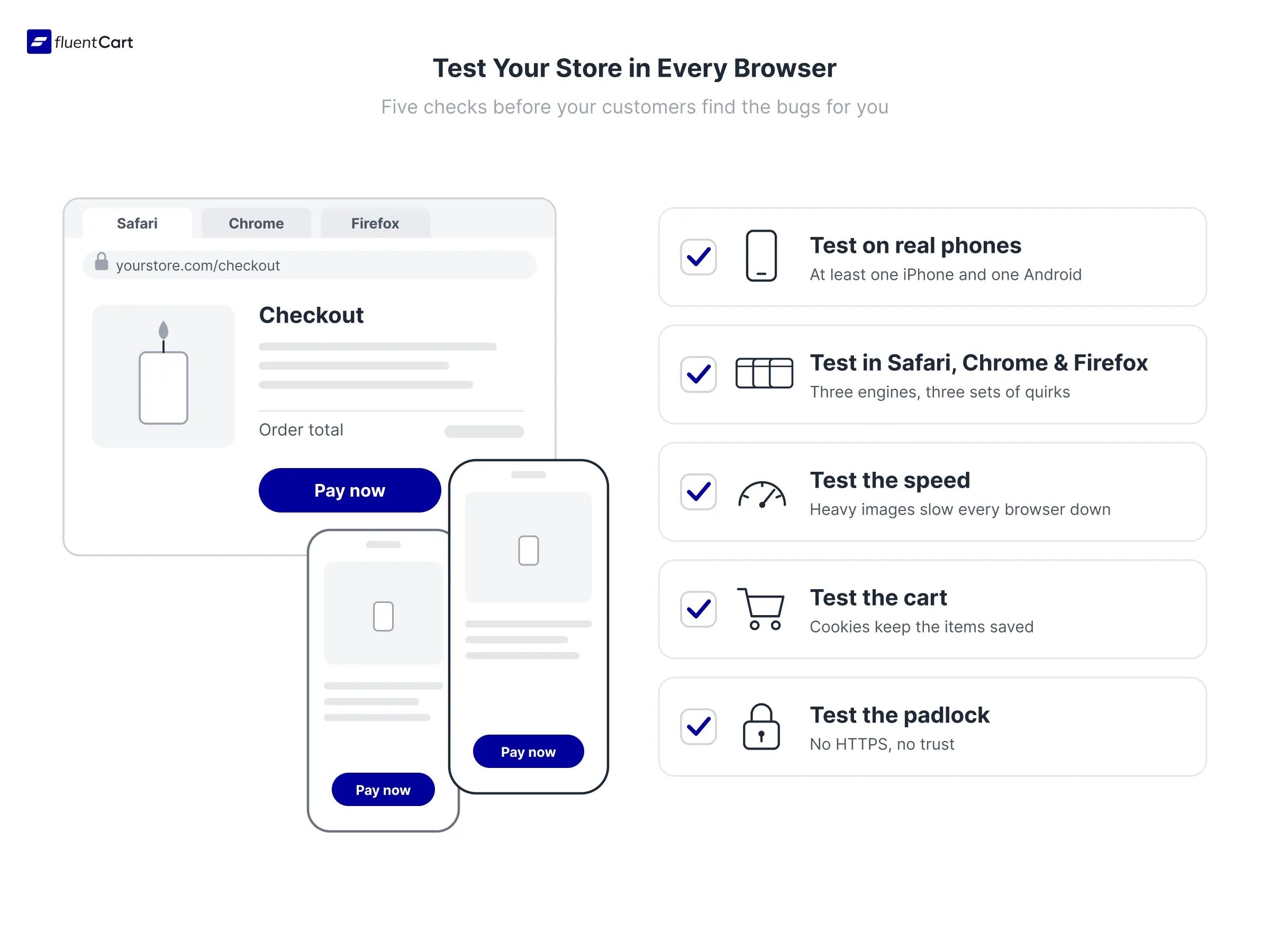
This is where things break. Most businesses don’t figure this out until a customer finally emails a screenshot, weeks later. So build a habit around it:
- Test on real phones: at least one iPhone and one Android
- Test in Safari, Chrome and Firefox: three engines, three sets of quirks
- Test the speed: heavy images and scripts slow every browser down, a big part of ecommerce website performance
- Test the cart: cookies keep items saved, and a cart that forgets is one of the common reasons shoppers abandon their carts
- Test the padlock: no HTTPS, no trust
If you’re running your store on WordPress, something like FluentCart handles the cart and the checkout flow for you. That way, your testing time goes into your own design and content.
So the browser is the last stretch of road between your product and a happy customer.
You can start your store now
Download FluentCart for free and setup your online store and start selling from today.
The Window You Never Notice
Those people in Times Square used browsers every day without knowing the word, and fewer than 8% could name what they were using. The web still worked for them, right up until something broke. That’s the gap a little knowledge closes.
So the next time someone asks “what is browser,” you have a one-line answer: it’s the app that fetches the web and paints it on your screen. And if you run a website, that app is where every first impression happens.
Understanding it is a must.
Real store owners. Real-life problems. Real answers. Join the FluentCart Community.

Hi, this is Abir, a Deputy Marketing Lead, passionate product designer, and WordPress core contributor. Creating interesting content and products that ensure a 360-degree customer experience is my daily job.

Subscribe now
Related Articles and Topics
-
Digital Goods VAT OSS Guidance: The EU Rules Explained
This digital goods VAT OSS guidance EU walkthrough covers thresholds, rates, and reverse charge in plain English.
-
eCommerce Data Ownership: Why Your Customer Records Decide Who Survives 2026
Your store does not own its customers. Right now, today, in June 2026. And the platforms hosting your…
-

Market Research Methods: Find What Your Market Actually Wants [Complete Guide]
Learn the core market research methods, from surveys to interviews, and how to pick the right mix of…




Add your first comment to this post