
What Is GUI? Graphical User Interface [Explained]
Think about the last time you clicked a button, tapped an icon, or dragged a file into a folder. None of that required you to type a single command. That effortless interaction is made possible by the GUI, and most people use one hundreds of times a day without ever thinking about it.
For developers and designers, understanding the GUI at a deeper level matters more than ever, because building software today means building interfaces that feel invisible.
In this blog, we will cover what a GUI is, how it works, what its core components are, how it compares to a command-line interface, where it is used, and what the best GUI frameworks for Python look like today.
TL;DR
- GUI stands for graphical user interface, a visual system for interacting with software using icons, windows, and menus instead of typed commands
- The first commercial GUI appeared in 1981, introduced by Xerox, then popularized by Apple and Microsoft
- Key GUI components follow the WIMP model: windows, icons, menus, and a pointer
- GUIs are faster to learn than CLIs but use more system resources
- Python developers commonly use Tkinter, PyQt6, or PySide6 to build GUI applications
- GUIs are found in operating systems, mobile apps, ATMs, car dashboards, and ecommerce storefronts
What Is a GUI?
A graphical user interface (GUI) is a type of user interface that lets people interact with computers and digital devices through visual elements rather than typed text commands. Instead of memorizing syntax and command strings, users click buttons, drag files, select menu options, and tap icons to get things done.
The term is pronounced either “GOO-ee” or as individual letters, “G-U-I.” Both are widely accepted.
A GUI sits between the user and the underlying software. It translates visual actions into machine instructions without requiring the user to know anything about how those instructions work. This is what makes computers accessible to people with no programming background at all.
The opposite of a GUI is a CLI, or command-line interface, where every action is performed by typing specific text commands. Before GUIs became standard, CLIs were the only way to operate a computer.
A Brief History of the GUI
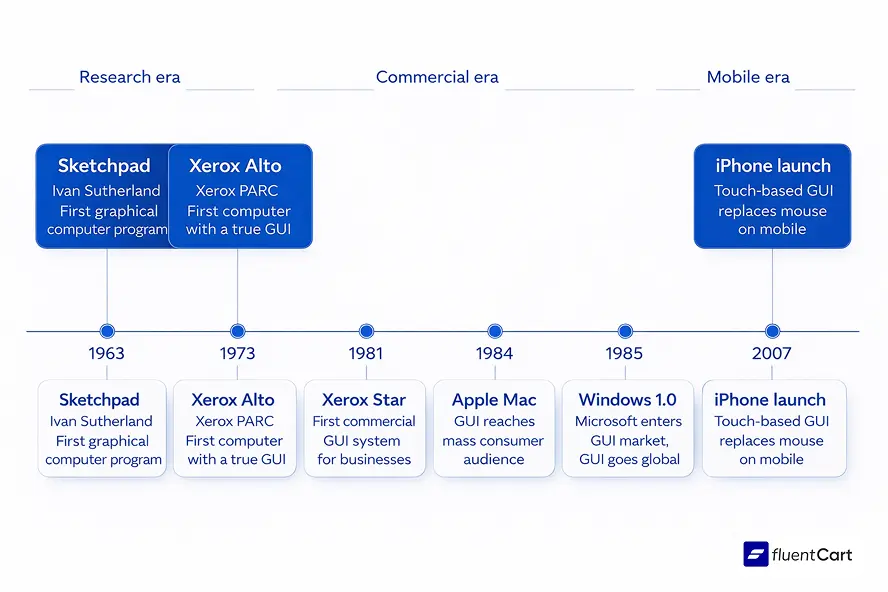
The GUI did not appear overnight. Its development took roughly two decades of research before it reached consumers.
In 1963, Ivan Sutherland developed Sketchpad at MIT, the first program to let users interact with a computer graphically using a light pen. Then in the late 1960s, Douglas Engelbart at Stanford Research Institute demonstrated the mouse and text-based hyperlinks in what became known as “The Mother of All Demos.” These were the foundational ideas that later researchers built upon.
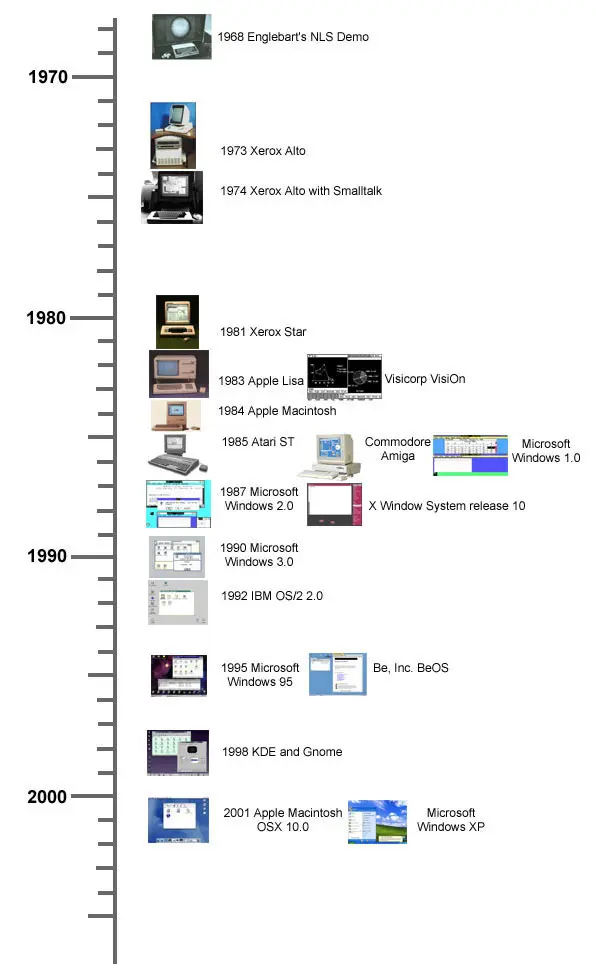
The real breakthrough came from Xerox PARC in the early 1970s. Researchers there developed the Xerox Alto in 1973, the first computer with a GUI as its primary interface. It introduced windows, icons, and the desktop metaphor that still defines most operating systems today. The Alto never reached commercial production, but its ideas were decisive.
In 1981, Xerox commercialized those ideas with the Xerox Star. Apple followed with the Lisa in 1983 and the Macintosh in 1984, which brought GUIs to a mass consumer audience. Microsoft released the first version of Windows in 1985, and from that point forward the GUI became the default way the world interacted with computers.
How Does a GUI Work?
A GUI is a layer of software that sits on top of the operating system or application. When a user performs an action, such as clicking a button or dragging a file, the GUI interprets that physical action and translates it into a command the underlying system can execute.
This works through a cycle of input, processing, and visual feedback:
- Input: The user interacts with a visual element using a mouse, touchscreen, keyboard shortcut, or trackpad
- Processing: The GUI interprets the action and passes the instruction to the application or OS
- Feedback: The screen updates visually to confirm the action was received, whether through a state change, animation, message, or new screen
This feedback loop is what makes GUIs feel intuitive. Users can see the result of their actions immediately, which removes the guesswork that makes command-line interfaces harder to learn.
Once In a Lifetime Offer
Main Components of a GUI
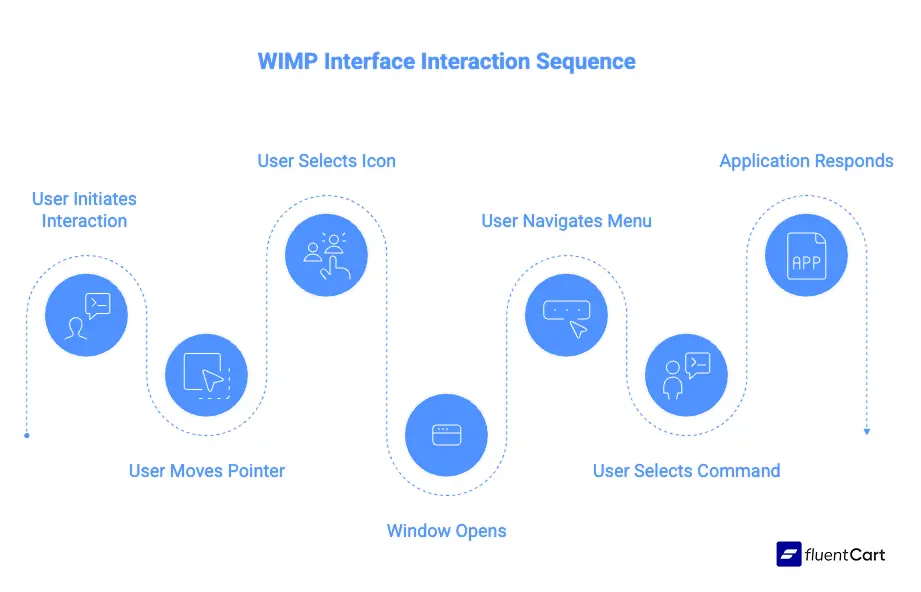
Most modern GUIs are built around the WIMP model, an acronym that stands for Windows, Icons, Menus, and Pointer. These four elements form the foundation of nearly every desktop interface in use today.
- Windows: Rectangular areas on screen that contain running applications or file views. They can be resized, minimized, moved, or closed independently
- Icons: Small visual symbols representing files, folders, applications, or commands. They communicate meaning at a glance without requiring text
- Menus: Lists of available commands, typically grouped by function and accessed from a toolbar, right-click, or dropdown
- Pointer: The on-screen cursor controlled by a mouse or trackpad, indicating where the next user action will occur
Beyond the WIMP core, modern GUIs also include:
- Buttons: Clickable elements that trigger specific actions
- Text fields: Areas where users type input
- Checkboxes and radio buttons: Elements for selecting options
- Scroll bars: Controls for navigating content that exceeds the visible area
- Dialog boxes: Small windows that request confirmation or additional information
- Progress bars: Visual indicators showing how far along a process is
- Toolbars: Strips containing frequently used commands for quick access
GUI vs. CLI: What Is the Difference?
The GUI and CLI represent two fundamentally different philosophies for how humans should interact with computers.
A CLI requires the user to type specific text commands to perform any action. There is no visual canvas, no dragging, no clicking. Everything is text in and text out. Tools like Linux Terminal, MS-DOS, and Bash are CLIs.
A GUI replaces that text layer with a visual one. Actions are performed by manipulating graphical objects rather than composing commands.
Here is how they compare directly:
| GUI | CLI | |
| Learning curve: | Low, visual metaphors are intuitive | High, commands must be memorized |
| Speed for experts: | Moderate, mouse-dependent | High, keyboard shortcuts scale well |
| System resources: | Higher memory and processing demand | Lightweight and fast |
| Error risk: | Low, constrained by visible options | Higher, typos cause failures |
| Automation: | Limited | Strong, scripts run complex tasks |
| Accessibility: | Broad, works for non-technical users | Narrow, requires technical knowledge |
Neither is universally better. Developers who spend most of their time in a terminal often work faster there. For everyone else, the GUI is the more practical tool.
Where Are GUIs Used?
GUIs are not limited to desktop computers. They are the standard interaction model across nearly every category of digital device:
- Operating systems: Windows, macOS, and Linux desktop environments are all GUI-based
- Mobile devices: iOS and Android are entirely GUI-driven, using touch as the input method instead of a mouse
- Web browsers: Every modern browser is a GUI application displaying visual interfaces for web content
- ATM machines: Banking terminals use specialized GUIs designed for minimal user friction under time pressure
- Automotive systems: Modern car dashboards and infotainment systems run embedded GUIs
- Point-of-sale systems: Retail and restaurant checkout screens use custom GUIs optimized for speed
- Medical devices: Diagnostic machines and hospital monitoring equipment use GUIs for data display and control
- Smart appliances: Refrigerators, washing machines, and ovens increasingly feature touchscreen GUIs
The GUI design software market itself reflects this scope. According to The Business Research Company, the global GUI design software market grew from $27.22 billion in 2024 to $30.64 billion in 2025, at a compound annual growth rate of 12.6%. The push for more intuitive digital experiences across every industry is the main driver.
Benefits of a GUI
GUIs became the dominant interface model for good reasons. The core advantages are:
- Low learning curve: Visual metaphors, like a trash bin for deleting files or a folder for organizing documents, feel natural immediately. No memorization is required.
- Accessibility: Anyone can use a GUI regardless of technical background. This widened the audience for personal computing from specialists to the general public.
- Immediate feedback: Visual state changes confirm actions in real time, reducing confusion and error.
- Multitasking: Multiple windows can be open and active simultaneously, something CLIs handle awkwardly.
- Discovery: Users can explore menus and options to find features they did not know existed. A CLI only rewards users who already know the right command.
Drawbacks of a GUI
GUIs have real limitations worth understanding:
- Resource-intensive: Rendering graphics, animations, and real-time updates demands more CPU, memory, and display processing than a text-based interface.
- Slower for experts in some tasks: A developer who knows their CLI commands can often complete repetitive tasks faster by keyboard than by navigating menus with a mouse.
- Harder to automate: GUIs are designed for human interaction. Scripting and automating GUI-based workflows is technically harder than scripting CLI commands.
- Longer to build: Designing and testing a GUI takes significantly more time and effort than building a CLI tool. The visual design, responsiveness, and usability all require separate investment.
What Is a GUI in Python?
Python has one of the richest ecosystems for GUI development among general-purpose programming languages. A Python GUI is simply a desktop application built using Python with a GUI framework or library handling the visual interface layer.
This is a common area of confusion for people new to Python. Python itself does not create visual interfaces. It needs a GUI library to generate windows, buttons, and other elements.
Best GUI Frameworks for Python
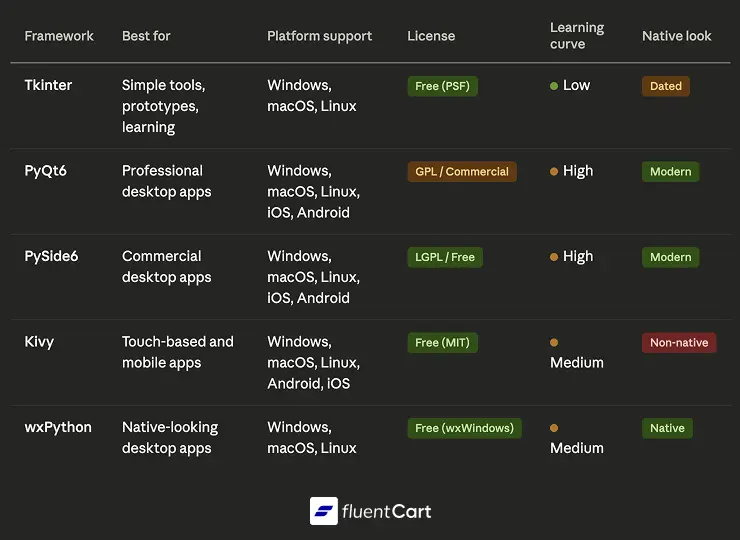
Choosing the right library depends on project scope, licensing, and the level of polish required:
- Tkinter: Bundled with Python, no installation needed. Best for simple tools, prototypes, and learning. Its limitation is a dated appearance on modern systems.
- PyQt6: Python bindings for the Qt framework. Comprehensive widget set, professional appearance, and cross-platform support. Requires a commercial license for proprietary applications.
- PySide6: The officially maintained Qt binding by the Qt Company. Functionally similar to PyQt6 but licensed under LGPL, so proprietary applications do not require a paid license. The preferred choice for commercial Python GUI work.
- Kivy: Built for touch-based and mobile-first interfaces. Runs on Android and iOS. Does not match native OS appearance, which matters in some contexts.
- wxPython: Binds to native OS widgets, so applications look and behave like native software on Windows, macOS, and Linux.
For beginners, Tkinter is the practical starting point. For professional desktop applications, PySide6 or PyQt6 is the better long-term investment.
What Is GUI in the Context of Ecommerce and Web Apps?
When people talk about GUI in web or ecommerce contexts, they typically mean the visual layer of a website or web application. Every button, form, navigation menu, and product card a shopper interacts with is part of that digital interface.
Good GUI design in this context directly affects how users find products, complete checkouts, and return for future purchases. The principles are the same as desktop GUI design: clarity, feedback, consistency, and low cognitive load. The connection between interface quality and conversion rate is well-documented in user experience research.
Wrapping Up
A GUI is the layer that makes digital technology usable for everyone. Without it, computers would still be tools for specialists. With it, billions of people interact with complex software every day without thinking about the code running underneath.
Whether you are a developer choosing a Python GUI framework, a designer building an interface, or simply someone curious about how the software you use every day actually works, understanding the GUI gives you a clearer picture of how digital products are shaped. The principles behind good GUI design, clarity, feedback, consistency, and accessibility, apply whether the interface lives on a desktop, a phone, or a web browser.
Once In a Lifetime Offer
Frequently Asked Questions
What does GUI stand for?
GUI stands for graphical user interface. It refers to any software interface that uses visual elements like icons, windows, and buttons to allow users to interact with a computer or application.
Is a website a GUI?
Yes. Every website or web application that uses visual elements for interaction is a form of GUI. The buttons, forms, navigation menus, and product pages you interact with online are all part of a graphical interface layer.
What is the difference between GUI and UI?
UI (user interface) is the broader category that includes all ways a user can interact with a system, such as voice commands, keyboard input, and physical controls. GUI is a specific type of UI that relies on visual, graphical elements displayed on a screen.
What is System UI on a Samsung phone?
System UI is the part of the Android operating system that manages on-screen elements not controlled by individual apps, such as the status bar, notification panel, navigation buttons, and lock screen. It is the OS-level GUI layer that persists across all apps.
What is the easiest GUI for Python?
Tkinter is the easiest GUI library for Python because it comes pre-installed with Python and requires no additional setup. It is ideal for beginners and simple projects, though it lacks the modern appearance of frameworks like PyQt6 or PySide6.

Deputy Marketing Lead, published literary author, and musician. I thrive on marketing for tech companies while composing music, collecting books of lasting depth, exploring cinema with a discerning eye, and studying the arts and history.

Subscribe now
Related Articles and Topics
-
FluentCart vs PrestaShop: Honest Comparison for Store Owners
FluentCart vs PrestaShop compared on features, pricing, and what comes built in. See which ecommerce platform fits your…
-
Credit Card Payment Plugins Compared: Which Should You Choose?
Compare 10 credit card payment plugins for 2026. See the hidden 1.9% to 3% fees on free plans,…
-

Membership Affiliate Programs: The Cost-effective, Integrated Setup
Run membership affiliate programs on WordPress with one integrated stack.




Add your first comment to this post