
WordPress Coupons: How to Create and Manage Discounts

A discount code is the fastest way to give away margin you did not need to give away. It is also the fastest way to close a sale that was never going to happen at full price. The difference between those two outcomes is not the size of the discount. It is the rules you attach to it.
Most WordPress store owners find that out the hard way. They add a coupon feature, publish a code, and then watch it get shared on a deal forum, stacked with a second offer, and used forty times by the same buyer. This guide covers why a built-in coupons system is better than standalone WordPress coupons plugin, how to build a coupon correctly, and how to set the restrictions that protect your revenue.
Every step below comes straight from the FluentCart documentation, so you can follow along in your own dashboard. If you have ever wondered why so many public codes fail, our breakdown of why most coupon codes stop working explains the customer side of the same problem.
TL;DR
Why Coupons Still Move Revenue
Coupons work because they change the moment of decision, not the price. A shopper who is 80% convinced needs one small reason to stop comparing tabs and pay. A code does that job cheaply, and it does it without permanently repricing your catalog.
There are three jobs a discount does well. It pulls a hesitant buyer over the line. It gives you a trackable reason for a spike in orders. And it gives partners, newsletters, and affiliates something concrete to hand their audience.
What a Discount code does to buyer behavior
Price cuts and coupon codes feel different to customers, even when the final number is identical. A permanent price cut resets expectations, and buyers who paid full price last month notice. A coupon reads as a favor with a deadline, which is why it converts without damaging your list price.
That deadline matters more than the number. Codes with an end date carry urgency. Codes that sit live forever become part of the price, and shoppers learn to search for them before they ever reach your checkout.
The margin math to run before you discount
Run the numbers before you pick a percentage. A 20% discount on a product with a 30% margin does not cost you 20% of revenue, it costs you two-thirds of your profit on that order. Our guide to product pricing strategy covers how to set a list price that can absorb a promotion.
Getting margin and markup confused is where most discount plans fall apart. If those two terms blur together for you, the difference between margin and markup is worth ten minutes before you publish a single code.
Two guardrails keep a percentage coupon from doing damage:
What to look for in a WordPress coupons plugin
A WordPress coupons plugin should let you control who can use a code, on what, for how long, and how many times, without writing a line of code. Anything less and you are relying on your customers to behave. The features below are the ones that decide whether a discount stays profitable.
Built in vs. Bolted on
WordPress has no native coupon system. Discounts arrive with your commerce plugin, which means the coupon experience you get depends entirely on the platform you picked. Some plugins ship a thin coupon feature and sell the useful parts, like scheduling, usage caps, and category rules, as paid add-ons.
That model has a cost you feel later. Every add-on is another update to track, another compatibility risk at checkout, and another renewal on the invoice. A commerce plugin with real coupon rules built into the core avoids all three.
The rules that decide whether a coupon is safe
Before you commit to any coupon tool, check that it can do all of this from one screen:
Miss any one of those and you have a gap someone will find. Per-user limits and stacking control are the two that get exploited fastest.
How to Create a Coupon in FluentCart: Step by Step
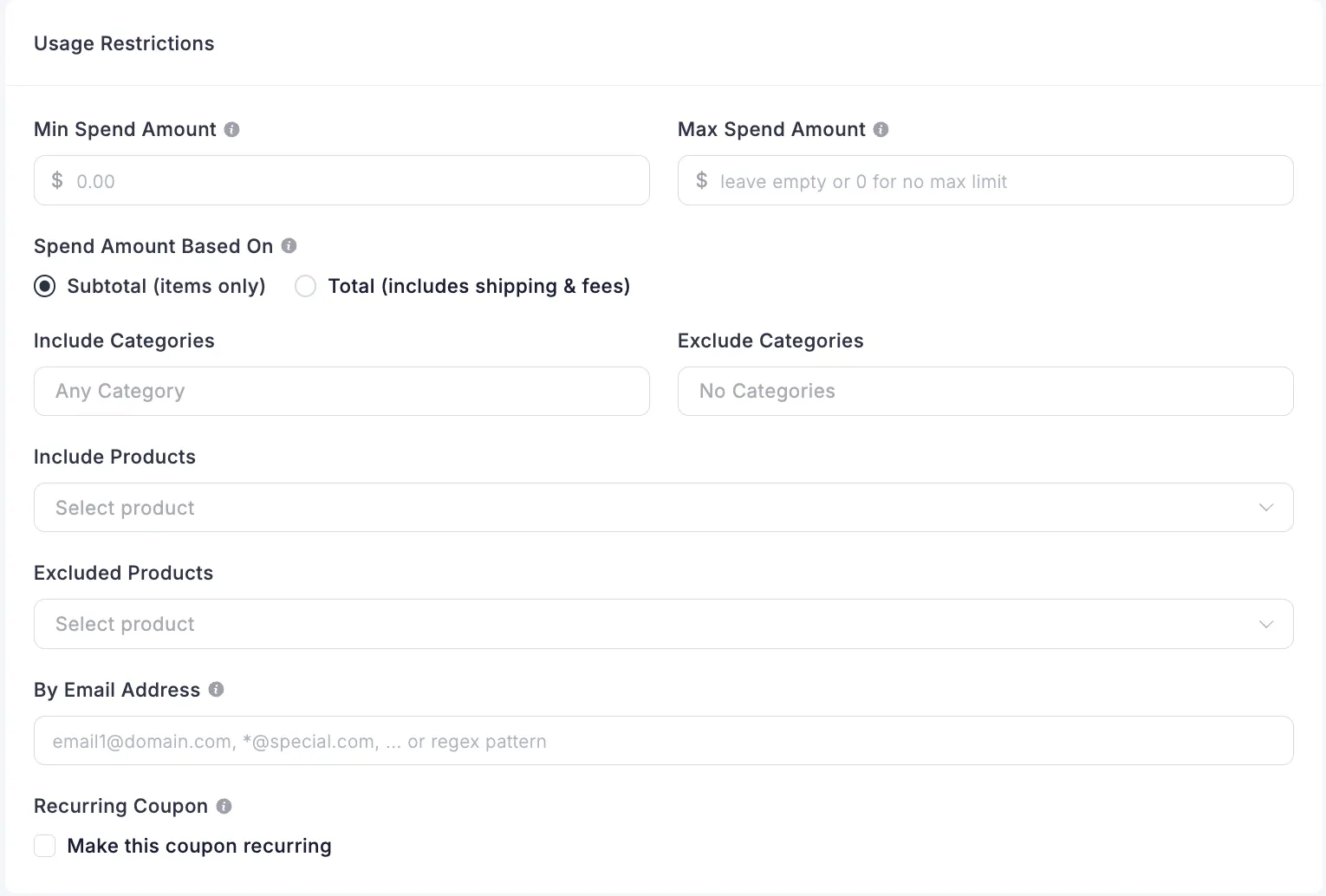
FluentCart builds coupons into the free core, so a fresh install can run discounts on day one. The steps below follow the official documentation field by field. From your WordPress dashboard, go to FluentCart → Coupons in the left sidebar, then click the Add Coupon button in the top-right corner. That opens the Coupons → Add Coupon screen.
Step 1: Fill in the basic information
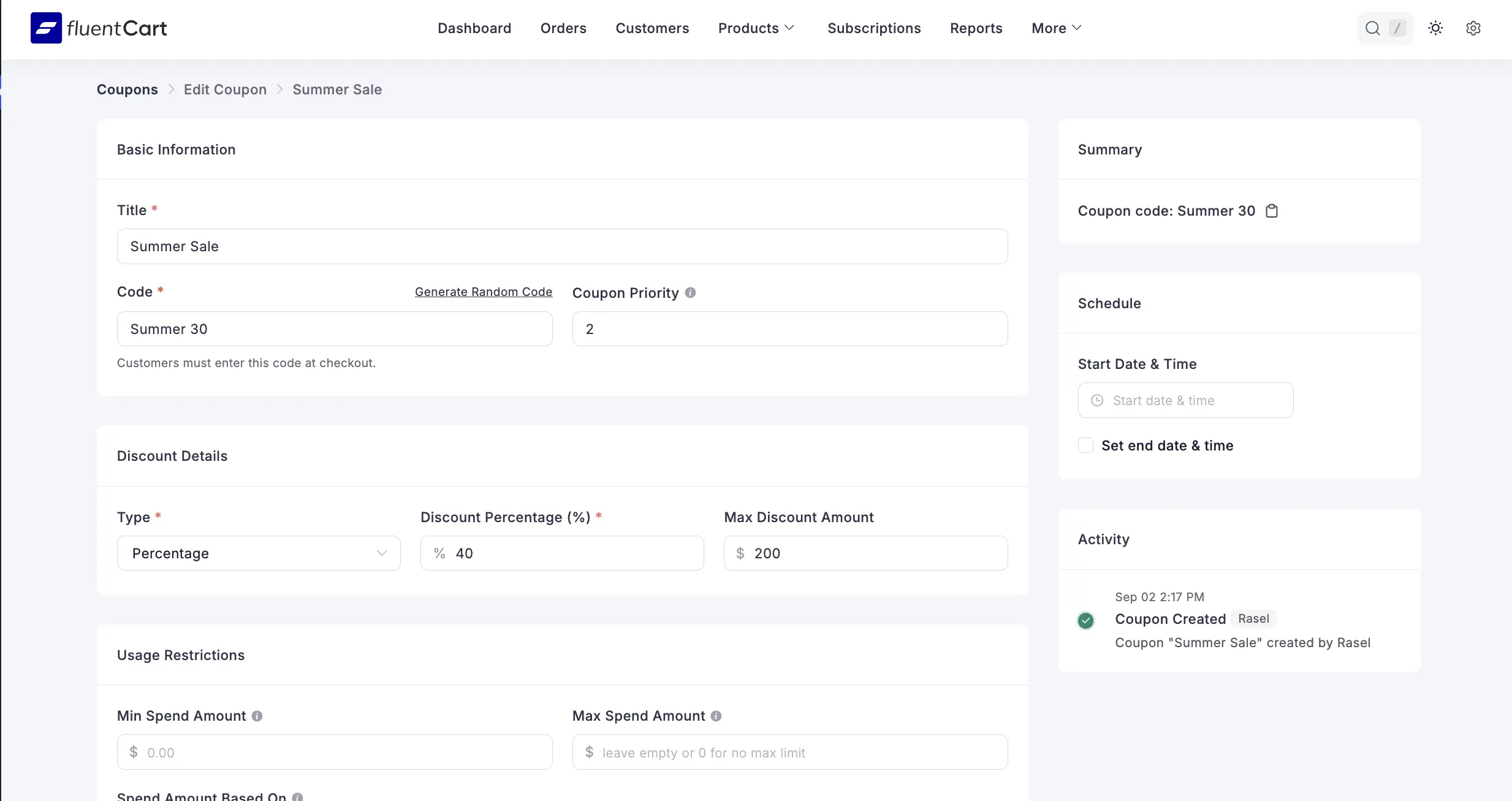
Three fields sit at the top of the screen:
Keep codes short and readable. SPRING20 gets typed correctly on a phone. SPR-20-2026-NEW does not.
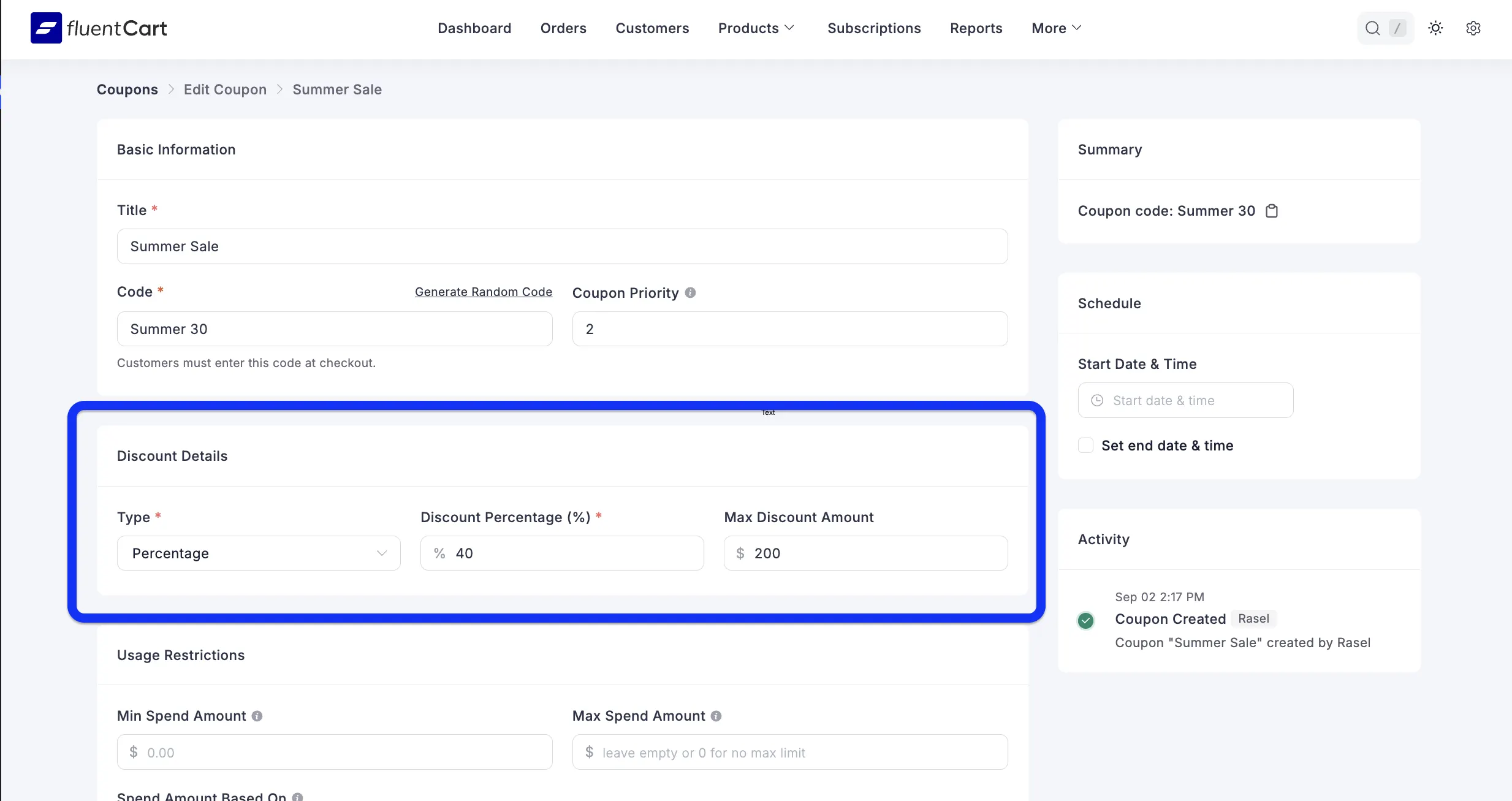
Step 2: Set the discount value
Pick what kind of discount you are offering.
Max Discount Amount earns its place on percentage codes. A 25% code with a $50 cap behaves sensibly whether the cart holds one item or twelve.
Step 3: Schedule the coupon
The Schedule box sits on the right side of the screen. This is where you make a coupon work only for a set window.
Always set an end date on a promotional code. A code with no expiry eventually shows up on a coupon aggregator, and by then it is part of your pricing.
Step 4: Add usage restrictions
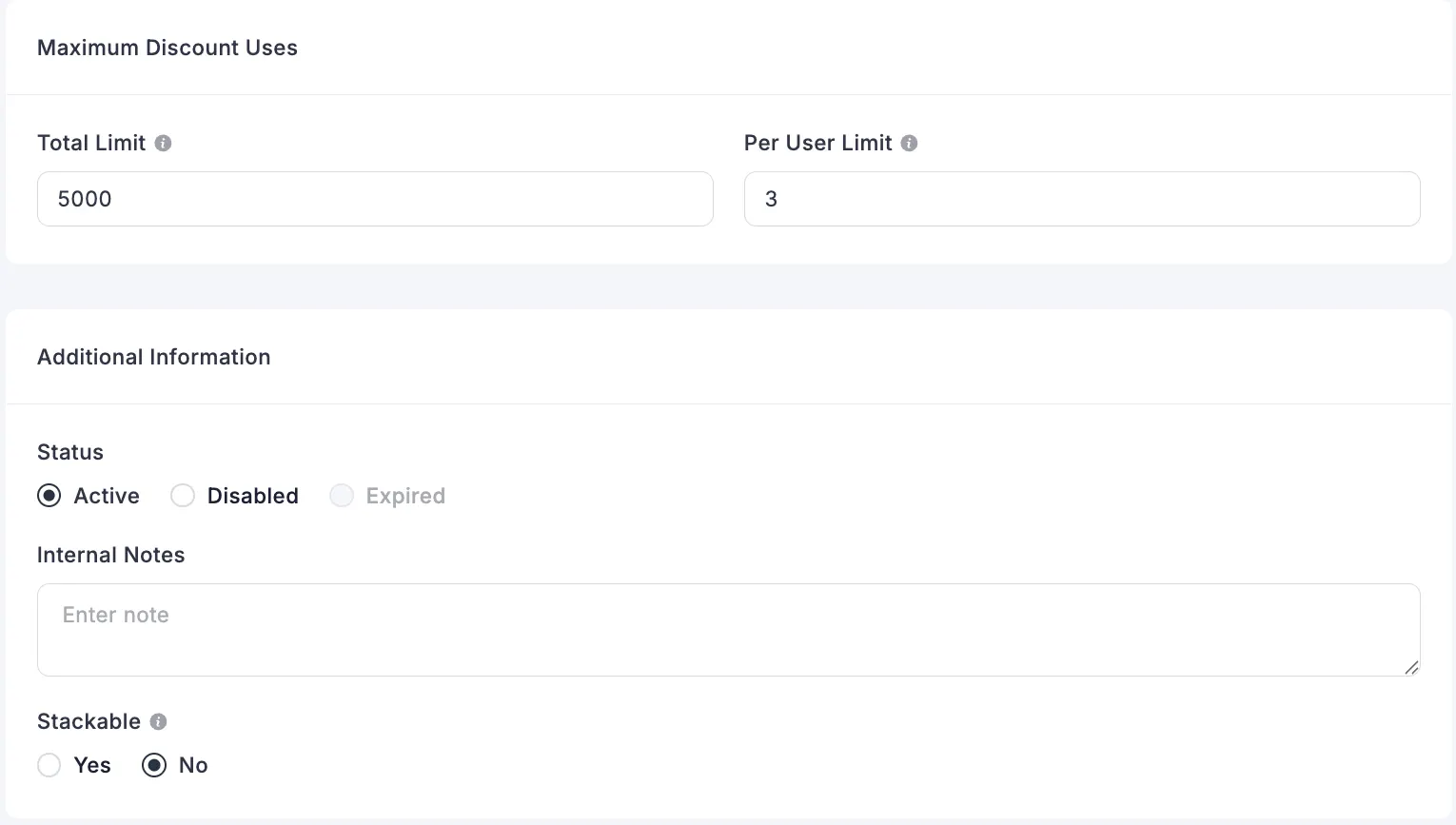
Usage restrictions are the rules for how and when a discount can be used. They protect your margin while still letting the right people get a real deal.
Spending limits
Picking specific items
Both published and private products appear in the Include/Exclude Products dropdown. Private products are hidden from your storefront but still purchasable by link, which makes them useful for VIP pricing, beta-tester rates, and invitation-only promotions.
Restricting by user
Step 5: Turn on recurring discounts for subscriptions
FluentCart supports 100% recurring discounts for subscriptions. A coupon can apply to the first payment and to every renewal for as long as the subscription stays active.
Enable Make this coupon recurring and the discount applies on each billing cycle with no manual work, from signup through every renewal. Four situations call for it:
Anyone selling licensed software will recognize the second and third cases immediately. If that is your model, our guide on selling a WordPress plugin commercially covers how recurring pricing and licensing fit together.
Step 6: Cap the number of uses
Two fields under Maximum Discount Uses control volume.
Set the Per User Limit to 1 on any welcome or first-order code. Without it, a single buyer can run the same discount on every order they place.
Step 7: Set status, notes, and stacking
The Additional Information panel holds three settings.
Status has three values:
Internal Notes is optional and private. Use it to record why the coupon exists, like “for newsletter subscribers only.”
Stackable decides whether the code can be combined. Select Yes and customers can use this coupon alongside other coupons in the same purchase. Select No and it works only on its own.
Leave Stackable set to No unless you have deliberately planned the combination. Stacking is where two reasonable discounts turn into one unreasonable one.
Step 8: Save the coupon
Once every setting is configured, click Save at the top of the page. If you are editing an existing coupon, the button reads Update.
Test the code yourself before you announce it. Add the product to a cart, apply the code, and confirm the total matches what you intended.
How to Edit, Disable, or Delete a Coupon
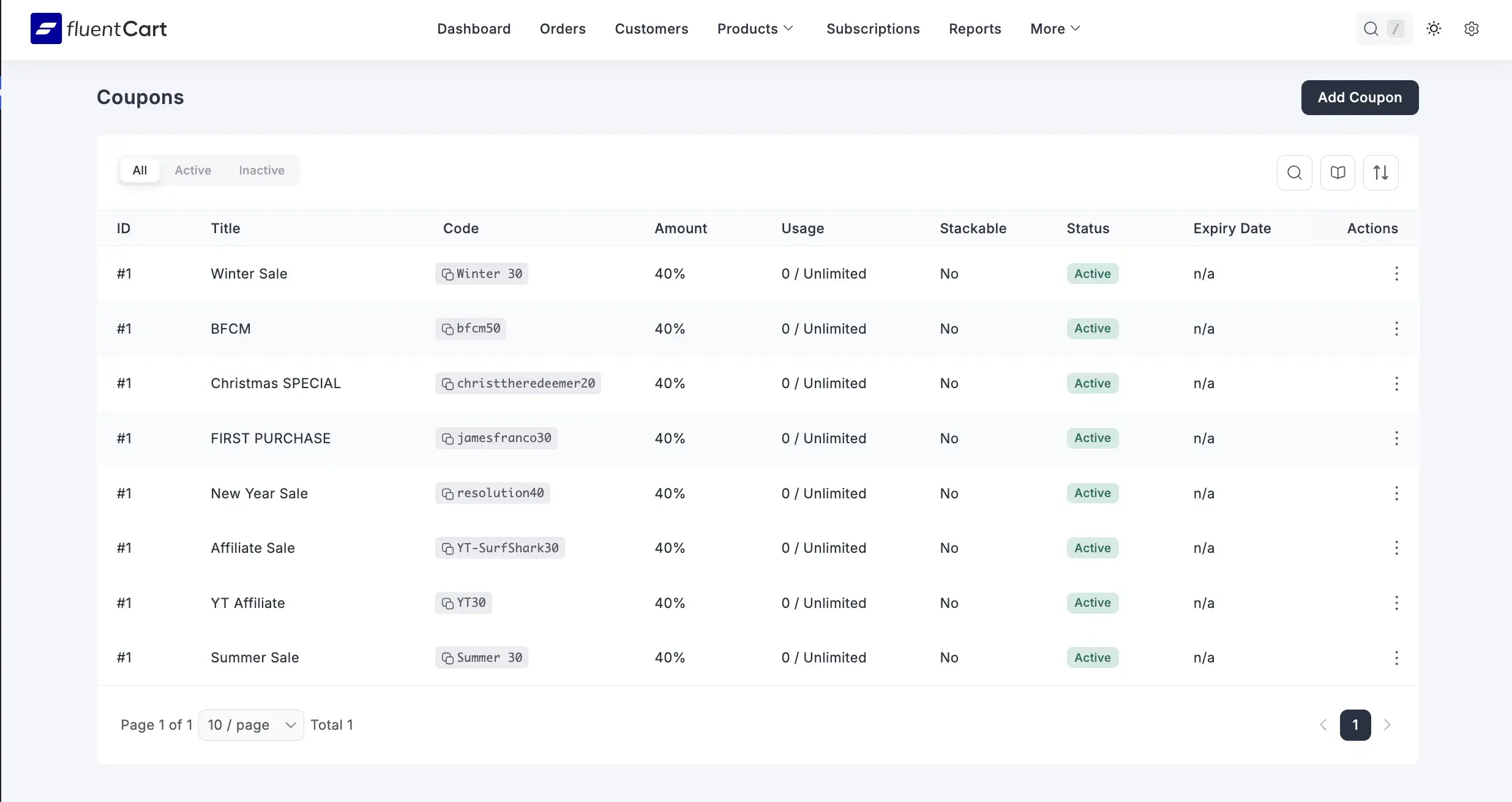
Find the coupon in your coupons list. On the far right of that row, under the Actions column, click the three-dot icon. Two options appear:
The coupons list itself is built for scanning. Each row shows the ID, Title, Code, Amount, Usage against its total limit, whether it is Stackable, Status, and Expiry Date. Filter tabs across the top let you switch between All, Active, and Inactive coupons.
Prefer Disabled over Delete on a code that has already been used. Deleting removes the record; disabling keeps your reporting history intact so you can still see what the campaign did.
How to Apply Coupons Through a URL
URL coupons are the most underused feature in WordPress discounting. Instead of asking a customer to remember a code, you add the discount to the link. The customer clicks, the coupon applies to their cart automatically, and they land on the checkout page ready to pay.
For email campaigns, affiliate partnerships, and paid social, that removes an entire step where people drop off. It also removes the “the code did not work” support ticket, which is the quiet cost of every promotion.
Single coupon links
Add the coupons parameter with the coupon code as its value:
https://yourdomain.com/?fluent-cart=instant_checkout&item_id=209&quantity=1&coupons=SUMMER20Multiple coupon links
To apply more than one coupon, pass the codes as comma-separated values:
https://yourdomain.com/?fluent-cart=instant_checkout&item_id=209&quantity=1&coupons=CODE1,CODE2URL parameters explained
| Parameter | Description |
|---|---|
| fluent-cart | Must be set to instant_checkout |
| item_id | The product variation ID |
| quantity | Number of items (default: 1) |
| coupons | One or more coupon codes, separated by commas |
URL coupons are not supported in the modal (popup) checkout, so plan your campaign links against the standard checkout page.
What happens when a URL coupon is rejected
A coupon in a link fails the same checks as one typed by hand. It might have expired, hit its usage limit, or not apply to the items in the cart.
When that happens, the customer still lands on checkout and sees a notice explaining why the coupon did not apply. The order total stays correct, and they can complete the purchase or enter a different code. That notice is also your diagnostic: when someone reports that a promotional link “isn’t working,” the checkout page tells you exactly which check failed.
Six Coupon Campaigns Worth Running
The settings above become useful once you attach them to a real campaign. Each of these six coupon campaigns pairs an offer with the restrictions that keep it safe.
Welcome discount for new subscribers
Offer 10% off a first order in exchange for an email address. Set the Per User Limit to 1 and add a minimum spend so the discount does not fire on your cheapest item. This is the single highest-return coupon most stores run.
Cart recovery offer
Send a small fixed-amount code to shoppers who left items behind. Fixed amounts work better than percentages here because the value is concrete: “$10 off” beats “8% off” in an email subject line. Pair it with a 72-hour expiry and the tactics in our guide to recovering abandoned carts.
VIP pricing on private products
Create a private product for a special rate, then build a coupon that includes it. Private products stay off your storefront but appear in the Include/Exclude Products dropdown, so early-access buyers and beta testers get a working code on a product nobody else can browse to.
Free team or sponsor access
Build a 100% recurring coupon and restrict it by email address. Your staff, your testers, or a sponsored customer pay nothing on signup and nothing on renewal, and your subscription reporting stays accurate instead of being patched by hand.
Affiliate and influencer links
Give each partner a unique code and a URL coupon link. The link applies the discount and drops the customer at checkout, which raises conversion on traffic you are already paying for. Track redemptions per code to see which partner converts.
Seasonal sale with a hard deadline
Set the Start Date and the end date and time before you write a word of the announcement email. A seasonal code that expires on schedule protects your list price. One that lingers becomes your new list price.
Discounts also sit next to other revenue tactics. Coupons pull people over the line, while upselling techniques raise the value of the order once they are there. Running both is how a promotion stays profitable.
Built-in Coupons vs. Standalone Coupon Plugin
Search for a WordPress coupons plugin and most results are add-ons that patch a discount system that shipped incomplete. That is worth understanding before you install anything.
| Parameter | Commerce plugin with built-in coupons | Commerce plugin plus a coupon add-on | Standalone coupon plugin |
|---|---|---|---|
| Setup | One install, one settings screen | Two plugins to install and keep compatible | Depends on a host commerce plugin |
| Cost | Included | Add-on license, renewed yearly | Separate license, renewed yearly |
| Advanced rules | In the core | Behind the paid tier | Behind the paid tier |
| Checkout risk | One codebase | Two codebases at the checkout step | Two codebases at the checkout step |
| Reporting | Coupon usage in store reports | Often split across two dashboards | Usually separate |
FluentCart puts the full coupon module in the free core: both discount types, scheduling, spend limits, product and category rules, email restrictions, per-user caps, stacking control, and URL coupons. There is no coupon tier to upgrade to and no add-on to buy for the rules described in this guide.
Legacy WordPress commerce plugins tend to work the other way around. The base plugin handles simple codes, and the rules that keep a discount safe live in a paid extension. That is a workable setup, but it is two products to maintain where one would do.
Once codes are live, watch what they do to your numbers. Redemption rate, average order value on discounted orders, and repeat purchase rate from coupon buyers tell you whether a campaign paid for itself. Our rundown of the ecommerce metrics that matter covers how to read them together.
Discount Mistakes That Cost Real Money
Most coupon damage traces back to a handful of settings nobody filled in. A WordPress coupons plugin follows the rules you give it, including the ones you leave blank.
Every one of these has a field on the Add Coupon screen. Filling them in takes about thirty seconds.
Start Discounting on Purpose
You now know the two coupon types, every restriction field on the Add Coupon screen, how URL coupons shorten the path to checkout, and which six settings stand between a smart promotion and an expensive one. That is the whole system, and none of it sits behind a paywall.
Pick one campaign from the list above, build it this week, and set the per-user limit and the end date before you publish it. A single well-restricted welcome code will teach you more about your buyers than a month of guessing.
Ready to run discounts without stitching plugins together? See how FluentCart handles the full store, or read the coupon documentation for the field-level reference. FluentCart is free on the WordPress plugin repository, coupons included.
Frequently asked questions
Does WordPress have a built-in coupon feature?
No. WordPress core has no discount or coupon system. Coupons come from whichever commerce plugin runs your store, so the depth of your coupon rules depends entirely on that plugin.
Do I need a separate coupon plugin for WordPress?
Not if your commerce plugin includes real coupon rules. FluentCart ships fixed and percentage coupons, scheduling, spend limits, product and category restrictions, email restrictions, usage caps, and stacking control in the free core, so a separate coupon plugin adds maintenance without adding capability.
Can I apply a WordPress coupon through a link?
Yes. Add the coupons parameter to an instant checkout URL and the discount applies automatically when the customer clicks. Multiple codes can be passed as comma-separated values. URL coupons do not work with the modal checkout.
Can a coupon apply to every subscription renewal?
Yes. Enable Make this coupon recurring and the discount applies on each billing cycle, not only the first payment. A 100% recurring coupon is how you give staff, testers, or sponsored customers ongoing free access without editing anything manually.
Can customers use two coupons on one order?
Only if you allow it. The Stackable setting controls this per coupon. Set it to Yes to permit combining, or No to make the code work alone.

Rasel leads the marketing function at FluentCart, driving both high-level strategy and ground-level execution across the product’s growth engine. He plays a central role in defining how FluentCart is positioned, how it enters the market, and how it evolves based on user behavior and feedback. His responsibilities span go-to-market planning, funnel architecture, conversion strategy, and narrative development. He works across teams to ensure that product decisions, marketing efforts, and customer experience stay tightly aligned.

Subscribe now
Related Articles and Topics
-
Tools to Make Your Black Friday Sale a Success: The Complete 2026 Guide for FluentCart Stores
The best Black Friday tools for FluentCart stores cover offers, checkout, cart recovery, and reporting. Get the setup…
-

Bundle Marketing: An eCommerce Guide for Store Owners
Bundle marketing guide: types, pricing math, examples, and a FluentCart setup.
-
Membership Affiliate Programs: The Cost-effective, Integrated Setup
Run membership affiliate programs on WordPress with one integrated stack.




Add your first comment to this post